
In an age where privacy concerns are at the forefront of social media use, managing your connections on Facebook has never been more important. Did you know that Facebook allows you to hide mutual friends from different audiences? This feature not only enhances your privacy but also helps you control who sees your connections, enabling you to navigate social circles more comfortably. Whether you’re managing a budding relationship, a sensitive work environment, or simply value your privacy, knowing how to effectively hide mutual friends is essential. By mastering this aspect of Facebook’s privacy settings, you’ll feel empowered to protect your personal interactions while still enjoying the platform’s social benefits. Keep reading to discover step-by-step instructions on how to manage your mutual friend visibility and safeguard your connections on Facebook.
Understanding Facebook’s Mutual Friends Feature

Understanding the dynamics of mutual friends on Facebook can significantly impact your online interactions and privacy. When you connect with someone on the platform, their mutual friends-a list of friends you have in common-promptly appear in your friend recommendations. This feature not only helps users connect more easily with others in their social circles but can also unveil connections you prefer to keep private.
One key aspect to note is how the visibility of mutual friends can affect your network. For example, if you have a friend who is particularly social and connected, their list of mutual friends can become a useful tool for expanding your interactions. Conversely, this can raise privacy concerns if you’re wary of who has access to your personal connections. Understanding this feature allows you to navigate these dynamics more effectively, whether you aim to build your network or safeguard your friendships from unwarranted scrutiny.
Impact on Connections
The presence of mutual friends can often facilitate trust and encourage connections, as people tend to feel more comfortable reaching out to others they have in common. However, this very aspect can sometimes work against you, leading to unsolicited friend requests from acquaintances. A practical approach to mitigate potential issues is by managing the visibility of your mutual friends. Taking control of who can see your mutual connections empowers you, allowing you to curate your online experience according to your comfort level.
Empowering Your Privacy
To uphold your privacy while still engaging with the numerous features Facebook has to offer, it’s crucial to understand your settings. Adjusting the visibility of your mutual friends can protect your friend connections from curious eyes and limit access to your social circle. By doing so, you create a more secure environment; this becomes especially important when adding new friends or when your connections might inadvertently bring about exposure you’d rather avoid. Ultimately, becoming proactive about your privacy settings gives you the assurance that your social networking experience aligns with your personal comfort and security needs.
The Importance of Privacy on Social Media
In today’s interconnected world, social media platforms like Facebook serve as both a bridge to friends and family and a potential minefield for privacy concerns. Users are often unaware of how much personal information might be visible to others and how their online presence can impact their safety and relationships. Recognizing the importance of privacy is paramount to navigating these platforms effectively, especially when it comes to features like mutual friends, which can inadvertently expose your social connections to a wider audience.
When you engage with others on Facebook, your list of mutual friends can be a double-edged sword. On one hand, it can foster trust and help you connect with people more comfortably. On the other hand, if you’re not vigilant about your privacy settings, this feature can expose your social circle to unwanted scrutiny. For instance, imagine connecting with a new acquaintance who sends you a friend request. Their ability to see your mutual friends could lead to unsolicited attention or inquiries about your social relationships, potentially complicating your interactions.
To effectively manage your privacy, it’s essential to be proactive in adjusting your settings. One approachable step is to limit who can see your friend list, including your mutual friends. By doing this, you can cultivate a more controlled online presence, where your social interactions are less likely to be influenced by outside perceptions. Ensuring that only trusted friends or certain user groups can view this information allows you to protect your connections and maintain the integrity of your network.
Finally, consider adopting a holistic approach to social media privacy. Always be conscious of what you share publicly, including posts and photos that may reveal social gatherings or associations. Regularly reviewing and updating your privacy settings, coupled with mindful social sharing, empowers you to take charge of your online narrative. By prioritizing your privacy, you can enjoy the benefits of social connectivity without sacrificing your comfort and security.
Step-by-Step Guide to Hiding Mutual Friends

Navigating Facebook’s privacy features can sometimes feel overwhelming, but taking control of your account doesn’t have to be a daunting task. If you’re looking to hide your mutual friends from others on the platform, following a few straightforward steps can help you create a more private social experience. This can be particularly beneficial if you’re concerned about how your connections may be perceived or utilized by new acquaintances.
To begin the process of hiding your mutual friends, first, log into your Facebook account and navigate to your profile page. Once there, follow this guide to adjust your settings:
Access the Settings Menu
1. Click on the small down arrow located at the top right corner of your Facebook home page.
2. Select “Settings & Privacy,” then click on “Settings.”
Adjust Your Privacy Settings
1. In the left-hand column, find and click on “Privacy.”
2. You’ll see a list of options regarding your privacy preferences. Look for the section labeled “How People Find and Contact You.”
Limit Friend List Visibility
1. Here, locate the option that says “Who can see your friend list?”
2. Click on the dropdown menu next to it. You’ll see several options: Public, Friends, Specific Friends, Only Me, and more.
3. Select “Only Me.” This ensures that no one-except you-can see your friend list or, consequently, your mutual friends with others.
Web Visibility of Mutual Friends
1. Next, scroll down to the section titled “Who can look you up using the email address you provided?” For enhanced privacy, it’s advisable to set this to “Friends” or “Friends of Friends.”
2. Repeat this for the option, “Who can look you up using the phone number you provided?” By limiting visibility here as well, you further reduce the likelihood of unknown users seeing your profile, including any mutual friends.
By setting your friend list visibility to “Only Me,” you not only hide your mutual friends but also ensure that your social circle remains more personal and discreet. Remember that while this action protects your current mutual friends, it’s always wise to regularly revisit and adjust your settings, especially as Facebook updates its features.
Additionally, it’s crucial to foster overall awareness about what you’re sharing publicly. For instance, if you post something tagging friends, those tagged might unintentionally expose your connections. Always consider the context of your posts and who can see them to keep your network as private as you’d like.
Adjusting Privacy Settings for Mutual Friends

Many users are unaware of the subtle nuances of privacy on Facebook, particularly concerning their mutual friends. If you’ve ever felt uneasy about who can see your connections on the platform, you’re not alone. Given the interconnected nature of social media, ensuring that your personal network remains confidential can empower you in how you engage online. By adjusting your privacy settings, you can shield your mutual friends from view, allowing you to enjoy the platform with added peace of mind.
One of the first steps in fine-tuning your Facebook privacy involves accessing your profile’s privacy settings. Start by heading to your profile page and locating the privacy settings under the main menu. Typically, these settings are intuitively placed but can be buried within layers of the interface. Once you’re in the settings menu, look for Privacy in the sidebar. Here, you can configure who sees your friend list and, consequently, your mutual friends.
Limiting Visibility of Your Friends List
To keep your friends less visible:
- Find the section titled “Who can see your friend list?”.
- Choose the dropdown menu; selecting “Only Me” ensures that nobody can browse your connections, safeguarding your network from prying eyes.
Implementing this setting is a straightforward yet crucial step in managing your social media privacy. However, remember that even with your friends list hidden, other users may still be able to see interactions within mutual groups or events where friends are tagged.
Controlling Search Discoverability
To further enhance your privacy, consider adjusting how others can discover you:
- Under the privacy settings, look for “Who can look you up using the email address you provided?” and set it to “Friends”.
- Repeat this for the option “Who can look you up using the phone number you provided?”. Again, setting it to “Friends” minimizes your visibility.
These settings not only keep your mutual friends discreet but also reduce the likelihood of unexpected friend requests from unfamiliar individuals who might be searching for you online.
Additionally, maintaining awareness of what you share publicly is equally vital. Even with the right settings, tagged posts can expose your connections. Regularly review your posting habits and audience settings to ensure that your digital footprint aligns with your privacy preferences. This proactive approach enables you to navigate your social network confidently, knowing that your friends and personal information are protected.
How to Customize Your Friends List Visibility

Customizing your friends list visibility on Facebook is a powerful way to enhance your privacy and manage your social connections. Understanding how to tailor who can see your friends can greatly impact your online experience, particularly in safeguarding your network from unwanted scrutiny.
Begin by accessing your profile settings to customize the visibility of your friends list. Navigate to your Facebook profile and click on the down-pointing arrow in the top right corner of the homepage. From the dropdown menu, select Settings & Privacy, then click on Settings. Next, look for the Privacy option in the left sidebar. Here, you’ll find a section titled “Who can see your friends list?”
To keep your friendships private, click on the dropdown menu and select “Only Me”. This setting ensures that no one can view your connections, effectively shielding your mutual friends from prying eyes. However, it’s important to note that even with this visibility setting, interactions in mutual groups or events where friends are tagged may still be visible to others. Therefore, consider reviewing your privacy settings for groups and events as well to ensure comprehensive privacy coverage.
Additional Measures for Enhanced Privacy
Beyond the friends list visibility, you can further obscure your connections by controlling who can find you on Facebook. In the same privacy settings section, locate options like “Who can look you up using the email address you provided?” and “Who can look you up using the phone number you provided?”. For both settings, opt for “Friends” to reduce the likelihood of undisirable friend requests from acquaintances or strangers searching for you.
It’s also wise to maintain conscious awareness of your public postings. Regularly check the audience settings for your posts-this way, you can ensure that only intended individuals see your content and tagged friends. You could even utilize Facebook’s audience selector tool when posting to manage who sees your updates, further solidifying your privacy.
By navigating the nuances of Facebook’s privacy features and customizing your friends list visibility, you empower yourself to curate a more secure and enjoyable social experience. Remember, taking these small but impactful steps can make a significant difference in how you connect and engage with others on the platform.
Exploring Facebook’s Privacy Shortcuts Menu
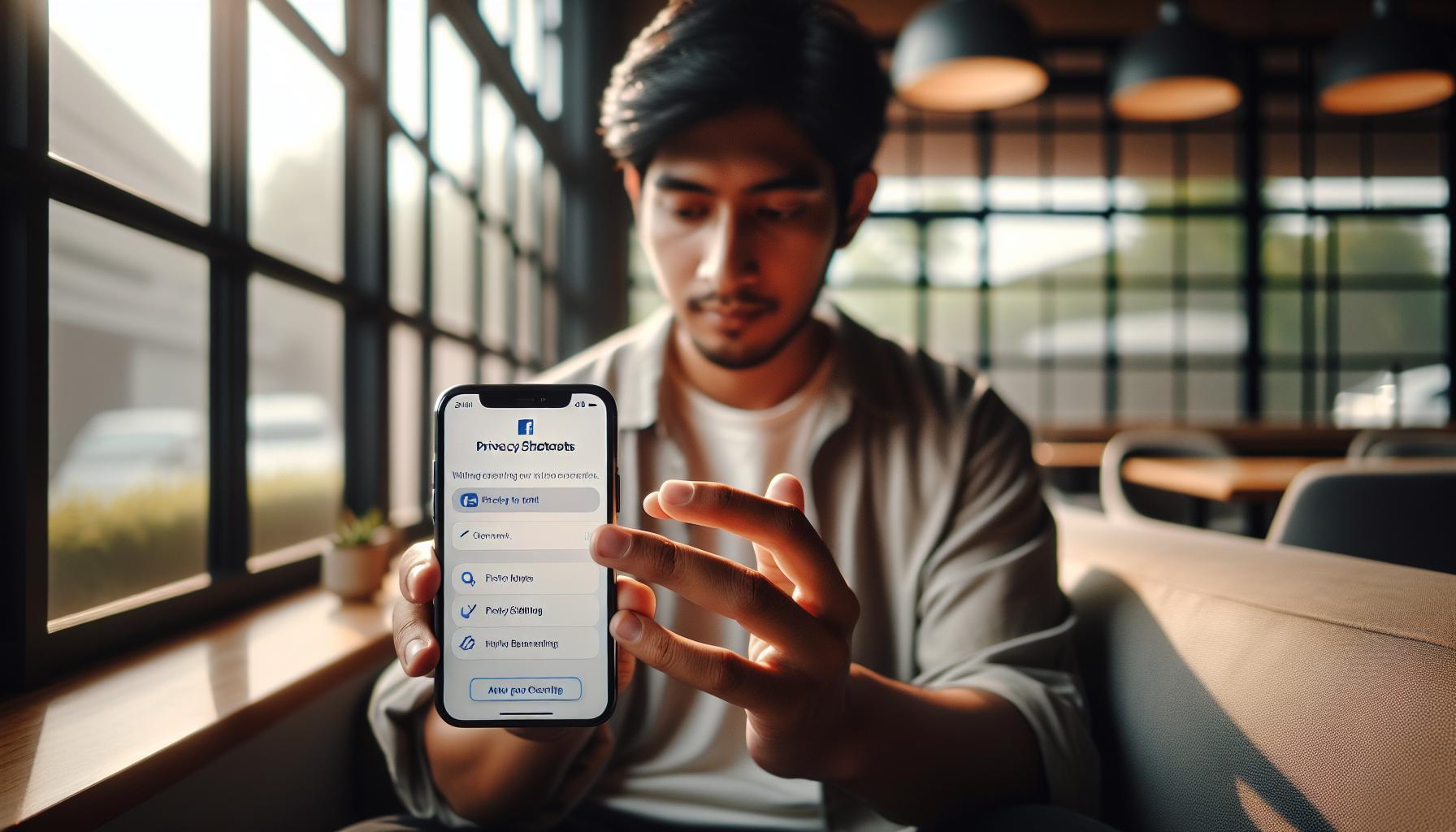
Facebook’s Privacy Shortcuts menu is a treasure trove of tools designed to help you take control of your online presence and safeguard your connections. This intuitive feature allows users to navigate through various privacy settings with ease, ensuring that you can customize who sees your information, including your friends list and mutual friends. With growing concerns about privacy on social media platforms, understanding this tool becomes essential for every user.
To access the Privacy Shortcuts menu, begin by clicking on the downward arrow in the top right corner of your Facebook homepage. From the dropdown options, select Settings & Privacy, then click on Privacy Shortcuts. This will take you to a user-friendly interface where you can manage various aspects of your privacy quickly. Here, you’ll find options such as “Who can see my posts?” and “Who can look me up?”, allowing you to customize how your information is shared.
Key Options in the Privacy Shortcuts Menu
- Manage Your Profile’s Visibility: Right from the menu, you can adjust settings for whether your friends or the public can see your friends list and mutual connections. It’s a simple toggle that can significantly impact your privacy.
- Review Your Tagging Settings: In this section, specify who can tag you in posts and photos, helping control your visibility in shared content.
- Control App Settings: Third-party apps can access your information, so it’s crucial to review these settings periodically to ensure that only trusted applications have access.
The Privacy Shortcuts menu is also useful for quickly reviewing past posts. Regularly check who can see your previous posts and update their visibility. You can change settings in bulk or for individual posts, ensuring that only those who you want to engage with can view your shared moments.
Utilizing Facebook’s Privacy Shortcuts enhances your control over your personal information without navigating the more complex parts of the platform. By regularly visiting this section, users can stay ahead of changes in privacy settings and maintain better control over their connections, thus reinforcing both your security and comfort on the platform. Remember, being proactive about privacy will not only protect you but also create a more enjoyable and secure social media experience.
Navigating Profile Settings for Enhanced Privacy
When it comes to safeguarding your privacy on Facebook, understanding how to navigate your profile settings is crucial. These settings allow you to control who sees your content and interacts with your connections. Since mutual friends can influence your online interactions, tweaking these settings can ensure a more secure digital experience.
To start enhancing your privacy, access your profile settings by clicking on your profile picture or your name at the top of your Facebook homepage. Once on your profile, locate the three dots (•••) next to the “Edit Profile” button. From the dropdown, select Settings. This will lead you to a new page where you can manage your privacy settings in a straightforward manner.
Key Profile Settings for Privacy
- Friends List Privacy: One of the first things you should adjust is who can see your friends list. In the settings menu, navigate to Privacy and look for “Who can see your friends list?” Change this setting to “Only Me” or “Friends,” depending on your preference. This way, only you or selected friends can view your mutual connections, effectively hiding them from others.
- Profile Visibility: It’s also important to manage how visible your profile is in general. Within the privacy settings, check options related to “Who can look me up?” and “Do you want search engines outside of Facebook to link to your profile?” Disable the latter if you want to maintain a low profile online.
- Post Visibility: Regularly review who can see your future posts under the Activity Privacy section and set it to “Friends” or more restrictive options as necessary. Limiting your audience helps keep your network smaller and more manageable.
After making these adjustments, consider revisiting your existing friends and their visibility. Go back to your profile and click on the Friends tab. From here, you can modify individual friend settings if necessary, such as limiting their ability to see your posts, tagging your location, and other interactions. By customizing these settings, you can strengthen your privacy while still enjoying the benefits of social connections.
Remember, being diligent with your profile settings can help mitigate any unwanted visibility of your mutual friends and other personal information. Taking the time to navigate these options not only empowers you but also creates a more secure and pleasant online community for you and your friends.
Understanding the Impact of Mutual Friends on Connections
Navigating the intricacies of mutual friends on Facebook can significantly impact your online interactions. Whether building new connections or managing existing relationships, your mutual friends list serves as a bridge between your network and your privacy. Mutual friends can create opportunities for friendship and interaction, but they can also expose you to unwanted visibility or connections with people you might prefer to keep at a distance. Recognizing this duality is essential for curating a more secure social experience.
Understanding the influence of mutual friends requires a closer look at the social dynamics Facebook presents. For instance, if someone views your profile and sees that they share several friends with you, they may feel more inclined to send you a friend request. This can lead to expanded networks, which is great for socializing but can also introduce individuals you might not feel comfortable with entering your space. Many users have experienced the phenomenon where a friend of a friend suddenly starts following their posts or sending messages, often leading to the need for increased privacy management.
To gain better control over how mutual friends affect your social landscape, it’s essential to evaluate your privacy settings consistently. Start by reviewing the friends list visibility options in your privacy settings. By selecting “Only Me” for “Who can see your friends list?” you prevent people outside your approved connections from viewing who you know. Additionally, remember to regularly assess your friend requests – maintaining a curated friends list helps keep your social network tailored to those you trust and want to engage with.
Another practical approach to managing the impact of mutual friends is to think critically about your interactions on the platform. For example, if you constantly engage with certain individuals who are not quite fitting into your preferred social circles, consider limiting visibility on your posts to a smaller group of friends. This way, even if someone has mutual friends with you, they won’t have access to everything you share, therefore allowing you to maintain a more secure and controlled online presence without sacrificing your ability to connect with those you cherish.
Taking a proactive stance toward understanding and managing the dynamics of mutual friends can empower you to curate your digital social experience in a way that feels comfortable and safe. By customizing how you interact and what your connections can see, you keep your social media presence both engaging and private.
Strategies for Managing Friend Requests and Visibility
One of the most challenging aspects of maintaining a satisfying experience on Facebook is managing friend requests while controlling who has visibility into your connections. For many users, the concern about privacy becomes paramount, especially when unfamiliar faces appear in their mutual friend lists. Fortunately, there are efficient strategies you can employ to navigate this landscape confidently, ensuring that your online interactions align with your comfort levels.
Review and Customize Friend Request Settings
The first step in managing friend requests effectively is to tailor your privacy settings. Here’s how to do that:
- Navigate to your Facebook settings by clicking the downward arrow in the top right corner of your profile.
- Select Settings & Privacy, then:
- Click Settings.
- Choose Privacy from the left menu.
- Find the section labeled How People Find and Contact You.
- Here, you can adjust who can send you friend requests, allowing you to restrict this feature to just friends of friends or disable it entirely for unfamiliar users.
Setting appropriate criteria for friend requests can prevent unsolicited connections from mutual friends you may not wish to interact with.
Understanding Friend Lists for Better Management
Creating custom friend lists can significantly enhance how you handle your social interactions on Facebook. By organizing your friends into distinct groups-like “Close Friends,” “Acquaintances,” or even “Work Colleagues”-you can easily control who sees your posts and interactions.
- To create a friend list, go to the left sidebar on your home page and click Friend Lists.
- Select Create List, name your list, and start adding friends.
- Once your lists are set up, you can adjust the audience when making posts by simply selecting the relevant list from the audience selector (the dropdown next to the post button).
This strategy helps limit visibility-not just to your mutual friends, but across your entire network.
Limit Post Visibility and Interactions
You can further enhance your privacy by managing who sees your posts. Facebook allows you to customize privacy settings for each post. Use the audience selector before posting to control visibility. Here’s how:
- When crafting a post, click on the audience selector (it may display “Friends” by default).
- Select Friends Except… to exclude specific individuals if necessary.
- To target a specific audience, use Friends Lists that you’ve created to share content only with certain groups.
This customization empowers you to share more freely without worrying about unwanted engagement or visibility from those you don’t know well.
Evaluate Mutual Friends Constantly
Regularly reviewing your existing friend connections can help maintain a healthy social network. If you notice that certain mutual friends are connecting with others you’re not comfortable with, consider adjusting your response. You might choose to ignore their messages or limit interactions to keep your social experience positive.
By implementing these strategies, you can master the management of friend requests and visibility on Facebook. Taking control of your connections not only curates a more comfortable social environment but also enhances your overall experience on the platform.
Tips for Protecting Your Personal Information
Your personal information is a valuable asset, especially on social media platforms like Facebook. Understanding how to effectively protect it can empower you to navigate networks without compromising your privacy. Here are several key strategies to keep your information secure while offering you the social experience you desire.
One of the first steps in fortifying your privacy on Facebook is to limit who can see your friend list. By default, your friends can see your mutual friends; however, you can adjust this setting to enhance your confidentiality. Navigate to your Facebook settings by clicking on the downward arrow in the top right corner of your profile. Then, follow these steps:
- Select Settings & Privacy, then click Settings.
- Choose Privacy from the left menu.
- Look for the Who can see your friends list? option and click Edit.
- Select Only Me to conceal your friends from everyone else, or choose a custom audience to limit visibility.
This simple adjustment can significantly reduce the visibility of your connections, offering greater peace of mind.
Moreover, take advantage of Facebook’s audience selector feature when posting updates or sharing content. Whenever you create a post or upload a photo, you’ll notice a small icon next to the post button that allows you to customize who sees your content. You can choose options like Friends Only, Public, or even Friends Except… to specifically hide your post from certain individuals. This targeted approach not only protects your information but also allows you to engage with your circle on your terms.
Be Alert with Friend Requests
When managing friend requests, always exercise caution about who you accept into your network. If anyone appears suspicious or you’re unsure about their intentions, you may want to ignore or decline the request. Additionally, adjusting your own friend request settings can help create a buffer against unwanted connections. To adjust these settings:
- Return to the Privacy section in your settings.
- Find the How people can find and contact you segment and manage who can send you friend requests.
- Consider limiting requests to Friends of Friends for added security.
This proactive approach will help you avoid potential risks associated with mutual friends, ensuring that your digital community aligns with your comfort level.
Finally, regularly reviewing all applications and services connected to your Facebook account is crucial. Third-party apps can sometimes access your friend list and other sensitive data, potentially leaking it outside of Facebook. To review these permissions:
- Go to your settings, navigate to the Apps and Websites section.
- Review the active connections and remove any applications that you no longer use or trust.
By implementing these strategies, you can enjoy a more secure social media experience while sharing meaningful connections. Adopting these protective measures can transform your engagement on Facebook, allowing you to feel confident about managing your personal information.
Common Issues with Mutual Friends Privacy Settings
Navigating the complexities of Facebook’s privacy settings can often lead to confusion, especially when it comes to controlling the visibility of mutual friends. One common issue users face is the misunderstanding of how these settings impact their overall privacy. Many people believe that changing their friends list visibility will automatically hide mutual friends from others, but this is not always the case. If your friends can see your mutual friends, they may inadvertently share access with other users, leading to potential privacy breaches.
One practical challenge arises when users attempt to limit visibility but find that updates to their settings don’t seem to take effect. This might occur due to Facebook’s frequent updates and changes to its privacy features. If you change your privacy settings but notice that mutual friends remain visible, it may be due to cached data on your profile. To combat this, it’s advisable to regularly log out and back into your account or clear your browser’s cache to ensure your latest settings are loaded properly.
Common Pitfalls in Managing Settings
Another frequent pitfall is not fully understanding the audience selector for posts that feature mutual friends. By default, if you tag someone in a post, their friends can see that post, even if your own friends list is set to private. This can expose you to a wider audience than intended. To avoid this scenario, consider reviewing your tag settings:
- Go to Settings & Privacy and then Settings.
- Select Profile and Tagging from the left menu.
- Adjust the option that controls who can see posts you’re tagged in.
By customizing these options, you can better manage who sees your content and connections.
Lastly, users often overlook their mobile app settings compared to the web interface. The Facebook app may have different privacy options or defaults that you’ve yet to adjust. Conduct regular checks on your mobile settings to ensure they match your privacy preferences. If you feel uncertain, using the privacy shortcuts can simplify this process.
Utilizing Facebook’s Help Resources
If you’re still encountering issues or have specific questions, don’t hesitate to utilize Facebook’s Help Center. The platform provides extensive resources that can guide you through different scenarios regarding mutual friends and privacy settings. This can be an excellent way for you to get tailored assistance and find solutions to your unique privacy concerns.
By proactively addressing these common issues, you can effectively enhance your privacy regarding mutual friends on Facebook, allowing for a more secure social experience. Remember that your comfort and safety in your online community are paramount, and taking these steps can significantly empower you in managing your connections.
Advanced Techniques for Securing Your Facebook Profile
In today’s digital age, where social connections are built and nurtured online, ensuring the security of your Facebook profile has never been more crucial. With a platform as vast and multifaceted as Facebook, users often find themselves overwhelmed by privacy settings, especially when it comes to controlling mutual friends visibility. By harnessing advanced techniques, you can transform your profile into a more secure environment while maintaining the connections that matter most.
One effective strategy is to utilize the Friends List feature. By categorizing your friends into distinct lists, such as “Close Friends,” “Family,” or “Acquaintances,” you can tailor who sees your mutual connections more granularly. Here’s how to create and edit friend lists:
- Navigate to your profile and click on the Friends tab.
- Click on Manage List in the top right corner to create a new list.
- Add friends to the list and give it a descriptive name to remember its purpose.
- Once created, you can control the visibility of shared posts and tagged photos based on these lists.
By implementing friend lists, you can mitigate the risk of unwelcome visibility of mutual friends when a friend engages with your post.
Another way to elevate your profile’s security is through Profile Picture Privacy settings. When changing your profile or cover photo, it’s easy to overlook who can see these updates. To ensure that new friends can’t easily identify your connections through visible mutual friends, follow these steps:
Securing Your Profile Picture
- Click on your profile picture and select Edit Privacy.
- Choose the audience for the photo; consider selecting Only Me or a custom audience that excludes certain friends or friend lists.
Moreover, consider limiting your list visibility entirely. By adjusting your friends list privacy, you can decide who sees your friends and mutual friends, ensuring those who aren’t in your inner circle have no access. Here’s how to do it:
Adjusting Friends List Privacy
- Go to your profile and click About.
- Select Contacts and basic info on the left.
- Next to Friends, click on the audience selector and choose Only Me or Custom to exclude certain people.
Lastly, consider taking advantage of Facebook’s robust Two-Factor Authentication. This feature adds an additional layer of security, making it difficult for unauthorized users to access your account. When enabled, you will receive a security code via SMS or an authentication app each time you log in from an unrecognized device. Here’s how to enable it:
Enabling Two-Factor Authentication
- Access your Settings & Privacy, then go to Security and Login.
- Under the Two-Factor Authentication section, click Edit and follow the prompts to complete the setup.
By implementing these advanced techniques, you equip yourself with essential tools to secure your Facebook profile while enhancing your overall privacy. Empower yourself by being proactive in managing your profile settings, ensuring that your digital interactions reflect your comfort and safety.
Frequently Asked Questions
Q: How can I prevent specific people from seeing my mutual friends on Facebook?
A: To prevent certain individuals from seeing your mutual friends, adjust your friend list privacy settings and set specific friends as “Restricted.” This will stop them from seeing any of your mutual friends while maintaining your connection with them. Learn more in the “Step-by-Step Guide to Hiding Mutual Friends” section.
Q: What should I do if my mutual friends are appearing in unexpected searches?
A: If mutual friends show up in unexpected searches, check your privacy settings and adjust who can see your friends list. Navigate to “Profile Settings” to regulate visibility, ensuring that only approved friends can view your mutual connections.
Q: Can I hide my mutual friends from all users on Facebook?
A: Yes, you can hide your mutual friends from all users by setting your friends list to “Only Me” in the privacy settings. This means that no one will be able to see your mutual friends. Adjust these settings by visiting the “Adjusting Privacy Settings for Mutual Friends” section.
Q: When does Facebook display mutual friends in searches?
A: Facebook can display mutual friends in search results when users share similar connections. If you prefer to limit this visibility, modifying your friends list privacy settings is essential. Refer to “Exploring Facebook’s Privacy Shortcuts Menu” for adjustments.
Q: Is it possible to see who can view my mutual friends on Facebook?
A: Unfortunately, Facebook doesn’t explicitly show you who can view your mutual friends. However, you can deduce this by checking your friends list visibility settings. For detailed steps, see the section on “Customizing Your Friends List Visibility.”
Q: Why do mutual friends matter for my privacy on Facebook?
A: Mutual friends can impact your privacy on Facebook by linking connections between your profiles. This might lead to unwanted attention or friend requests. To manage this, review your privacy settings and follow the guidelines discussed in “Understanding the Impact of Mutual Friends on Connections.”
Q: Can hiding mutual friends help improve my social media experience?
A: Yes, hiding mutual friends can enhance your social media experience by reducing unsolicited contact and protecting your privacy. By limiting who sees your friends, you gain more control over your Facebook interactions. Discover actionable strategies in the “Strategies for Managing Friend Requests and Visibility” section.
Q: What are some common mistakes when managing mutual friends privacy?
A: Common mistakes include neglecting privacy settings, not customizing friend list visibility, or mistakenly accepting friend requests. Regularly review your privacy settings to ensure that you’re maintaining the level of privacy you desire. For troubleshooting tips, refer to “Common Issues with Mutual Friends Privacy Settings.”
Key Takeaways
Now that you know how to hide mutual friends on Facebook, you can take control of your privacy and protect your connections like never before. Remember, safeguarding your social network is crucial in today’s digital age. If you have any lingering questions or concerns, don’t hesitate to explore our guides on enhancing your Facebook privacy settings and optimizing your profile security.
Ready to dive deeper? Check out our articles on “Maximizing Your Facebook Privacy Settings” and “Essential Tips for Navigating Facebook’s Business Tools” for more strategies to strengthen your online presence. And don’t forget to sign up for our newsletter for the latest tips and tricks to keep your social media experiences safe and effective!
Your online connections should feel secure; take action today and embrace the peace of mind that comes with knowing your friendships are protected. Join the conversation in the comments below and share your experiences or strategies-your input could help others just like you!


