

Have you ever felt overwhelmed by unwanted interactions on Facebook? Whether it’s a persistent acquaintance or an uncomfortable old friend, dealing with such connections can be draining. Luckily, there’s a discreet way to take control of your privacy without alerting anyone. In this guide, we’ll explore how to block someone on Facebook without them knowing, giving you the peace of mind you deserve. Understanding the nuances of Facebook’s blocking options is essential for maintaining your online space. As you continue reading, you’ll discover step-by-step instructions that empower you to navigate these privacy settings with ease. Say goodbye to awkward encounters and hello to a more stress-free social media experience!
Understanding the Need to Block Someone on Facebook

It’s not uncommon for users on social media platforms to encounter situations that necessitate a change in how they interact with others. On Facebook, the decision to block someone can stem from a variety of circumstances; whether it’s dealing with unwanted interactions, harassment, or simply the need to create a safer online space. Understanding the emotional and practical facets of blocking can transform it from a daunting task into a proactive step towards personal safety and well-being.
Recognizing when to block someone is often the first hurdle. It may not only involve outright hostility or harassment; sometimes, it’s simply about curating the content that fills your feed. Individuals face different challenges, such as receiving excessive friend requests from acquaintances or dealing with former friends whose posts evoke negative memories. The ability to shape one’s online experience is a powerful tool. Blocking enables users to reclaim their digital space by eliminating unwanted comments, posts, or even the presence of someone who may trigger discomfort.
The process can also bring peace of mind. For instance, if you have a colleague who has been overly critical or intrusive about your personal life through Facebook, blocking them can stop the intrusive messages while maintaining professionalism in other areas. By choosing to block someone, you are making a considered decision to prioritize your mental and emotional well-being. Moreover, with Facebook continually updating its privacy features and options for controlling interactions, it empowers users to manage their social circles effectively and with greater intention.
While blocking can feel severe, it’s a necessary strategy for many to navigate digital social landscapes safely. Embracing the various tools available on Facebook-including blocking-helps users feel more in command of their virtual interactions. The next sections will guide you through the specific steps of blocking someone, unguided features, and best practices for maximizing your privacy and control over your Facebook experience.
The Step-by-Step Process to Block on Facebook
It’s essential to understand that blocking someone on Facebook doesn’t have to feel intimidating or drastic. It’s a tool designed to help users take control of their online interactions without leaving a digital footprint that the blocked user might detect. Here’s a simple guide to navigating the blocking process seamlessly and discreetly.
To begin the blocking process, follow these straightforward steps:
Accessing the User’s Profile
Start by locating the profile of the person you wish to block. You can do this by using the search bar at the top of your Facebook page. Simply type in the name of the user and click on their profile when it appears in the search results.
Initiating the Blocking
Once you’re on their profile page, look for the three dots located at the top right corner of their cover photo. Clicking on these dots will open up a dropdown menu.
Selecting the Block Option
In the menu, select the option that says “Block”. After choosing this, a pop-up window will appear, confirming your choice. This is a good moment to review your decision – make sure you want to take this step since blocking will prevent that person from seeing your profile or interacting with you on the platform.
Confirming the Block
Click “Confirm” in the pop-up. Facebook will process your request, and you’ll receive a notification confirming that you’ve successfully blocked the user. From this point on, they will no longer be able to see your posts, send you messages, or find your profile in searches.
- Should you decide to unblock someone in the future, this can also be done through your settings.
- Remember that blocking is not an announcement; the blocked user will not receive any notification about the action.
If you’re concerned about how this impacts future interactions, know that the user will just disappear from your online experience without any obvious indication. This action not only provides you with peace of mind but also allows you to navigate your social connections more freely. By employing these simple steps, you can manage your Facebook interactions effectively while ensuring your online space remains a place where you feel comfortable and secure.
How to Unblock Someone and What Happens Next

Unblocking someone on Facebook can feel like a significant decision, especially if you initially blocked them to establish boundaries or protect your space. Fortunately, the process is straightforward and empowers you to regain control over your social interactions. Understanding what happens after you unblock someone is equally important, as it can help you navigate any future dynamics more smoothly.
To begin unblocking a user, go to your Settings & Privacy menu. From there, navigate to Settings, then select Blocking from the left-hand column. This area will display a list of everyone you’ve blocked. Simply find the name of the person you wish to unblock and click on Unblock next to their profile name. Facebook will prompt you to confirm your decision, reinforcing that unblocking means the user can once again view your profile, send you messages, and interact with your posts.
What Happens After Unblocking
Once you unblock someone, they can see your content again, which includes your posts and any updates you’ve shared since they were blocked. It’s essential to understand that if your privacy settings are configured to limit visibility, they will only see what you have made public. However, they will not automatically be added back to your friends list, so if you want to resume that connection, you will need to send them another friend request.
Here are some key points to remember after unblocking someone:
- No Notification: Unlike blocking, unblocking does not notify the other person, but they may notice that they can see your profile and posts once again.
- Message History: If you had previous messages exchanged before the block, they will still be accessible in your Messenger; however, you can choose to ignore them if you prefer.
- Friendship Dynamics: Be mindful that the user may have been hurt or confused by the initial blocking, so consider whether you should reach out to clarify your intentions if you expect interactions to resume smoothly.
If you feel uncertain about re-establishing contact after unblocking, take it slow. Engage cautiously, monitor their responses, and adjust your settings to reflect your comfort level. Unblocking is just one step in managing your online presence, allowing you to foster an environment that respects your needs while still keeping the door open for potential reconciliation.
Exploring Facebook Privacy Settings for Enhanced Control

Navigating Facebook’s privacy settings can sometimes feel like deciphering an intricate puzzle. But mastering these settings is crucial for maintaining control over your online interactions, especially when it comes to who can see your content and how you engage with others on the platform. With the right adjustments, you can shield your personal space from unwanted attention while still enjoying the connections that matter most to you.
One of the first steps in enhancing your privacy is to familiarize yourself with the various settings available. Head over to the Settings & Privacy menu and select Settings. From there, navigate to Privacy. Here, you will find options that allow you to dictate who can see your posts, send you friend requests, or even look you up using your email or phone number. Take the time to customize these settings according to your comfort level. For instance, consider setting your default audience for posts to “Friends” or “Friends except…” to exclude specific people from seeing your updates.
Another key aspect of Facebook’s privacy control is the ability to manage your friend list visibility. If you’re concerned about certain individuals, you can create customized friend lists to include only those you want to share specific information with. This can be particularly useful when dealing with acquaintances or those you want to keep at a distance. To create and manage friend lists, go to your friends’ section and select Create List. This lets you group friends into categories, ensuring that only the intended audience can view your posts.
Additional Privacy Controls
Keeping your Facebook profile private doesn’t stop with post visibility. Explore these additional features to reinforce your privacy:
- Profile and Cover Photos: Change the audience settings for your profile and cover photos to “Only Me” if you’re not ready for them to be publicly visible.
- Timeline and Tagging: Adjust settings under “Timeline and Tagging” to manage who can post on your timeline and who can tag you in posts or photos.
- Apps and Websites: Regularly review and manage the apps and websites connected to your Facebook account, removing any that you no longer use or trust.
Understanding and utilizing these privacy settings not only secures your interactions but also empowers you to take charge of your digital narrative. By making informed decisions about your visibility, you can engage on Facebook with greater confidence, knowing that your personal space is protected from prying eyes. Whether it’s blocking someone quietly or adjusting your settings to better align your online presence with your values, taking control is not just an option-it’s an essential part of the Facebook experience.
Signs Someone May Know You’ve Blocked Them

When you decide to block someone on Facebook, it can lead to a range of emotions, both for you and the person being blocked. A common concern is whether the individual will realize that you have taken this step. While Facebook doesn’t send a notification when someone is blocked, there are subtle signs that may indicate to the other party that they have been restricted from your online presence.
First and foremost, if you share mutual friends or are part of the same groups, the person you blocked may notice a distinct absence of your presence in their feed. They will no longer see your posts, comments, or any interactions you have with mutual acquaintances. This sudden lack of visibility can make them suspicious. For example, if you frequently comment on a friend’s status updates or share group posts, your absence might trigger curiosity or concern.
Another aspect to consider is the inability to find your profile. If they search for you directly, they will not be able to locate your profile; instead, they may receive a prompt indicating that the content is unavailable. This can lead to confusion or even the assumption that you deactivated your account. Some users might also try sending you a message, only to discover that their attempts are met with silence, as blocking prevents any communication between you.
Moreover, if you were previously tagged in their photos or posts, the blocking feature removes these associations. The blocked individual will not be able to view any content tied to you in their timeline, taking the confusion further. In some cases, individuals may choose to reach out to mutual friends to inquire about the status of their connection with you, thereby signaling that they suspect something has changed.
Ultimately, while it’s possible for someone to pick up on the signs that they’ve been blocked, the lack of direct notification helps preserve some privacy for your actions. If you’re aiming to maintain a low profile after implementing the block, consider adjusting your privacy settings further to control who can see your interactions and content on the platform. Being proactive about your online presence not only enhances your peace of mind but ensures that you are in control of your digital footprint.
Signs That May Indicate You’ve Blocked Someone
- Absence in Feeds: They no longer see your posts or comments in mutual social spaces.
- Search Results: Efforts to locate your profile yield no results or an error message.
- Messaging Silence: Messages sent to you receive no response, leading to confusion.
- Social Inquiries: They may reach out to mutual friends for clarity about your blocked status.
By understanding these indicators, you can navigate your decision to block someone with awareness of its potential social ramifications. Ultimately, prioritizing your comfort and safety in your online interactions is what truly matters.
Alternatives to Blocking: Managing Your Facebook Lists

Navigating the complexities of social interactions on Facebook can often feel overwhelming, particularly when it comes to managing relationships online. Instead of resorting to blocking someone, which can have lasting effects and raise questions, consider utilizing Facebook lists as a more nuanced approach to controlling who sees your content and engages with you on the platform.
Creating friend lists allows you to customize your Facebook experience significantly. You can categorize your friends into different groups (like Family, Close Friends, Acquaintances), tailoring what specific groups can see your posts and updates. This is incredibly useful for maintaining boundaries without severing social ties entirely. For example, you might want to limit certain content to only close friends or keep your work-related posts exclusive to colleagues.
To manage your lists, follow these simple steps:
- Go to your Facebook homepage and click on Friends in the left sidebar.
- Click on Friend Lists (you may need to click on “More” if it’s not immediately visible).
- Here, you can see existing lists and create new ones by clicking the Create List button.
- Name your list, add friends to it, and click Create.
Once your lists are set up, you can control your audience for each post. Whenever you make a new post, you will see a small audience selector (usually a globe icon or the word “Public”) at the bottom of the post window. Click on this selector, choose Friends except…, and then specify those to exclude from seeing that post. This approach preserves your relationships while maintaining your privacy.
Example of Practical Application
Let’s say you’ve had a falling out with a friend but still share mutual friends you don’t want to cut out. You can put that friend in a list called “Acquaintances” and, when posting personal or sensitive content, select your friend list wisely. This way, they won’t be aware of your specific post and won’t feel the sting of exclusion directly.
Furthermore, you can manage your profile settings to limit the visibility of your friends list. To do this, go to Settings and Privacy > Settings > Privacy > Friends. From here, you can control who can see your friends list, reducing the chance of awkward conversations about perceived blocks.
This method of managing your Facebook interactions grants you the freedom to express yourself while protecting your emotional well-being. It allows you to navigate social dynamics thoughtfully, reducing the stress and friction that might arise when simply blocking someone. By choosing to employ friend lists, you embrace a more sophisticated method of engagement, giving you laser-focused control over your online presence.
Navigating Friend Requests and Online Interactions
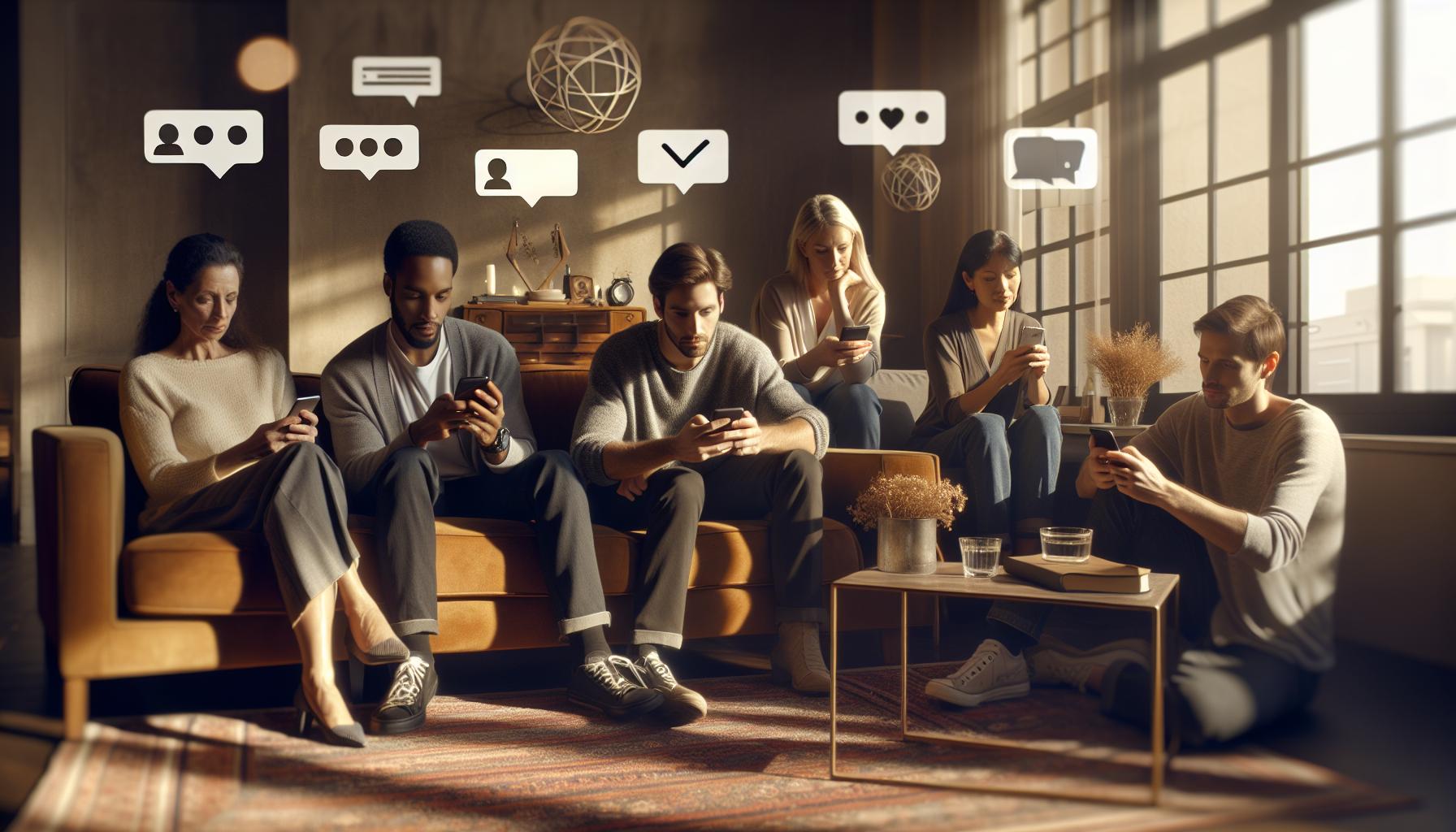
Navigating friend requests on Facebook can feel like walking through a maze, especially when you’re trying to manage your online interactions delicately. It’s essential to understand how to handle incoming requests to ensure your social media experience remains enjoyable and stress-free. Whether you’re dealing with acquaintances, old friends, or even potential risks, knowing how to craft your online circle can empower you to maintain control over your presence.
When you receive a friend request, take a moment to evaluate the context. Ask yourself questions like, “What is my relationship with this person?” or “Do I want them to have access to my content?” This reflection is especially crucial if the person is someone you’ve had disagreements with or someone who might not share your values. If you decide that adding them isn’t in your best interest, consider utilizing the “Ignore” option, which will allow you to decline the request without notifying them. This can be a smooth alternative that protects your space while avoiding unnecessary confrontations.
Adjusting Your Privacy Settings
In addition to managing friend requests, take advantage of Facebook’s robust privacy settings to customize your online interactions. By finetuning these settings, you can determine who has access to your profile, who can send you requests, and what information is visible to different groups. Here’s how to adjust your privacy settings effectively:
- Go to Settings and Privacy in the top right corner of your Facebook homepage.
- Select Settings, then navigate to Privacy in the left-hand menu.
- From here, you can modify your settings, including who can send you friend requests and who can see your friend list.
By restricting friend requests to “Friends of Friends,” you can create a buffer against unwanted acquaintance. This feature adds an extra layer of control over who gets to connect with you while preserving the chance to engage with genuine friends.
Leveraging the “Restricted” List
For those instances when you want to keep someone as a friend without granting them full access to your profile, consider using the “Restricted” list. By adding them to this list, they will still be a part of your friends list, but they will only see your public posts. To do this:
- Visit the profile of the person you want to restrict.
- Click on the Friends button on their profile.
- Select Edit Friends Lists, then check the box next to Restricted and save.
This method allows you to retain the benefits of being “friends” while keeping sensitive content away from prying eyes.
effectively means being proactive about your online presence. By leveraging privacy settings, filtering friend requests, and using the “Restricted” list wisely, you can curate a more comfortable and secure social media environment. Remember, the goal is to engage positively with those who uplift you, while exercising your right to set boundaries with others as needed.
Customizing Your Facebook Profile for Privacy
As the complexity of social media interactions grows, so does the importance of maintaining privacy. Customizing your Facebook profile can significantly enhance your ability to protect your personal information while still engaging with friends and family. For many users, navigating the myriad of options available on Facebook can feel daunting, but with a few thoughtful adjustments, you can regain control over your online presence and enjoy a more secure experience.
One of the first steps in enhancing your privacy is to review your profile information. To do this, click on your profile picture in the top left corner of your homepage and then select “About.” Here, you can choose to limit who sees details such as your phone number, email address, and current city. You can set these fields to be visible only to specific friends, to your friends only, or to the public. By carefully managing this information, you can prevent unwanted attention while still staying connected with those who matter most.
In addition to these basic settings, consider adjusting your post privacy settings. This is done by clicking on the “three dots” (•••) next to the “Post” button on your profile and selecting “Edit Privacy.” You can choose to share your posts with “Friends,” “Only Me,” or even create specific custom lists. For sensitive content, opting for “Only Me” ensures that no one else can view your thoughts and photos. Custom lists allow you to share posts with select groups of people, which can be particularly useful if you want to include some friends while excluding others.
Utilizing the Audience Selector
Another valuable feature is the Audience Selector at the bottom of every post. When you create a new post, you’ll see a little icon that determines who can see that post. Adjusting this option lets you determine whether a post is public, restricted, or shared only with specific friends or lists. This tool is essential for managing your visibility and ensuring that only those you trust can see your content.
Reviewing Tagged Posts
Consider also reviewing how you handle tags and posts made by others. Navigate to your profile and click on the “Activity Log” option to manage tags, comments, and posts in which you’re mentioned. You can choose to review tags and decide whether or not to add them to your profile. This prevents unwanted or embarrassing posts from appearing on your timeline and allows you to control how others perceive your online persona.
By taking these steps to customize your profile for privacy, you empower yourself to navigate Facebook with greater confidence. Understanding the tools available to you not only safeguards your personal information but also enables you to enjoy social media more freely, knowing that you have established your own boundaries and set the rules for your online interactions.
Handling Conflict and Communication on Facebook
Navigating conflicts on Facebook can feel overwhelming, especially when personal relationships play out in a public space. Whether it’s dealing with an ex, a disgruntled coworker, or someone whose online behavior has crossed a line, knowing how to manage these interactions while protecting your peace of mind is crucial. Blocking someone can be a necessary step, but it can also raise concerns about how that person might perceive the action. The good news is that Facebook offers tools that allow you to handle these situations wisely and discreetly.
To begin managing conflicts effectively, first assess the nature of your interactions. Ask yourself whether a conversation could resolve the issue or if further engagement is likely to escalate tensions. If you believe that direct communication can clarify misunderstandings, consider sending a private message to express your feelings. However, be aware that not every situation can be smoothed over through dialogue. In cases where you feel threatened or uncomfortable, blocking may be the safest and most appropriate option.
Effective Communication Strategies
If dialogue feels possible and safe, approach this communication with clarity and respect. Here are some strategies to facilitate smoother conversations:
- Use Private Messaging: Discuss sensitive topics through Messenger instead of posting publicly. This keeps your discussions private and lets you articulate your thoughts carefully.
- Stay Calm and Respectful: When confronting an issue, retain a calm demeanor. Responding with anger can exacerbate the conflict, so take your time to compose your message.
- Set Boundaries: Clearly define what behaviors are unacceptable. If the other person continues to be disruptive, remind them you may need to block them for your own peace.
Knowing When to Block
If confronting the individual doesn’t yield results or if communications only lead to more conflict, it may be time to consider blocking. Here’s how to execute that without alerting the other person:
- Go to Their Profile: Navigate to the profile of the person you want to block.
- Click on the ‘three dots’ button (•••): Found on their cover photo, this will reveal a dropdown menu.
- Select ‘Block’: Confirm when prompted. After blocking, they will no longer be able to view your profile or interact with you.
Blocking can create the necessary distance to protect your mental well-being without the accompanying drama. In case you decide to unblock the individual later, they won’t receive a notification, allowing you to choose when or if you want to reestablish contact.
Monitoring and Reflecting
After implementing your blocking strategy, take a moment to monitor how your Facebook activity feels. You’ll likely notice an improvement in your overall online experience, as interactions that once felt burdensome are no longer present. However, keep an eye out for signs that the person may still be attempting to engage with mutual friends or watching your posts through other means. If you find that the conflict resurfaces, it may be worth reflecting on boundaries with your network.
Navigating these complex interactions can seem daunting, but by understanding your options and implementing thoughtful communication strategies, you can manage conflicts effectively and maintain your online peace. Remember, prioritizing your mental health and well-being is always the right choice.
Monitoring Your Facebook Activity After Blocking
After blocking someone on Facebook, it’s not just about cutting off interactions; it’s also essential to observe how your online experience transforms. Monitoring your activity involves being aware of your feelings and interactions post-block, as well as reflecting on any changes in your overall social media landscape. This phase can significantly enhance your understanding of your privacy settings and how they affect your user experience.
To begin with, notice how your emotional state shifts. Many users report a sense of relief and peace when they block someone who has caused distress. Take a moment to reflect on this newfound peace. Is your feed less cluttered? Do you feel free to share content without unease? By paying attention to these changes, you create an opportunity to manipulate your Facebook experience in a more positive direction.
It’s also beneficial to keep an eye on mutual connections. If you’ve blocked an individual who was previously active in your network, it’s possible they may attempt to navigate around the block by reaching out through friends or commenting on shared posts. While you can’t completely control how others choose to engage, monitoring these interactions can help you identify if any unresolved issues persist. Here are a few tips to stay informed:
- Regularly Review Your Feed: Look out for any posts, comments, or tags from mutual friends that might indicate the blocked individual is still trying to interact or show up in your social circle.
- Check Friend Lists: If you’re concerned about the dynamics with your friendships, regularly check your friend list for any significant changes or new developments.
- Use Privacy Settings: Enhance your privacy settings to limit who can see your posts. Consider setting posts to “Friends” or customizing your audience to ensure only select individuals can view your shares.
In addition to personal reflections, take actionable steps towards enhancing your privacy and managing your social media engagement more effectively. Review Facebook’s privacy settings to determine who can find you, send you friend requests, or see your posts. Exploring these settings can empower you to create a more comfortable and secure online environment.
Ultimately, the aim is to maintain a social media presence that fosters positivity and connection, while also keeping unwanted drama at bay. Empower yourself by staying vigilant, adjusting your settings as necessary, and being proactive in curating your online experiences. This proactive approach ensures you take control of your social media journey – thus allowing you to focus on what truly matters: meaningful interactions and experiences that uplift you.
Tips for Maintaining Your Privacy on Social Media
Maintaining privacy on social media can feel like navigating a labyrinth, particularly on platforms as expansive as Facebook. With constant interaction and potential exposure, it’s crucial to arm yourself with effective strategies that ensure your online safety and privacy. Did you know that nearly 70% of internet users express anxiety over their privacy online? As you explore how to sustain your digital boundaries, consider these practical and easily implementable tips to enhance your privacy while using Facebook.
Review and Adjust Privacy Settings Regularly
One of the most effective ways to protect your privacy is by frequently reviewing your privacy settings. Facebook allows you to customize who sees your posts, who can send you friend requests, and who can look you up using your email address or phone number. By adjusting these settings, you can limit unwanted interactions and ensure that only trusted individuals can access your information. Here’s how:
- Go to Settings & Privacy from the dropdown menu at the top right of your Facebook page.
- Select Settings, then click on Privacy on the left sidebar.
- From here, you can review your settings regarding Who can see your posts? and Who can send you friend requests? Customize these according to your preferences.
Control Your Friend List
Managing your friend list is another vital aspect of maintaining privacy. Consider organizing your friends into specific lists which will provide you with greater control over who sees your content. You can create lists such as “Close Friends,” “Acquaintances,” or “Family,” and customize the privacy settings for each group. This enables you to share posts with particular groups while keeping them hidden from others.
To create a friend list:
- Visit the Friends section on your profile.
- Click on Lists and then Create List.
- Name your list and add friends to it, then save.
Be Mindful of What You Share
It’s essential to be conscious of the information you put out there. Before posting updates, photos, or even responding to comments, think about how they might be perceived or shared. Refrain from sharing sensitive details such as location, personal phone numbers, or financial information. If you’re sharing a milestone or vacation photos, opt for audience restrictions using the custom settings. Even with friends, remember that what you post can be shared beyond your intended audience.
Utilize Facebook Stories and Temporary Content
Utilizing features like Facebook Stories allows you to share moments that disappear after 24 hours. This function offers a sense of privacy and immediacy, as you can share day-to-day experiences without leaving a permanent mark on your profile. Moreover, remember to set the privacy for your stories to “Friends,” allowing only selected individuals to view them.
By taking these actionable steps, you can confidently use social media without compromising your privacy. Each small adjustment contributes to a more secure and personalized Facebook experience, allowing you to engage meaningfully while safeguarding your personal space. The goal is to create an online environment that champions not just connection but also your peace of mind.
Frequently Asked Questions
Q: How can I hide my profile from someone on Facebook without blocking them?
A: You can restrict your visibility by adjusting your privacy settings. Navigate to ‘Settings & Privacy,’ select ‘Settings,’ then click ‘Privacy.’ From there, you can change who can see your posts and profile information to limit access without needing to block the individual.
Q: What happens to messages with someone I blocked on Facebook?
A: When you block someone on Facebook, you will no longer see their messages, and they won’t be able to message you. However, previous messages will remain in your chat history unless you delete them. For detailed steps on managing messages, refer to our section on “Unblocking Someone and What Happens Next.”
Q: Can someone tell if I’ve blocked them on Facebook?
A: While Facebook doesn’t officially notify users about being blocked, there are signs they might notice, such as being unable to find your profile or seeing your posts. For more insights, check our section on “Signs Someone May Know You’ve Blocked Them.”
Q: Is it possible to block someone on Facebook temporarily?
A: Facebook does not offer a temporary block feature. However, you can adjust privacy settings or unfriend someone temporarily, and later, re-add them or adjust your settings as needed. This is discussed in more detail in our article on “Alternatives to Blocking.”
Q: Can I block someone on Facebook without them knowing on mobile?
A: Yes, the blocking process is the same on mobile. Go to their profile, tap on “More,” then select “Block.” They won’t receive any notification, but if they search for you later, they won’t find your profile. See our detailed step-by-step in the article on “The Step-by-Step Process to Block on Facebook.”
Q: What are the privacy implications of blocking someone on Facebook?
A: Blocking someone enhances your privacy by preventing them from seeing your profile and interacting with you. They won’t receive alerts about your activity, which helps maintain a barrier. For privacy tips, refer to “Exploring Facebook Privacy Settings for Enhanced Control.”
Q: How do I manage friend lists to avoid unwanted interactions on Facebook?
A: You can create custom friend lists and adjust visibility settings, allowing you to share posts with select groups only. This is a proactive way to manage connections. Learn more in our section on “Managing Your Facebook Lists.”
Q: What should I do if someone keeps sending me friend requests after I blocked them?
A: If someone continues to send friend requests after being blocked, ensure that you’ve blocked their account correctly. They should not be able to find your profile. For further guidance, refer to “Handling Friend Requests and Online Interactions.”
Closing Remarks
Now that you know how to block someone on Facebook without them knowing, you can take charge of your social media space and ensure a more comfortable online experience. Remember, privacy matters-protect it with the strategies we’ve shared. If you still have questions or want to dive deeper into your Facebook settings, check out our guides on enhancing your privacy settings and managing friend requests effectively.
Don’t wait any longer to reclaim your peace of mind! Dive into Facebook’s privacy features today, and feel free to share your experiences in the comments below. Engaging with our community helps us help you further. And if you found this guide useful, be sure to subscribe to our newsletter for more practical tips and updates that empower your digital journey. Stay confident as you navigate your social connections!


