
In today’s digital age, maintaining your privacy on social media is more crucial than ever. Did you know that Facebook allows you to control who sees your connections and friendships? If you’ve ever felt uncomfortable sharing your entire friend list or simply want to keep some aspects of your social life private, you’re not alone. Many users seek ways to manage their online presence while safeguarding their personal information. This guide will walk you through the steps to make your friend list private on Facebook, allowing you to enjoy the platform without the worry of unwanted scrutiny. By following these simple instructions, you can tailor your privacy settings to fit your comfort level, ensuring that your connections remain just that-yours. Let’s dive in and empower you to take control of your Facebook experience!
How to Change Your Facebook Friend Privacy Settings
If you’re concerned about privacy on Facebook, especially regarding who can view your friend list and connections, know that you have the power to manage these settings with a few straightforward steps. Protecting your privacy is crucial, given how interconnected social media can be and how easily it can expose personal information. By changing your friend privacy settings, you can ensure that your connections remain yours alone, providing peace of mind when navigating the platform.
To begin, access your Facebook account and go to your profile page. From there, select the downward arrow in the upper right corner and click on “Settings & Privacy,” then choose “Settings.” In the left-hand menu, you will find “Privacy.” This section allows you to control who sees your friend list, profile information, and more. Under the “Your Activity” heading, locate the option that says, “Who can see your friend list?” Clicking “Edit” here will allow you to customize visibility. You can select from several options such as “Public,” “Friends,” “Only Me,” or create a custom list. For heightened privacy, consider setting this option to “Only Me,” which ensures that only you can view your friendships.
Depending on your preferences, you can also manage who’s able to see other people on your friend list by adjusting the settings under the “Who can see your friends list?” section. Additionally, if you ever interact with specific groups or individuals you wish to keep your connections hidden from, custom settings allow you to tailor who can see your friend list based on their relationship to you. Simply create a custom audience and add or exclude any groups or individuals accordingly.
In conclusion, managing your Facebook friend privacy settings is an essential step in safeguarding your personal information. By utilizing the available options, you can create a safe and controlled social environment that aligns with your privacy preferences. The process may seem a bit complex at first, but with these steps, you can confidently navigate and enhance your privacy settings on Facebook, ensuring that your connections remain private as you share your life with friends and family.
Understanding Facebook’s Privacy Options
is essential for anyone looking to take control of their online presence. With the platform’s expansive features, it can feel overwhelming to navigate the myriad of choices available for managing your personal information. Fortunately, a clear understanding of these options empowers you to tailor your privacy settings to suit your needs effectively.
One key aspect of Facebook’s privacy settings revolves around your friend list visibility. This feature not only determines who can see your connections but also how your friends’ interactions reflect on your profile. For example, if you prefer to maintain a low profile, adjusting your settings to “Only Me” can keep your friend list hidden from snoopers or casual acquaintances. Additionally, you can choose to restrict visibility to “Friends” or customize the audience to include select groups while excluding others, allowing for a far more nuanced control over your social interactions.
Another critical element is understanding how other users might engage with your content. Under the privacy settings, you can manage who can comment on your posts or see your profile information. Utilizing options like “Friends except…” enables you to exclude specific individuals from seeing certain information, giving you peace of mind while sharing your life’s moments. This level of customization ensures that even if you have many friends, only those you trust can see what you share.
Finally, don’t overlook privacy options related to your activity and interaction on Facebook, such as tagging and public posts. Regularly reviewing these settings helps prevent unwanted exposure: for instance, adjusting the settings for who can tag you in photos or posts is a great way to maintain control over your digital footprint. By staying informed and proactive about these features, you can create a safe online environment tailored specifically to your preferences.
Steps to Hide Your Friend Connections
To enhance your privacy on Facebook and safeguard your personal connections, knowing how to hide your friend connections is crucial. With global connectivity at our fingertips, the visibility of our friend lists can sometimes lead to unwanted attention or scrutiny. Fortunately, Facebook empowers users with the option to control who can view their friend connections, allowing you to maintain your preferred level of privacy.
Here’s how you can easily adjust these settings:
- Access Your Privacy Settings:
– Log into your Facebook account and click on the downward arrow in the top-right corner of your homepage.
– From the dropdown menu, select “Settings & Privacy,” then click on “Settings.”
- Navigate to the Privacy Section:
– In the left-hand menu, find and click on “Privacy.” This is where you can adjust all settings related to who can see your information.
- Adjust Friend List Visibility:
– Look for the section labeled “How People Find and Contact You.” Here, you’ll see an option for “Who can see your friends list?”
– Click on “Edit” next to this option. You will then see a dropdown menu with several choices, including:
– Public: Everyone can see your friend list.
– Friends: Only your friends can see it.
– Only Me: No one can see your friend list except you.
– Custom: Choose specific people who may or may not see your friends list.
- Select Your Preferred Audience:
– For maximum privacy, select “Only Me.” This setting ensures that your friends list remains hidden from everyone else. If you prefer a more selective approach, you can choose “Custom” to specify certain individuals who can see your friend list.
- Save Your Changes:
– Once you’ve made your selection, click “Save Changes” to implement the new settings.
By following these straightforward steps, you create a more controlled social environment where only trusted connections can see your friend list. This becomes especially significant if you are part of numerous groups or engage with a large audience on the platform.
Furthermore, consider regularly reviewing your privacy settings, particularly when Facebook updates its features. Staying proactive about your online privacy helps you ensure that only the people you want to connect with can learn about your personal social circles, offering peace of mind while you navigate your online interactions. Remember, your comfort and safety while using social media should always come first.
Managing Your Friend List Privacy Effectively
Managing your friend list privacy on Facebook is an essential step in maintaining a secure online presence. With the ever-evolving nature of social media, being able to control who sees your connections can help you protect your personal and social information. Understanding how to navigate Facebook’s privacy settings will empower you to create a safer environment that reflects your desired level of connectivity and openness.
- Regular Monitoring of Friend List Privacy:
- Using the Custom Audience Feature:
- Leverage Your Friend’s Privacy Settings:
Keeping track of your friend list settings is crucial to ensure that they align with your privacy preferences. Facebook occasionally updates its privacy policies and features, which can inadvertently reset your settings. Make it a habit to review your privacy settings every few months. This will allow you to address any changes and adjust your audience if you add new friends or engage in different groups based on interests, existing connections, or other social activities.
Facebook provides users with the *Custom* setting that allows a tailored selection of who can see your friends list. For example, if you are part of different social circles-such as work colleagues, family, and friends-you might want your family to see certain connections without exposing them to colleagues. This feature can enable you to carefully curate your online presence without compromising your personal connections. You can easily add or remove individuals from this list, adapting your privacy as your relationships evolve.
Remember that your privacy settings are not solely dependent on your choices. Your friends’ settings can also impact your visibility. If a friend has a public profile or a viewable friend list, your connection to them may be visible even if your settings are private. Encourage your friends to review their settings as well, fostering a collective approach to maintaining privacy. By discussing privacy openly, you can create a more secure social network for everyone involved.
Incorporating these strategies into your Facebook usage not only helps you manage your friend list privacy effectively but also enhances your overall experience on the platform. Being proactive and strategic about your privacy settings enables you to cultivate your online identity while enjoying the benefits of social networking. By maintaining your privacy, you can confidently connect and engage with others without fear of overexposure, creating a social media experience tailored just for you.
Control Who Can See Your Profile and Friends
Although Facebook offers a platform for building connections, it can often feel overwhelming when trying to control who sees your personal information, including your profile and friend connections. Taking the initiative to adjust these settings not only enhances your privacy but also empowers you to manage your social presence effectively. A significant aspect of this is understanding the detailed privacy options available, which can help you maintain a comfortable boundary between your online social life and personal information.
To begin customizing your privacy settings, follow these essential steps:
Accessing Your Privacy Settings
- Log into Facebook: Start by logging into your account.
- Open Settings: Click on the down arrow in the top right corner of your Facebook homepage and select “Settings & Privacy,” followed by “Settings.”
- Navigate to Privacy Shortcuts: Here, you’ll find various options related to privacy. Click on “Privacy” from the left-hand sidebar to access your privacy settings.
Adjusting Your Profile and Friends Settings
Once you’re in the privacy settings, focus on two key areas:
- Who Can See Your Future Posts: Opt for “Friends” or “Only Me” to restrict visibility to your posts going forward.
- Who Can See Your Friends List: Here, you can limit access to your friends list. Choose “Friends,” “Only Me,” or customize further to limit specific individuals.
For even more control, explore the “Limit Past Posts” option, which retroactively restricts past content visibility to your selected audience.
Leveraging Custom Lists for Greater Control
For individuals looking to finely tune their privacy settings, creating a custom list can be particularly beneficial. This allows you to categorize your friends into specific groups based on different social circles such as colleagues, family, or casual acquaintances.
- Create a Custom List: Go to the “Friends” section of your profile, click on “Lists,” and create a new list to categorize your friends.
- Manage List Visibility: When you want to share posts, you can select these lists, ensuring that only relevant people see specific posts, which effectively controls who can view your connections as well.
Encourage your friends to also review and adjust their privacy settings, as their visibility settings can affect your own. For instance, if a friend has a public profile, their connections to you could be seen by anyone, regardless of your privacy settings.
By proactively managing your profile and friends list privacy settings, you can navigate Facebook with more confidence and security. This way, you can enjoy the benefits of social networking without sacrificing your personal privacy, keeping your connections where you want them and your profile safe from unwanted eyes.
Customizing Friend Privacy for Specific Groups
Navigating the intricate web of Facebook’s privacy settings can be daunting, especially when it comes to managing friend connections. Fortunately, customizing your privacy settings for specific groups of friends allows you to create a comfortable online environment, minimizing the risk of unwanted attention while maximizing your connections with those you trust the most.
To start, Facebook provides a feature that enables you to create Custom Lists. By organizing your friends based on different categories-such as “Family,” “Close Friends,” “Work Colleagues,” or even “College Friends”-you can dictate who sees your interactions and posts. Here’s how to effectively leverage these Custom Lists for enhanced privacy:
Creating Custom Lists
- Access Your Friends Section: Click on your profile picture or your name to go to your profile. Navigate to the “Friends” tab to view your complete list of connections.
- Create a New List: Look for the “Lists” option, and you’ll see an option to “Create List.” Name your list according to the group you wish to categorize-keeping it relevant helps you recall who is included.
- Add Friends: Begin typing the names of friends you wish to add to this list. You can invite as many friends as you’d like.
Once your Custom Lists are set up, the power of tailored privacy is just a few clicks away.
Using Custom Lists to Control Who Sees Your Content
Now that you’ve categorized your friends, you can easily control who sees your posts and updates. When crafting a new post, look for the privacy setting indicated by a small icon (usually resembling a globe or two people). Clicking on this will allow you to select your Custom List, ensuring that your posts are visible only to the chosen group. This can be particularly useful for sharing personal updates or photos without broadcasting them to all your connections.
For example, if you’re planning a family gathering and want to share specific photos, select your “Family” list to ensure that only they get to see these moments. This control extends to your friend connections, as limiting visibility to certain lists can help you manage who can see your friendships and interactions on the platform.
Fine-Tuning Your Privacy Settings
In addition to Custom Lists, you can further enhance your privacy by adjusting individual privacy settings for each list. For instance, navigate to the “Friends” section of your profile, click on “Edit Friend Lists,” and from there, you can set specific visibility options. This level of control helps you decide not just who sees your posts but also who can view your friend list, creating a layered approach to privacy.
Remember, it’s crucial to periodically review these lists and your privacy settings. As your life evolves-new friends come and old connections fade-keeping your friend categories up-to-date will ensure that your privacy remains intact. With these strategies, you can navigate Facebook’s terrain confidently, enjoying the platform while safeguarding your personal connections.
Tips for Preventing Unwanted Profile Views
Navigating Facebook’s landscape of privacy settings can seem overwhelming, but taking proactive steps can significantly reduce the chances of unwanted profile views. Understanding and utilizing Facebook’s privacy features empowers users to maintain control over their online presence, ensuring they share their lives with only those they trust. To begin with, adjust your friend connection visibility settings to enhance your profile’s privacy and shield it from prying eyes.
One of the most effective ways to prevent unwanted profile views is by limiting who can see your friend list. By default, your friend list might be visible to everyone, but changing this setting can help maintain your privacy. Here’s how you can do it:
Adjusting Friend List Privacy
- Go to Your Profile: Click your profile picture or name to access your timeline.
- Access the Friends Tab: Click the “Friends” section on your profile to open your list of connections.
- Edit Privacy Settings: Look for the pencil icon or “Edit Privacy” option. Here, you can choose who can see your friend list from options such as “Public,” “Friends,” or “Only Me.” Select “Only Me” to keep your connections completely private.
This simple adjustment creates a layer of protection, not only hiding your friends from the public eye but also limiting the potential for others to discover mutual connections.
Utilizing Profile Privacy Settings
Beyond friend list visibility, your overall profile privacy settings are crucial for protecting your personal information. Navigate to your Facebook settings by clicking on the downward arrow in the top-right corner and selecting “Settings & Privacy,” followed by “Settings.” Find the “Privacy” section, where you can manage options like who can view your posts, send you friend requests, or look you up using your email address or phone number. Limiting these settings adds additional barriers against unwanted profile views:
- Limit Past Posts: Consider adjusting the setting to limit the visibility of posts made before changing privacy settings.
- Profile Search Visibility: Change settings to restrict who can find your profile through a search engine link.
By customizing these privacy preferences, you create a more secure online profile, ensuring that unwanted viewers are kept at bay.
Be Selective with Post Visibility
When sharing new content, always pay attention to the audience selector tool that appears beside the post option. Instead of leaving it on “Public,” take advantage of Custom Lists to target specific groups. For example, if you’re sharing a personal story or photos, select a custom audience that excludes less trusted connections. By being strategic with who you share posts with, you control not just who sees your updates, but also who can potentially view your profile.
By diligently managing your Facebook privacy settings, you can enjoy the social networking experience while minimizing the risks associated with unwanted profile views. Regularly reviewing your settings and making use of the various privacy features offered by Facebook will empower you to protect your online interactions and maintain the level of privacy you desire.
Importance of Privacy in Social Networking
Understanding the significance of privacy in social networking is crucial in today’s digital landscape. With billions of users sharing personal information online, protecting your data has become more vital than ever. Each post, photo, and connection can potentially expose you to unwanted scrutiny and interactions. The ability to manage who sees your connections on platforms like Facebook not only enhances your privacy but also empowers you to curate your online identity.
When you choose to make your friend list private, you inherently safeguard your personal network from being visible to anyone outside your specified audience. This decision can prevent unwanted friend requests from strangers who may attempt to capitalize on your connections. For instance, if your friend list is open to the public, it might be easy for someone with ill intentions to see who you’re connected with and craft a narrative that can manipulate those relationships. Adjusting your settings to “Only Me” or “Friends” can help you maintain control over your social interactions and diminish the likelihood of potential harassment or unwanted engagement.
Community Trust and Safety
Maintaining privacy not only protects individual users but also fosters a sense of trust and safety within the community. When users can engage on the platform without fear of their information being misused or exposed, it encourages more authentic connections. Additionally, when users confidently curate their friend lists, they contribute to a more positive social networking environment. Transparency in friend connections can inadvertently lead to oversharing or invite negativity, which is why having the tools to customize these settings is empowering.
Furthermore, friends and family often harbor different perspectives on privacy. What might be acceptable to one person could be uncomfortable for another. By utilizing Facebook’s privacy features, you honor those differences and create appropriate boundaries in your online interactions. For example, within your customized settings, you can exclude certain friends from seeing your friend list while still allowing them to engage with your content.
Ultimately, understanding and utilizing privacy settings is not just about reducing the number of unwanted views; it’s about taking ownership of your online narrative. Embracing these tools provides peace of mind, allowing you to share your life on your terms. By strategically managing your connections, you enhance your overall Facebook experience, making it a safer place to communicate and connect. With regular reviews of your privacy preferences and proactive adjustments, you can ensure that the focus remains on what truly matters: connecting with people who are important in your life while effectively minimizing risks.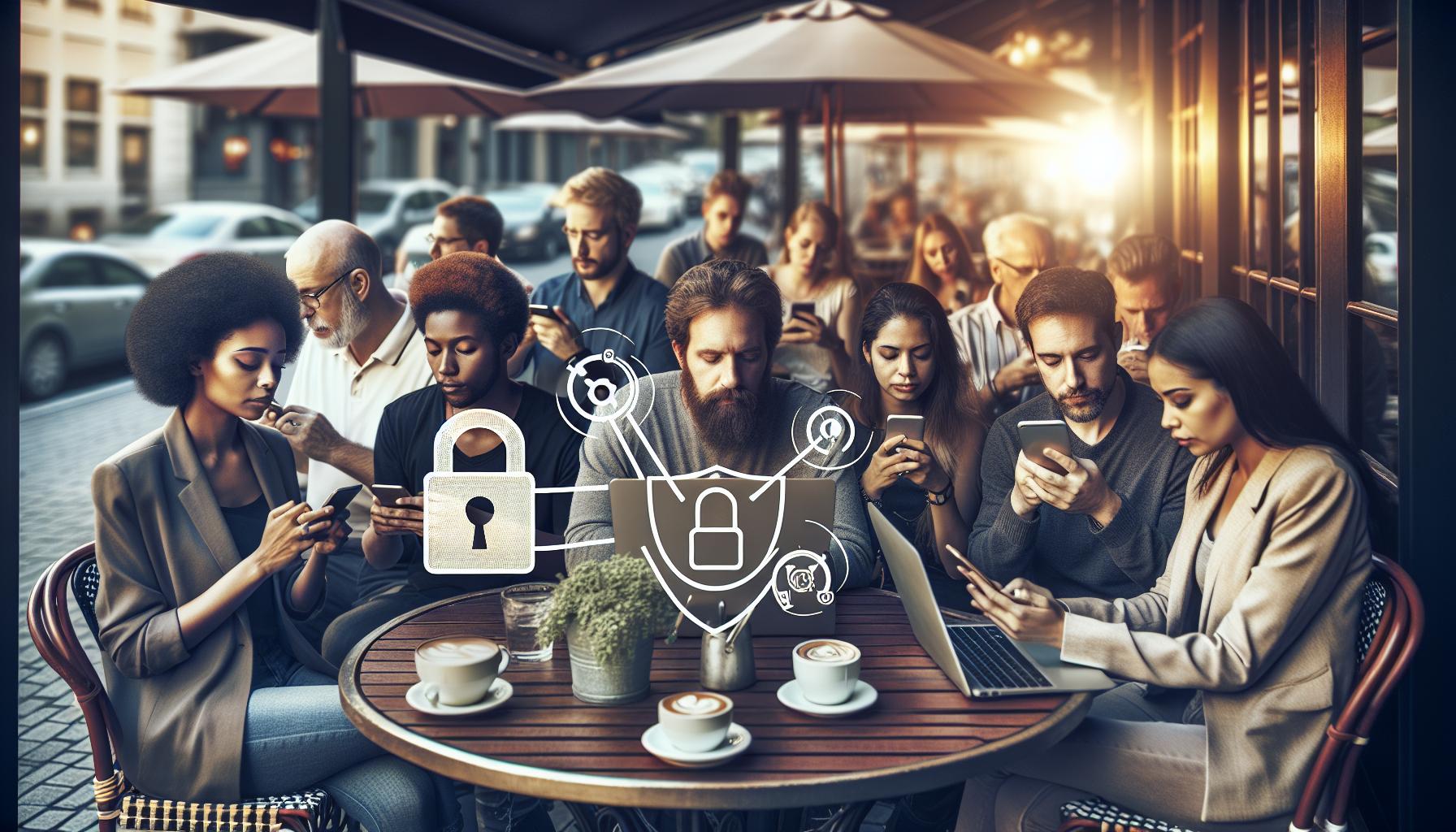
Regularly Reviewing Your Facebook Privacy Settings
Facebook is an ever-evolving platform, and so are its privacy features and settings. Regularly reviewing your privacy settings is essential to keep your personal information secure and ensure that your social network meets your preferences and needs. Just as you would update the locks on your home for better security, doing the same with your online privacy can prevent unwanted intrusions into your life and give you peace of mind about who can see your connections
Start by checking your friend list visibility settings. To do this, navigate to your profile, click on the “Friends” tab, and then tap on the pencil icon to edit your privacy. You can choose who sees your friends list-whether it’s only yourself, your friends, or a custom group of individuals. Reassess your choices periodically, especially after any significant life changes such as moving, changing jobs, or having new people enter your social circle. For example, when you add friends in a professional context, you might want to limit visibility to avoid potential conflicts of interest.
Steps to Review and Adjust Privacy Settings
To make the most of Facebook’s privacy options, it helps to follow a structured approach. Here are simple steps to guide you through reviewing your settings:
- Go to Settings & Privacy: Click the downward arrow in the upper right corner of Facebook, then select “Settings & Privacy”, followed by “Settings”.
- Access Privacy Settings: In the left sidebar, find “Privacy” to review different aspects of your privacy on the platform, including who can see your posts and friend list.
- Customize Profile Visibility: Look through sections like “Your Activity” and “How People Find and Contact You” to control what others can see about you.
- Manage Friend List Visibility: Specifically adjust who can see your friends by editing the appropriate setting under “Your Activity”.
By keeping your settings fresh and aligned with your current life circumstances, you can mitigate the risks associated with oversharing. Remember to communicate with your friends; if they can see your friends list, they may connect with individuals you prefer to keep private. Transparency with close friends or family about your privacy preferences can help establish boundaries and mutual respect.
Additionally, keep an eye out for the regular announcements from Facebook regarding updates to their features. They may introduce new tools to enhance your ability to customize your privacy settings. For those looking for a more tailored approach, consider using Friend Lists to separate your connections and customize visibility for different groups-friends, colleagues, and family can all have different levels of access to your social media footprint.
Regularly reassessing your privacy settings is not merely a one-time task but an ongoing commitment to safeguarding your online presence. A proactive approach ensures you maintain control over your personal information, allowing you to engage with Facebook confidently and securely, while remaining connected to those who matter most in your life.
How to Make Connections Private on Mobile
Making your friend connections private on Facebook while using the mobile app is a crucial step in safeguarding your personal information. Understanding the intricacies of Facebook’s privacy settings can seem daunting, but creating boundaries for your social circle doesn’t have to be. With just a few navigational steps in the app, you can effectively control who sees your friend list and prevent unwanted connections.
To start, open your Facebook app and access your profile by tapping the three horizontal lines (☰) in the bottom right corner (or top right for some Android devices). From your profile, follow these steps:
- Go to ‘Settings & Privacy’: Scroll down and select “Settings & Privacy”.
- Access ‘Settings’: Tap on “Settings”. In the settings menu, look for “Privacy”.
- Edit Friend List Visibility: Under ‘Your Activity’, locate the section titled “Who can see your friends list?” Tap on it.
- Select Your Preference: You can choose from options like “Friends”, “Only Me”, or create a Custom list. Selecting “Only Me” ensures that no one but you can view your list of friends.
Once you have adjusted this setting, consider taking it a step further by customizing friend visibility through the Friend Lists feature. This enables you to categorize friends into groups such as “Close Friends”, “Family”, or “Colleagues”, each with tailored privacy levels. For example, you may want your family to see your connections while colleagues do not.
Additionally, keep in mind that while your immediate friends list can be made private, any mutual friends you have with others will still be visible. Therefore, it’s wise to regularly assess your connections, especially when accepting friend requests from individuals whose privacy preferences you may not be aware of. Engaging with online communities or local groups can further navigate these privacy settings, allowing you to share your experiences and learn from others.
By remaining proactive about your privacy settings, you create a more secure social environment on Facebook, ensuring that your interactions are limited to those you genuinely want to connect with. Don’t hesitate to revisit these settings periodically or whenever you feel your social circles have changed. It’s a simple yet effective way to maintain control over your online presence.
Navigating Facebook’s Privacy Center Features
Navigating Facebook can often feel like deciphering a complex puzzle, especially when it comes to understanding the variety of privacy settings at your disposal. The Facebook Privacy Center serves as your safe harbor in this expansive social media landscape, providing you the necessary tools to shield your personal information effectively. Discovering how to modify and optimize these settings allows you to enjoy your social experience without enforced visibility.
To begin, you’ll find the Privacy Center within the Facebook app or on the website under settings. Here you will encounter various categories, each tailored to protect different aspects of your account. Key areas to explore include:
- Your Activity: This section allows you to manage who can see your friend list, posts, and tagged photos. Making careful selections here can maximize your privacy.
- Profile Information: Control the visibility of your contact information, workplace, and education details. Opt for “Friends” or “Only Me” to limit who can view these details.
- Timeline and Tagging: Customize who can post on your timeline or tag you in photos, ensuring you maintain control over how you’re portrayed.
While these settings help, Facebook offers additional features that further bolster your privacy. Consider using options like “Limit Past Posts” to adjust the audience for your existing posts to “Friends” only. This is particularly useful if you’re revisiting old posts that may no longer fit your privacy standards.
Engaging with the Privacy Checkup tool can also be beneficial as it walks you through essential privacy protocols, all while providing real-time insights into who can access your content. Tailoring these settings not only empowers you but also mitigates privacy risks inherent in social networking. By regularly updating your parameters and remaining vigilant about new features Facebook rolls out, you can maintain a secure online presence and foster positive digital relationships.
In conclusion, embracing the Privacy Center is crucial for making informed decisions about your friend connections. By actively managing these details, you reclaim control over your online interactions, ensuring that only the people you choose have access to your social circle. Remember, consistent monitoring and adjustments based on your evolving needs are key to creating a secure space on Facebook where you can freely connect and share.
Exploring Additional Privacy Tools on Facebook
Navigating the myriad of privacy tools Facebook offers can feel daunting, yet understanding these options is vital for ensuring your online safety and confidentiality. Facebook continually adapts its features, and alongside standard privacy settings, it offers additional tools designed to give users more control over their information and interactions. By leveraging these tools, you can create a more tailored and secure environment on your profile.
One significant feature to explore is the ability to customize your audience for posts. When creating a post, you can select the audience using the dropdown menu next to the “Post” button. This allows you to share updates privately with friends, specific groups, or even make them public. Over time, consider using this feature to ensure your messages reach only the intended recipients.
Additionally, using the Friend Lists feature empowers you to manage your connections more effectively. By categorizing friends into lists (like Close Friends, Acquaintances, or Custom Lists), you can control visibility when posting or sharing content. For example, if you want a particular event invitation to reach only your close friends, simply select the Close Friends list when creating the post.
Another layer of privacy can be attained through Tagging Options. Facebook lets you decide who can tag you in posts and photos. You may choose to review tags before they appear on your timeline or limit who can tag you altogether. This proactive approach can significantly reduce unwanted attention or misrepresentation on the platform.
Leveraging Profile and Audience Settings
- Profile Visibility: Adjust who can see your profile picture and cover photo. Setting these to “Friends” means that your broader circle won’t have access to see connections that may be visible through your public profile.
- Disconnect Friends: If you no longer wish to see someone’s updates without unfriending them, you can ‘unfollow’ them. This will stop their posts from appearing in your news feed while they remain on your friend list.
- Blocking Features: If someone is compromising your comfort on the platform, you have the option to block them completely, preventing them from interacting with your content.
Employing the Privacy Checkup is also an invaluable practice. This tool offers an easy walkthrough of your settings, helping you review who can see your posts, friends list, and other personal information. By regularly utilizing this feature, you can easily adapt your settings to reflect any changes in your social circle or preferences.
By taking advantage of Facebook’s robust suite of privacy tools, you can enhance your control over interactions and the visibility of your profile. This approach not only helps in protecting your privacy but also fosters a more comfortable online atmosphere where you can connect and share freely with friends and family. Embrace these features to customize your experience, ensuring it aligns with your privacy needs in today’s digital world.
Q&A
Q: How can I hide my friend list from specific people on Facebook?
A: To hide your friend list from specific people, go to your Facebook profile and click on “Friends.” At the top right, click on the pencil icon, then select “Edit Privacy.” Here, you can choose friends, friends except, or only me to control who can see your connections. For more detailed instructions, refer to the “Steps to Hide Your Friend Connections” section in our article.
Q: Why should I make my Facebook friend list private?
A: Making your Facebook friend list private enhances your privacy by preventing unwanted people from seeing your connections. It helps protect your social circles and reduces the risk of friend requests from strangers. To understand better, check our section on “Importance of Privacy in Social Networking.”
Q: Can I control who sees my friend requests on Facebook?
A: No, you cannot hide friend requests; however, you can limit who can send you friend requests by adjusting your privacy settings. Go to “Settings,” then “Privacy,” and adjust your “Who can send you friend requests” options. For more privacy tips, explore our “Tips for Preventing Unwanted Profile Views” section.
Q: What happens when I hide my friends on Facebook?
A: When you hide your friends on Facebook, only you can see your friend list; others will not be able to view who you are connected with. This adds an extra layer of privacy to your Facebook experience. For steps on how to do this, check our “Steps to Hide Your Friend Connections” segment.
Q: Can friends still see mutual friends if I hide my friend list?
A: Yes, friends can still see mutual friends, even if your friend list is set to private. However, they will not see your entire friend list unless you adjust your settings. For a full understanding of what to expect, refer to the “Understanding Facebook’s Privacy Options” section of our article.
Q: How do I check my current friend privacy settings on Facebook?
A: To check your friend privacy settings, go to your profile, click on “Friends,” then click on the pencil icon to access “Edit Privacy.” Review your settings for “Friends List” and adjust as needed. For further guidance, explore the “Managing Your Friend List Privacy Effectively” segment in our article.
Q: What should I do if I accidentally added someone I don’t want as a friend on Facebook?
A: If you’ve added someone by mistake, you can simply unfriend them. Go to their profile, click on the “Friends” button, and select “Unfriend.” For a more thorough approach to managing your friend list, check out our “Managing Your Friend List Privacy Effectively” section.
Q: How does making my friend list private affect who can see my posts?
A: Making your friend list private does not directly affect who can see your posts; post visibility depends on your individual post settings. You can customize audience settings for each post. For a deeper look at these settings, see the section on “Control Who Can See Your Profile and Friends.”
In Conclusion
Now that you know how to make your friend connections private on Facebook and enhance your privacy online, it’s time to take action! By following these steps, you can control who sees your connections and ensure your social circle remains just that-social and private. Feeling unsure about something? Reach out with your questions in the comments below; we’re here to help!
If you found this guide valuable, check out our tutorials on optimizing your Facebook privacy settings and navigating Facebook’s features for beginners and advanced users alike. Don’t miss out on staying updated; sign up for our newsletter for tips and tricks on managing your social media presence effectively. Remember, keeping your information secure is important, and you deserve to use Facebook with confidence. Explore these resources and empower yourself today!


