In today’s digital landscape, where sharing personal moments is just a click away, privacy has become more important than ever. Did you know that nearly 70% of Facebook users worry about their online privacy? If you’re feeling uneasy about who can see your posts, interact with you, or access your personal information, you’re not alone. Hiding your profile on Facebook is an empowering step towards reclaiming your privacy and controlling your online presence. This guide will walk you through easy, effective methods to make your account more secure, ensuring that you can enjoy the platform with peace of mind. By taking just a few moments to adjust your settings, you can significantly enhance your social media experience and feel more in control of what you share. Let’s dive in and discover how you can boost your privacy on Facebook!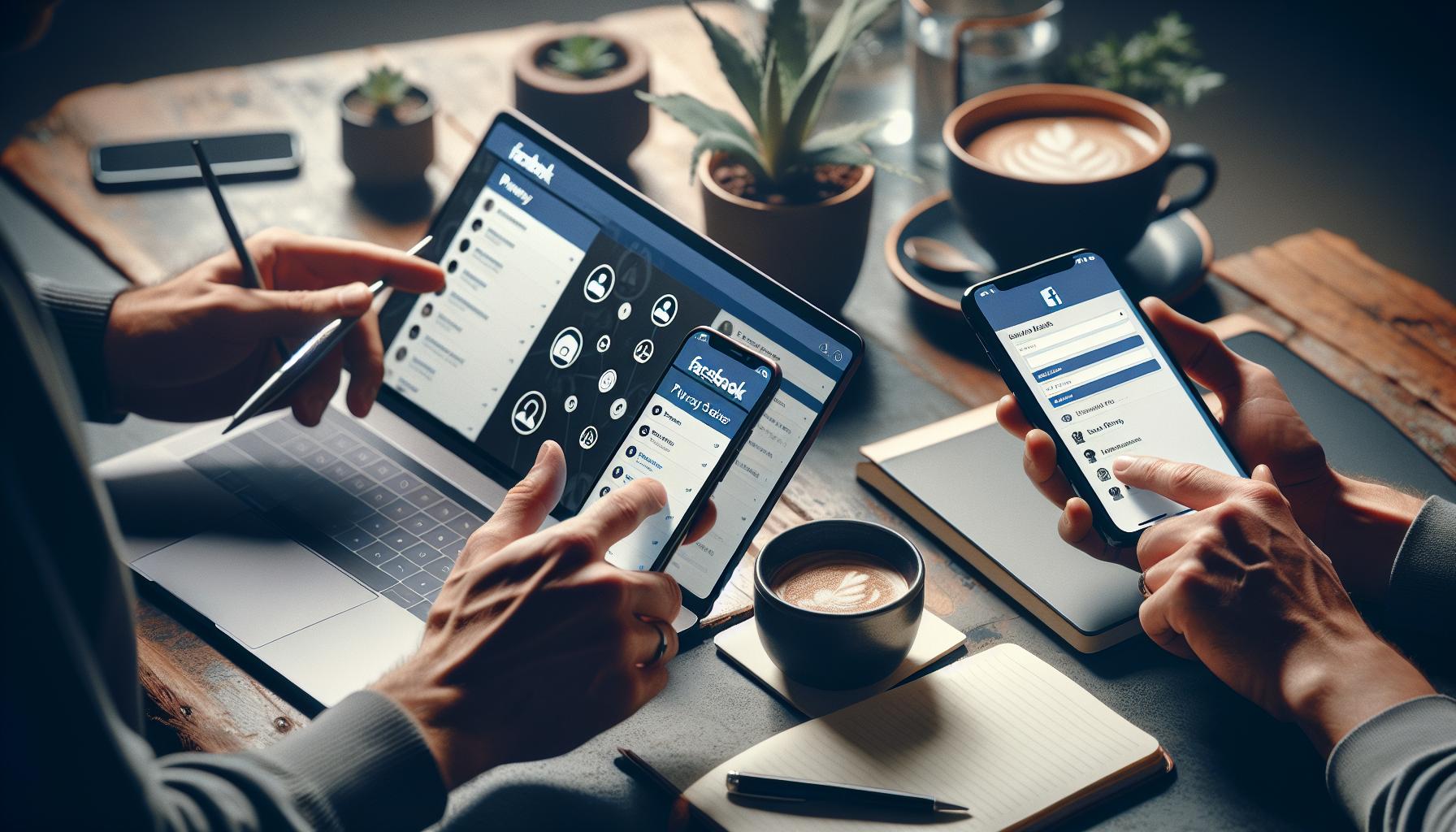
How to Access Facebook Privacy Settings
Accessing your privacy settings on Facebook is a crucial step in ensuring that your personal information is kept safe and your profile is only visible to the people you want. With millions of users worldwide, Facebook continues to evolve, and understanding how to manage your privacy settings can feel overwhelming. However, taking control of your privacy is not only simple but can also enhance your overall experience on the platform.
To start, log into your Facebook account from either a web browser or the mobile app. Once you’re on your news feed, locate the down arrow icon in the top right corner of the page if you’re on a desktop. Click this arrow to reveal a dropdown menu. For mobile users, tap the three horizontal lines in the bottom right (iOS) or top right (Android) of the app. From here, you will see the “Settings & Privacy” option. Click on it, and select “Settings” from the expanded menu. This will redirect you to a page where you’ll find a variety of options to customize your experience.
Finding Privacy Settings
In the Settings menu, look for the “Privacy” section, which should be prominently displayed. This area houses all the critical tools you need to control who sees your content and how your information is managed. You’ll find various subsections here, including:
- Privacy Settings and Tools: Adjust who can view your posts, send you friend requests, and search for your profile.
- Activity Log: Review past activities and manage your timeline content.
- Manage Your Profile: Update choices regarding your profile visibility and personal information.
Take your time to explore each option, as this will help you understand what information is shared and with whom. Facebook provides explanations about each setting, making it easier for you to adjust them according to your preferred privacy level. For a comprehensive look at your profile’s privacy, familiarize yourself with features that allow you to restrict visibility further and protect your data against unwanted access.
Empower yourself by routinely revisiting these settings, especially with Facebook’s frequent updates and privacy policy changes. In doing so, you will truly enhance your privacy and enjoy a safer social media experience.
Understanding Facebook’s Privacy Options
Navigating the maze of privacy options on Facebook can initially seem daunting, especially when considering how many nuances there are to protect your personal information. As social media plays an increasingly vital role in our lives, understanding how to manage Facebook’s privacy settings is essential to curbing unwanted attention and maintaining control over your online presence. Each option within Facebook’s privacy settings acts like a gatekeeper for your personal information, allowing you to adjust who can see your content while enabling you to participate in the platform without vulnerability.
With an array of tools at your disposal, you can tailor your settings to align with your comfort level. For example, in the Privacy Settings and Tools section, you can determine who gets to see your posts: friends, friends of friends, or only you. For increased security, consider selecting “Friends” to limit exposure. It’s also wise to manage how users can connect with you. Here, you can restrict friend requests from unknown individuals, ensuring that only people you know can add you and engage with your content. Another vital aspect is the visibility of your profile through search engines, which you can disable completely, making it harder for strangers to find you outside of Facebook.
Making Use of the Activity Log
The Activity Log is another invaluable tool that allows you to see all your past activities on Facebook in one place-from posts you’ve liked to comments you’ve made. Reviewing this periodically can help you stay aware of what you’ve shared, giving you the opportunity to remove any content that’s no longer reflective of your current self. For example, if you posted a picture during a time of life you’d prefer to forget, you can easily locate it in the Activity Log and adjust its privacy settings or delete it altogether.
Understanding Profile Visibility
Managing who sees your profile information is crucial in controlling your overall privacy. You can set specific restrictions on various profile sections, such as your contact information, education history, and workplace details. Each of these sections lets you choose who can view the information: make it visible to friends only or restrict it to just you. This functionality is a practical way to ensure that only your chosen circle has access to sensitive information, potentially safeguarding you from identity theft or unwanted solicitations.
By familiarizing yourself with these privacy options, you empower yourself to create a safer social media experience on Facebook. Remember that privacy isn’t just about shielding your information; it’s also about feeling confident and secure while engaging with your network. Take charge of your privacy now to enjoy a more enjoyable and controlled online experience.
Step-by-Step Guide to Hiding Your Profile
Hiding your profile on Facebook can significantly boost your privacy, making it harder for strangers or unwanted acquaintances to find you. Thankfully, adjusting these settings is easier than you might think. By following a few straightforward steps, you can take control of your visibility and enjoy a safer online experience.
To begin with, navigate to your Facebook homepage and locate the downward arrow in the top right corner of the screen. Click on it, and from the drop-down menu, select Settings & Privacy and then click on Settings. This will lead you to the main settings page, where you can see various options tailored for your account.
Adjusting Profile Visibility
Once you’re in the settings, look for the Privacy tab on the left-hand side menu. Click on it to access your privacy settings. Here you will find several options related to your profile visibility. To specifically restrict who can see your profile, find the section labeled Your Activity.
– Click on Edit next to Who can see your future posts? Select Friends, Only Me, or Custom to limit visibility.
– Next, scroll down to Who can send you friend requests? and consider changing this to Friends of Friends or Friends to minimize unwanted connection requests.
Hiding Your Profile Information
To further enhance your privacy, you can adjust who can see specific information on your profile. In the same Privacy Settings area, explore options related to Profile and Tagging.
– Select Who can see your friends list? and change it to Only Me to prevent others from learning about your connections.
– Additionally, you can edit who can view details like your profile picture, cover photo, and other personal information. Simply click on each section you want to restrict, and set the visibility according to your preferences.
Utilizing Profile Lock
For even deeper protection, consider locking your profile. This feature is available to users in certain regions and can be accessed from the main Privacy settings page.
– Look for the option that says Lock Profile and follow the prompts to confirm. This feature makes your profile more private by limiting who can see your photos and posts and by restricting profile picture and cover photo visibility to just friends.
By taking these steps, you can effectively hide your profile and control who has access to your content on Facebook. It’s about creating a space where you can interact comfortably without the fear of unwanted scrutiny. Regularly revisit these settings, especially as Facebook updates its features, to ensure your privacy remains intact.
Adjusting Who Can See Your Posts
Adjusting the visibility of your posts on Facebook is a powerful way to enhance your privacy and control who gets to see your content. With the platform’s extensive audience, you likely have concerns about what information is shared and with whom. By customizing your post visibility settings, you can create a more secure environment and share your thoughts and experiences with only those you choose.
First, navigate to your Privacy Settings by clicking the down arrow in the top right corner of your Facebook homepage, selecting Settings & Privacy, and then Settings. Once in the settings menu, click on the Privacy tab located on the left-hand side. Here you will encounter options tailored for your privacy needs. To specifically manage who can see your future posts, find the section labeled Your Activity. Click on Edit next to Who can see your future posts? Here, you may select from several options:
- Friends: This restricts your posts to only the friends you have added on Facebook.
- Only Me: Choosing this option ensures that no one else can see your posts, giving you total privacy.
- Custom: This allows you to create specific lists or select individuals who can or cannot view your posts, tailoring your audience to your needs.
Additionally, by scrolling further down in the same section, you can manage Who can see your past posts? This is equally important, as it allows you to review and restrict visibility on older content. If you want a blanket change for all your previous posts, you can select the Limit Past Posts option. When you activate this, all your past posts will be visible only to friends, ensuring that your timeline reflects your current privacy preferences.
To make ongoing management easier, consider adopting best practices such as updating your visibility settings regularly, especially before sharing sensitive updates or personal milestones. Facebook also allows you to override post visibility on a case-by-case basis when you create individual posts. Before hitting Post, you can click the audience selector button to quickly change who can see that specific post, which is particularly useful for sharing more private content within close circles or for public announcements.
By taking these proactive steps, you not only enhance your privacy but also ensure that your experience on Facebook matches your comfort level with sharing. Regularly visiting your privacy settings will keep you in control of what you share and with whom, making your social media experience a more enjoyable one.
Optimizing Your Friend List for Privacy
Optimizing your friend list on Facebook can significantly enhance your privacy, allowing you to control who has access to your personal information and updates. For many users, the challenge isn’t just about adjusting settings but also knowing who their friends are and how those connections impact their online presence. By carefully managing your friend list, you can create a more secure and enjoyable experience while minimizing unwanted exposure.
Start by conducting a thorough review of your current friend list. Is there anyone you’ve lost touch with or don’t feel comfortable sharing your personal life with? If so, don’t hesitate to remove or restrict them. You can do this easily: go to their profile, click on the “Friends” button, and select “Unfriend” or “Edit Friend Lists” to adjust their visibility. If you’re not ready to cut ties completely, consider placing them in a restricted list. This option allows them to remain friends on Facebook but limits their visibility-only showing them content you have made public.
Taking advantage of Facebook’s Lists feature can help you categorize friends based on how much you want to share with them. For instance, you can create lists such as “Close Friends,” “Family,” or “Work Colleagues.” Once these lists are established, you can customize your post visibility accordingly. When you post updates, simply select the desired audience using the audience selector, ensuring that sensitive information is only shared with those you absolutely trust. This method not only aids in maintaining your privacy but also helps in curating a more relevant news feed.
Additionally, consider utilizing the “Friends of Friends” setting. You can choose to share posts with “Friends” only, which restricts visibility to your direct connections. Alternatively, if you occasionally want to share something broader, you can opt for “Friends of Friends,” carefully weighing the implications of expanding your audience. Each setting has unique privacy ramifications, so it’s important to reflect on your comfort level and adjust as necessary.
Lastly, remain proactive by periodically assessing and updating your friend list and privacy settings. As your social circles change-whether due to new connections, personal milestones, or evolving comfort levels-revisiting and refining your relationships on Facebook can provide ongoing reassurance regarding your online privacy. By thoughtfully managing your friend list, you can ensure that your Facebook experience aligns with your privacy preferences, making it a more personalized and secure space.
Managing Profile Information Visibility
Adjusting the visibility of your profile information on Facebook is a crucial step in safeguarding your personal data and creating a more private online experience. With features designed to allow users to control who sees their information, navigating privacy settings can seem overwhelming, but it’s easier than you might think. By taking a few simple steps, you can ensure your profile reflects a level of privacy that suits your preferences.
To begin managing your profile information visibility, head to your profile page and look for the introduction section. Here, you’ll find various information categories such as your “About,” “Work,” and “Contact” sections. Each of these can be configured for visibility. To change who can view this information, click on the pencil icon or select the edit option next to the relevant section. You’ll be prompted with the audience selector, which allows you to choose from:
- Public: Anyone can see your information.
- Friends: Only your friends can view it.
- Friends except…: Exclude specific friends from seeing this information.
- Only Me: This will keep the information private, visible only to you.
Utilizing these options lets you tailor your profile visibility carefully, ensuring sensitive details are only shared with trusted connections or kept completely private. For instance, if you’re concerned about your workplace being public knowledge, set your job title and employer to “Only Me.”
Another key area to look into is your profile picture and cover photo. While these are usually public by default, you can restrict their visibility similarly. Be mindful that while you can control who sees the picture, comments or tags on these images may still be seen by a wider audience depending on their privacy settings. Hence, it’s wise to review these factors periodically.
When managing visibility settings for specific pieces of information, consistently ask yourself: *Who do I want to include or exclude from viewing this?* This reflective approach will not only help in making informed decisions but can also fundamentally enhance your overall experience on the platform. Taking such proactive steps in managing your profile visibility can transform Facebook into a safer space where you share and connect on your terms.
Enabling Restricted Mode for Added Security
Enabling a restricted mode on Facebook can significantly bolster your privacy and security, reducing the risks associated with unwanted attention or data breaches. This feature allows you to carefully manage who can view your profile and interact with your content, giving you peace of mind while you engage with the platform. Essentially, it acts as an added layer of security, creating a more controlled social environment tailored to your comfort levels.
To enable restricted mode, first navigate to your privacy settings. Here’s how to do it:
- Access Settings: Click the downward arrow in the top right corner of your Facebook page and select Settings & Privacy, then click Settings.
- Privacy Settings: On the left sidebar, click on Privacy. This section encompasses key elements that impact your overall privacy.
- Limit Profile Visibility: Look for options such as Who can see your future posts? Here, you can set your audience preference to Friends or even customize it by choosing Friends except… to exclude certain individuals.
- Restrict Profile Information: Additionally, check the Profile and Tagging settings where you can control who can tag you in posts or photos and who can see posts you’re tagged in. You can choose Only Me for tighter control, ensuring that your profile is visible only to those you trust.
- Birthdays and Contacts: You may also adjust how your birthday and contact information are shared, setting them to Friends or Only Me to maintain additional privacy.
Utilizing Restricted List
Creating a restricted list is an efficient way to manage visibility further. By adding certain friends to this list, they will remain your friends but will only see your public posts. Here’s how to create a restricted list:
- Go to your friend’s profile you want to add to the restricted list.
- Click on the Friends button (located on their profile).
- From the dropdown menu, select Edit Friend Lists.
- Choose Restricted and save your changes.
Friends on your restricted list won’t be notified about this change, allowing you to maintain discretion in reducing their access to your posts and activities.
Adjusting Other Privacy Settings
Beyond these initial steps, consider reviewing other privacy settings that may enhance your experience:
- Who can look you up using the email address or phone number associated with your account? Change this to Friends to minimize exposure.
- Do you want search engines outside of Facebook to link to your profile? Set this to No for more privacy.
By taking these straightforward actions, you empower yourself to take control over your Facebook presence, ensuring that your interactions remain within your comfort zone. With the constant evolution of online privacy concerns, enabling restricted mode is a smart step toward a safer, more enjoyable social networking experience.
Configuring Tagging and Timeline Settings
Configuring your tagging and timeline settings on Facebook is a powerful step in controlling who can engage with your content and how your profile is perceived by others. Given the platform’s ability to share information broadly, managing these settings allows you to mitigate unwanted interactions and maintain your privacy.
Start by navigating to your settings. Click on the downward arrow in the top right corner and select Settings & Privacy, then click on Settings. In the left sidebar, find and click on Profile and Tagging to view your options. Here, you’ll have the opportunity to personalize several key aspects:
Tagging Settings
- Who Can Tag You: This setting allows you to control who can tag you in posts and photos. You can opt to limit tags to only friends, or customize it further by selecting “Friends of Friends” or “No one” for complete control.
- Review Tags Before They Appear: Enable the “Review tags people add to your posts before the tags appear on Facebook” option. This feature ensures that any tags from friends that could link to your profile are approved by you first. To activate this, turn on the “Review tags” option, which you’ll find right below the tagging permissions section.
Timeline Settings
Your timeline settings command how your profile interacts with your audience. Adjust these preferences to fit your comfort level:
- Who Can Post on Your Timeline: Set this to “Only Me” or “Friends” to limit who can publish content on your page. Optimally, choosing “Only Me” allows you to maintain a cleaner profile.
- Who Can See Posts on Your Timeline: Change this to limit visibility of the posts made by others on your timeline. You can select from options like “Friends” or “Only Me,” ensuring access is restricted to your preferred audience.
By tailoring these settings, you not only gain control over the information displayed on your profile but also protect yourself from unwanted scrutiny or criticism. Friends and acquaintances will be less likely to mistakenly tag you in unflattering photos or make public posts that could draw your attention unwantedly.
Regularly Review Your Settings
It’s vital to periodically revisit these configurations as Facebook frequently updates its features. Check back every few months or after significant platform changes to ensure your privacy preferences remain intact. Taking these proactive steps creates not only a safer online environment for you but also fosters a community where your comfort and security are prioritized.
Embracing these customization options on tagging and timeline settings empowers you to enjoy Facebook while keeping your personal information and interactions secure. By understanding and strategically adjusting these settings, you can enhance your privacy effectively, tailoring your Facebook experience to your needs.
Controlling App and Website Permissions
Navigating the complexities of Facebook’s app and website permissions can feel daunting, but taking control over what is shared with third-party services is crucial for enhancing your privacy. Many users are unaware that when they connect apps or websites with their Facebook profile, they may be granting these platforms access to a wealth of personal information. This not only includes your basic profile details but also activities, friends lists, and more. Therefore, managing these permissions can significantly bolster your privacy and safeguard your data from potential misuse.
To start, access the settings by clicking the downward arrow in the top right corner of your Facebook homepage, then selecting Settings & Privacy followed by Settings. From there, look for the Apps and Websites section in the left sidebar. Here, you can view every app and website linked to your account, providing you insight into what data each one can access.
Managing Your App Permissions
Within the Apps and Websites section, you’ll see categories for Active, Expired, and Removed apps. Regularly reviewing these can help ensure that you only maintain necessary apps connected to your account. To remove access from any app, simply click on the checkbox next to its name in the Active section and select Remove. Confirm your choice to disconnect the app, which will immediately revoke its access to your information.
Adjusting App-Specific Permissions
If you want to retain an app but reduce the data it can access, click on the app’s name in the list. This action takes you to a detailed view of what personal information you’ve shared with that app. You can uncheck any boxes to restrict the data available to the app, such as your location, friend list, or posts. This feature empowers you to maintain control over your information while still enjoying the benefits of select apps.
Third-Party App Risks
It’s essential to remain vigilant about third-party applications. Many security breaches and data leaks originate from poorly managed apps. Stay informed about which apps you engage with, and leverage resources like online reviews or security assessments to judge their reputability. If an app seems questionable or its permissions appear excessive, consider seeking alternatives that prioritize user privacy.
By taking these steps, you not only enhance your personal security on Facebook but also cultivate a more conscious approach to how your information is shared online. Regularly auditing your app and website permissions paves the way for a safer and more tailored Facebook experience that aligns with your privacy needs.
Reviewing Third-Party Apps for Privacy Risks
When navigating the digital landscape, many users overlook the potential risks associated with third-party applications linked to their Facebook accounts. Often, the convenience of using these apps overshadows the critical understanding of what personal data they can access and utilize. Unbeknownst to many, each app connection can expose sensitive information, from your location to your friends list, which can easily be exploited if not adequately monitored.
To ensure your privacy, it’s essential to regularly evaluate the third-party apps you engage with on Facebook. Start by accessing the Apps and Websites section in your Facebook settings as discussed earlier. From there, categorize your apps into those you actively use and those that are outdated or unnecessary. Pay attention to any apps that seem overly intrusive in their data demands – if an app requests access to information that seems irrelevant to its service, it might be a red flag.
Identifying Privacy Risks
Consider the following questions when reviewing your connected apps:
- What information does the app request? – Only grant access to necessary data that enhances your experience.
- How reputable is the app? – Research the developer or company behind the app for their privacy policies and user reviews.
- Is the app still relevant to you? – If you haven’t used an app in months, it’s wise to disconnect it.
- Do you have alternative apps that can achieve the same goal? – Seek out apps that prioritize user privacy and data protection.
Refusing unnecessary permissions is a powerful step towards safeguarding your data. Regularly unchecking data access for apps you choose to keep can significantly reduce the amount of personal information shared. For instance, if a fitness app only requires your activity data, there is little justification for granting it access to your friend list.
Staying Vigilant Against Security Breaches
The digital world is not without its pitfalls, and security breaches often originate from insecure third-party applications. Always pay attention to any notifications or alerts from Facebook regarding suspicious activity linked to third-party apps. If a breach occurs, Facebook typically provides instructions on how to secure your account-never ignore these warnings.
Ultimately, the more you understand and manage the privacy settings around your third-party apps, the more secure your Facebook experience will be. By taking the time to regularly audit your connected apps and being discerning about which apps you engage with, you can feel empowered in protecting your personal information and enhancing your overall privacy on the platform.
Best Practices for Facebook Privacy Management
When it comes to protecting your privacy on Facebook, understanding and implementing best practices can make a significant difference in your online security. With the platform constantly evolving, it can be daunting to keep track of all the changes. However, taking proactive steps not only enhances your privacy but also helps to build a more secure environment for yourself and your network.
One of the first steps to take is to regularly review your privacy settings. Facebook allows you to customize who sees your posts, profile information, and friend list. Go to Settings & Privacy > Privacy Shortcuts, and walk through the options available. Whenever you post, be mindful of the audience selector, which can be set to options like Public, Friends, or Only Me. Tailoring this setting with each post ensures that you maintain control over who views your content, allowing you to adjust privacy preferences depending on the sensitivity of the material.
Another crucial practice is to audit your friend list. Consider if you truly need all your current connections and whether they should have access to your posts as well. Unfollowing or removing individuals who aren’t important in your online social circle reduces exposure and potential privacy breaches. Furthermore, utilizing the “Friends Lists” feature allows you to categorize different friends based on your relationship, which helps manage who sees what.
Utilizing Security Features
Making use of Facebook’s built-in security features is essential. Activating two-factor authentication adds an additional layer of security. This feature requires not just your password, but also a temporary code sent to your mobile number or authenticator app, making unauthorized access more difficult. Also, take advantage of the activity log to keep track of your interactions on the platform. This log allows you to review your posts, activities, and the apps you’ve used, which can help you spot any questionable access or activities that need addressing.
Stay Informed about Changes
Lastly, staying updated on Facebook’s privacy changes and features can greatly enhance your ability to manage your privacy effectively. Make it a habit to check for updates from Facebook on privacy policies and settings changes. They often announce new tools and settings for users, which can provide opportunities to tighten security if needed. Follow official Facebook pages or privacy blogs to keep abreast of the latest information.
Implementing these practices will empower you to navigate Facebook with confidence, safeguarding your personal information while enjoying the social interactions the platform offers. Remember, the more informed and proactive you are about your privacy settings, the less vulnerable you’ll be in the digital space.
Staying Updated: Facebook Privacy Changes
Keeping up with Facebook’s constant evolution can feel overwhelming, especially when it comes to ensuring your privacy and security. The platform frequently updates its privacy features and settings, so it’s essential to stay informed about these changes to maintain control over your online presence. Understanding and utilizing these updates can be a game-changer in how securely you engage with friends, family, and the broader Facebook community.
One practical method for staying in the loop is to regularly check Facebook’s official blog and help center. These platforms highlight upcoming changes, new features, and best practices for privacy management. You can also customize your notifications to receive updates directly, which can save you time and ensure you don’t miss important announcements. Here’s how to do it:
- Go to Settings & Privacy.
- Select Settings, then look for Notification Settings.
- Adjust your preferences to include alerts on privacy updates.
Another helpful strategy is to participate in online forums and communities focused on digital security. These spaces often provide insights and discussions about experiences with Facebook’s privacy settings. Engaging with these communities can also reveal practical tips that may not be widely shared elsewhere. Additionally, checking in on technology news websites and social media channels dedicated to privacy can provide broader context about industry standards and emerging trends.
While staying informed is crucial, taking action is just as important. Regularly revisiting your privacy settings is essential to ensure that they align with any new updates that Facebook rolls out. Features such as Profile Locking (available in some regions) or Reviewing your tagged photos can help you control what is shared publicly. It’s beneficial to establish a routine, perhaps once every month, to review these settings, adjusting them as necessary based on the latest guidelines and your changing preferences.
By actively engaging with these resources and habits, you empower yourself to manage your Facebook privacy with confidence. Remember, taking the time to understand changes not only helps keep your personal information safe but also enhances your overall experience on the platform.
Faq
Q: How can I completely hide my Facebook profile from everyone?
A: To completely hide your Facebook profile, adjust your privacy settings by going to “Settings & Privacy,” then “Settings.” Under “Privacy,” limit the visibility of your profile information, posts, and friend lists. Set your profile to “Only Me” under profile visibility options. For detailed steps, see our section on Managing Profile Information Visibility.
Q: What happens to my old posts when I hide my Facebook profile?
A: When you hide your Facebook profile, your previous posts will not be publicly visible, but they may still be accessible to your friends depending on their privacy settings. Review and adjust your post visibility to ensure your content aligns with your desired privacy levels.
Q: Can I temporarily hide my Facebook profile?
A: Yes, you can temporarily hide your profile by using the “Deactivate Account” option found in the “Settings & Privacy” menu. This will make your account invisible to others until you decide to reactivate it. Refer to our guidelines on account management for more information.
Q: How do I limit who can find me on Facebook?
A: To limit who can find you on Facebook, adjust your privacy settings by navigating to “Settings & Privacy.” Under the “Privacy” tab, change “Who can look you up using the email address you provided?” to “Friends” or “Only Me.” This effectively restricts search visibility.
Q: What privacy settings should I prioritize on Facebook?
A: Prioritize settings related to who can see your posts, send you friend requests, and look you up based on your email or phone number. Additionally, manage your tagging and timeline settings to further enhance your privacy. For a comprehensive guide, check our Best Practices for Facebook Privacy Management.
Q: How do I remove unwanted tags on Facebook for better privacy?
A: To remove unwanted tags on Facebook, go to the post with the tag, click the three dots, and select “Remove Tag.” You can also adjust your tagging settings in “Settings & Privacy” under “Timeline and Tagging” to control who can tag you in posts moving forward.
Q: Is it possible to hide my Facebook profile from specific people?
A: Yes, you can hide your profile from specific individuals by using the “Friends Except…” option in your privacy settings. When setting your profile visibility, you can selectively exclude certain friends from viewing your details. For more detailed instructions, see our section on Adjusting Who Can See Your Posts.
Q: How do I ensure my Facebook account is secure while hiding my profile?
A: To secure your Facebook account while hiding your profile, enable two-factor authentication, use a strong password, and regularly review app permissions. Keep track of your privacy settings and make necessary adjustments to enhance overall security. For additional security tips, refer to our Managing Profile Information Visibility section.
Key Takeaways
Now that you know how to hide your profile on Facebook and enhance your privacy, it’s time to take action! Implement these steps today to regain control over your online presence and protect your personal information. Remember, keeping your profile private not only helps safeguard your data but also gives you peace of mind in a digitally connected world.
If you found this guide useful, why not check out our articles on Managing Facebook Privacy Settings and How to Optimize Your Facebook Account for Business? These resources can provide you with further insights to navigate Facebook confidently.
Don’t hesitate to share your thoughts or questions in the comments below; your interaction helps others in our community! And if you’re looking for more valuable tips, be sure to subscribe to our newsletter for the latest updates. Empower yourself today to enjoy a safer and more rewarding Facebook experience!