
Did you know that many users often forget to log out of Facebook Messenger, leaving their accounts vulnerable? In a world where digital privacy and security are paramount, knowing how to safely exit the app is essential. Whether you’re stepping away from a shared device or simply need a break from notifications, logging out of Messenger can help protect your personal information and maintain your peace of mind.
In this guide, you’ll discover straightforward steps to log out of Facebook Messenger, as well as tips for managing your privacy settings effectively. By understanding how to navigate these features, you’ll not only secure your account but also regain control over your digital interactions. So, if you’re ready to enhance your privacy and reclaim your space, keep reading to learn how to exit Messenger safely and confidently.
How to Log Out of Facebook Messenger on Mobile
Navigating the world of Facebook Messenger can sometimes feel overwhelming, especially when it comes to managing your account settings. Logging out of Messenger on your mobile device is an essential step for those concerned about privacy or who want to ensure their account is secure when they’re not using it. Whether you’re switching between multiple accounts or simply need a break from notifications, knowing how to log out can make your experience much more controlled and comfortable.
To log out of Facebook Messenger on your mobile, follow these simple yet effective steps:
Steps to Log Out on Mobile
- Open the Messenger App: Launch the Messenger app on your mobile device.
- Access Your Profile: Tap on your profile picture or the icon at the top left corner of the screen. This action will open your account settings and options.
- Find the Log Out Option: Scroll down in the settings menu until you see the “Log Out” option.
- Confirm Log Out: Tap on “Log Out” and confirm your choice when prompted. This will log you out of Messenger, but not from your Facebook account.
It’s worth noting that logging out of Messenger does not erase your messages or account data; your conversations remain intact for when you log back in. This feature allows you to take a break without losing any important information or previous messages.
Why Logging Out is Important
Logging out from the Messenger app is crucial, especially for users who share their devices or utilize public Wi-Fi. Disconnecting your account reduces the risk of unauthorized access and helps keep your personal messages private. In an age where digital privacy is paramount, taking that extra step to log out when you’re done can provide peace of mind and protect you from potential vulnerabilities.
By following these steps, you can ensure that your use of Messenger remains secure and tailored to your needs. Embrace this simple practice to maintain greater control over your messaging habits and protect your personal information effectively.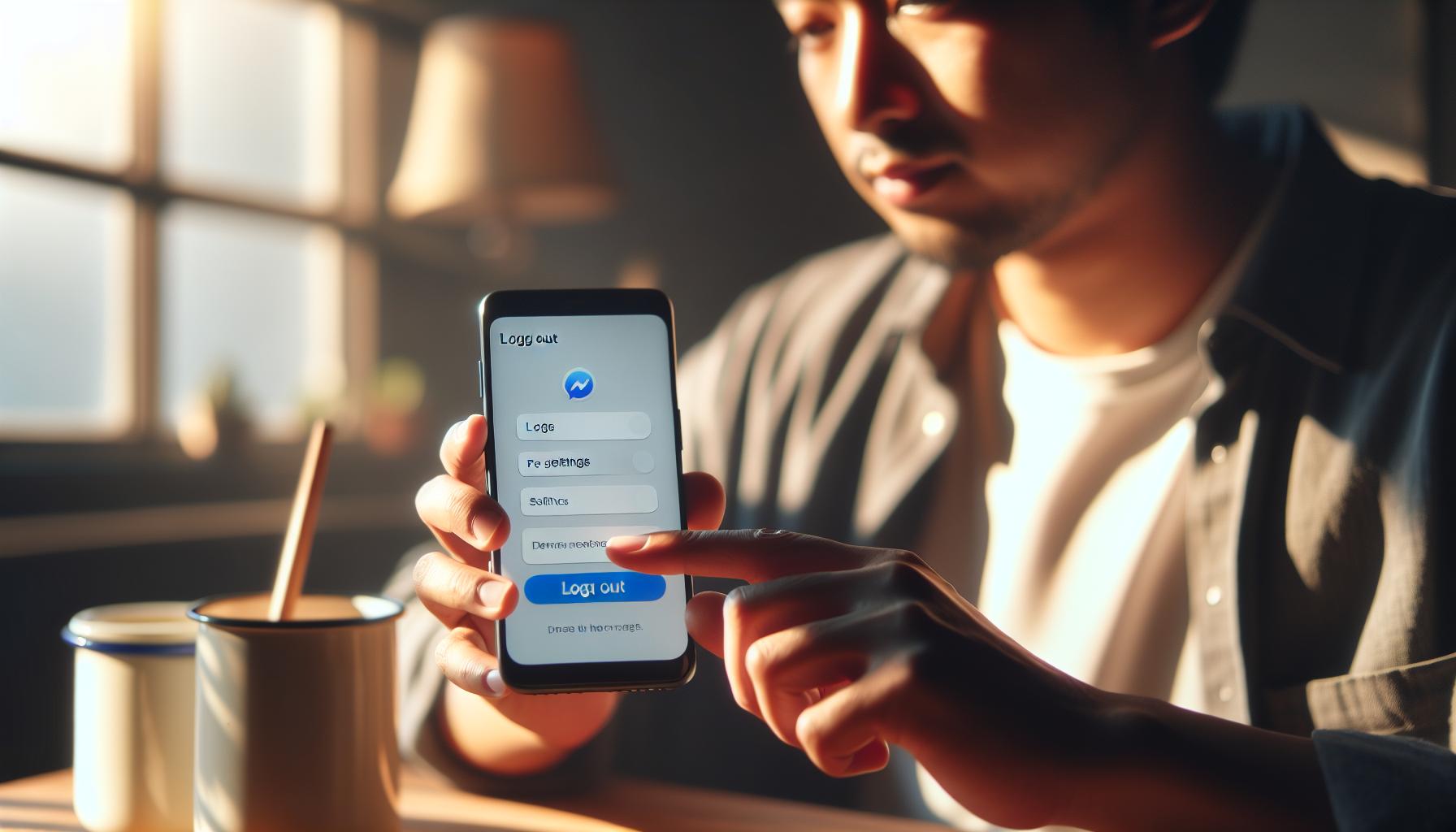
Logging Out of Facebook Messenger on Desktop
Logging out of Facebook Messenger on your desktop is a straightforward process that enhances your privacy and security, especially if you’re using a shared computer or a public network. Unlike mobile devices where you can simply swipe out of the app, logging out of Messenger on a desktop requires navigating through your settings, but the steps are simple to follow.
To successfully log out from Messenger on your desktop, start by ensuring that you’re on the Messenger website. If you’re logged in, your chat list will be visible on the left side of the screen. Here’s how to exit safely:
- Access Your Account Settings: Click on your profile picture in the top left corner of the Messenger interface. This will reveal a dropdown menu related to your account.
- Select ‘Log Out’: In the dropdown menu, you’ll find the “Log Out” option. Click on it, and you’ll be prompted to confirm your decision.
- Confirm Your Log Out: Click on the confirmation button to complete the process. This action will log you out from Messenger on your desktop, ensuring that your conversations remain private.
One critical point to understand is that logging out of Messenger on your desktop does not delete your messages or conversations; they remain accessible whenever you log back in. This capability allows you to maintain continuity in your conversations while ensuring that your account is not accessible to others who might use the same device.
It’s essential to log out, especially in environments where multiple users may have access to the same system. In both public and shared spaces, taking the time to exit your Messenger account can safeguard your personal information and maintain your digital privacy. By following these steps, you’ll foster a safer online experience while using Messenger.
Understanding the Importance of Safe Log Out
Understanding how to safely log out of Facebook Messenger is critical in today’s digital landscape, where privacy risks are ever-present. Many users often overlook the importance of securely logging out, assuming that simply closing the app is sufficient. However, without a proper log out, sensitive information may remain vulnerable to unauthorized access, especially on shared or public devices. For instance, if you forget to log out of your Messenger account on a library computer, anyone who uses that device next can potentially access your conversations and personal data.
One significant advantage of logging out is the enhanced security it provides. By taking this extra step, you’re effectively minimizing the chances of your account being hijacked. Always log out of your Messenger account if you’re using a public Wi-Fi network or a device that others may use, such as a friend’s phone or a workplace computer. This simple action protects not only your messages but also any other linked accounts that may be accessible through your Facebook profile.
Consider implementing a few best practices for safe logging out:
- Use Secure Connections: Whenever possible, connect to secure Wi-Fi networks and avoid public hotspots before logging into your Messenger account.
- Log Out from All Devices: Whenever you change your password or suspect unauthorized access, return to your Facebook settings to log out from all devices linked to your account.
- Enable Login Alerts: Facebook offers an option to receive alerts whenever a new login occurs. This feature can help you monitor suspicious activities.
- Teach Others: If you frequently share devices with family or friends, educate them about the importance of logging out after using Messenger. Sharing knowledge enhances the overall security status.
Moreover, it’s worth noting that even if you are in a rush or believe that you can trust the device you’re using, taking a moment to log out can save you from potential distress later. Each time you log out, you reaffirm control over your privacy and set a standard for secure digital behavior. Maintaining awareness around the logging out process embodies a proactive approach to securing your online presence, ensuring that your its integrity remains intact.
Troubleshooting Common Log Out Issues
Using Facebook Messenger can sometimes lead to unexpected hurdles when it comes to logging out, particularly due to its integration with the broader Facebook experience. Whether you find that the log out option seems elusive or you encounter error messages while attempting to secure your conversations, understanding common issues can help you navigate these challenges efficiently.
One frequently reported problem is the inability to find the log out option within the app. This often happens when users are unfamiliar with the app’s layout. To safely log out, start by tapping on your profile picture in the upper left corner of the Messenger app. If you scroll down, you will find the “Log Out” button, enabling you to exit your account securely. If this option seems unavailable, ensure your app is updated to the latest version. Outdated apps can sometimes hide features or cause malfunctions.
Another common issue is when users log out, but the app seems to keep their account accessible after they reopen it. This can be particularly frustrating; however, it’s essential to remember that Messenger on mobile devices usually defaults to keeping you logged in for convenience. To address this, you should try clearing the app cache or signing out of Facebook entirely if you’re using it concurrently. You can clear your cache by navigating to your phone’s settings, selecting “Apps” or “Application Manager,” finding Messenger, and choosing “Clear Cache.” This often resolves lingering session data that can lead to such issues.
Lastly, some users encounter problems with logging out due to connectivity issues. If the app fails to respond or the log-out command does not process, check your internet connection. A weak or unstable internet connection can hinder the proper execution of log-out processes. Switching from Wi-Fi to mobile data (or vice versa) can often resolve such hiccups. If all else fails, restarting your device can refresh the system and eliminate temporary glitches, allowing for a smoother experience.
Using these strategies, you can ensure that your log-out process is as straightforward and reliable as possible, keeping your Messenger account secure and your privacy intact.
Managing Multiple Accounts in Messenger
For users juggling multiple accounts on Facebook Messenger, managing your profile can feel like a balancing act. Whether you’re using it for personal communication, professional networking, or managing a business account, understanding how to switch between accounts seamlessly is essential for maintaining organization and privacy.
To start with, it’s important to know that Facebook Messenger allows you to log in with more than one account on your device. However, unlike some other messaging platforms, Messenger does not support the simultaneous use of multiple accounts within the same app. Fortunately, switching between accounts is straightforward and can be done by following a few simple steps.
Switching Accounts in Messenger
- Open the Messenger app on your device.
- Tap your profile picture in the upper left corner to access your settings.
- Scroll down and look for the “Account” section.
- Tap “Switch Account” or “Log Out” to exit your current account.
- Once logged out, you can log in again using another account by entering the different credentials.
While this process is easy, it’s crucial to remember that logging out of one account to access another may cause inconvenience if you frequently switch between accounts. To streamline this, consider using multiple profiles on your phone-most devices allow you to create user profiles. By doing so, you can maintain a distinct environment for each account, quickly logging into Messenger without the need to log in and out continuously.
Privacy Considerations
When managing multiple accounts, be vigilant about privacy. Ensure that you log out of an account if you’re sharing your device with others or when finishing your session, especially if you’re using public or communal devices. This practice not only protects your conversations but also keeps unwanted eyes away from your personal information. Furthermore, enabling notifications specifically for the accounts that matter most to you can help you stay connected without the clutter from less important notifications.
In conclusion, while managing multiple accounts on Messenger might present some challenges, it is entirely manageable with the right approach. Leveraging device features, switching accounts carefully, and prioritizing privacy can lead to a more organized and secure messaging experience. Whether it’s for personal or professional use, knowing how to navigate Messenger’s account setup allows you to communicate more effectively while keeping your data protected.
Tips for Enhanced Privacy After Logging Out
After logging out of Facebook Messenger, ensuring your privacy and security remains crucial, especially in our increasingly digital world fraught with privacy concerns. As many users are unaware, merely logging out of the app isn’t always sufficient to keep your personal information secure, particularly if you share your device or are in a public space. Here are some practical tips to enhance your privacy after you log out.
One of the first steps you can take is to clear your app cache and data. This not only frees up storage space but also removes any residual data that could potentially be accessed by others. To clear the cache on an Android device, go to Settings > Apps > Messenger > Storage > Clear Cache. For iOS users, you may need to uninstall and reinstall the app, as there is no direct way to clear cache on iOS.
Additionally, enabling account alerts can assist you in monitoring any unusual activities. Facebook allows you to set up alerts for unrecognized logins, which can be easily activated in your account settings. This feature sends you a notification or email whenever your account is accessed from a device or location that’s not recognized, giving you peace of mind and immediate awareness of potential unauthorized access.
To further safeguard your information, review and tighten your privacy settings. Navigate to Settings > Privacy in your Facebook account. Make adjustments such as limiting who can send you friend requests, who can see your posts, and who can look up your profile using your email or phone number. Such preventive measures are essential in enhancing your profile’s security and ensuring that you retain control over who accesses your personal information.
Lastly, consider utilizing password managers to secure your credentials. If you tend to forget passwords or frequently log in and out of various accounts, a password manager can securely store your passwords and even generate strong, unique passwords for each account. This step not only simplifies your login process but also fortifies your accounts against unauthorized access.
By following these straightforward suggestions, you can significantly bolster your privacy and security in Facebook Messenger and other platforms. Taking proactive steps in managing your digital footprint will help you navigate the complexities of online communication with greater confidence and security.
Understanding the Difference Between Logging Out and Deleting
Understanding the distinctions between logging out of Facebook Messenger and deleting your account can significantly enhance your management of privacy and security on the platform. While both actions remove access from your current session, they have vastly different implications for your account and data.
When you choose to log out of Messenger, you’re simply ending your current session, which means you will need to enter your credentials the next time you want to access it. This action does not affect your account, messages, or stored data in any way. Your conversations stay intact, and your contacts remain accessible once you log back in. It’s a reversible step, allowing you to return to Messenger without the need for re-establishment or recovery of your account. This is particularly useful if you’re using a shared device and want to protect your private information for the time being.
In contrast, deleting your Messenger account (which involves deleting your Facebook account as well) is a permanent action. If you choose to delete your Messenger account, all your messages, chats, and data within the app will be completely removed, and you won’t be able to recover them later. This decision is suitable for users who no longer wish to maintain a presence on the platform or are moving to a different messaging service. If you decide later that you want to return, you will have to create a new account from scratch, leading to potential loss of connections and important conversations.
Key Differences
| Aspect | Logging Out | Deleting Messenger Account |
|---|---|---|
| Access | Temporary removal from current session | Permanently removes your account and data |
| Data Retention | All messages and chats retained | All messages and data deleted |
| Future Access | Easy to log back in | New account setup required |
| Privacy | Protects session on shared devices | Completely cuts ties with the platform |
Considering these differences can help you make an informed decision based on your personal needs. If safety and privacy are your primary concerns when using shared devices, logging out offers an effective way to secure your information without sacrificing your connection to friends and family. Conversely, if you’re looking for a clean break from Messenger, deleting your account is the way to go, but be aware of the consequences concerning your history and contacts. Keep in mind that understanding these processes allows you to navigate Facebook and Messenger with greater confidence and alignment to your privacy goals.
Post-Log Out: What Happens to Your Messages?
Logging out of Facebook Messenger is a straightforward process that ensures your privacy when using others’ devices, but what happens to your messages during this transition? It’s a common area of confusion for users navigating their accounts, especially in an age where private conversations and data security are paramount.
When you log out of Messenger, rest assured that all your messages remain intact. This action merely severs the current session, meaning that while you have stepped away from the app, your conversations, media, and any shared content are preserved safely on Facebook’s servers. You can think of logging out as shutting a door to your room while keeping all your belongings inside – they are still there and completely accessible when you choose to return.
What to Expect After Logging Out
- Messages Stay Accessible: Your chat history will not disappear. When you log back in, you’ll find all your existing conversations waiting for you.
- No Message Deletion: Logging out does not delete any messages or threads you’ve had, so you don’t need to worry about losing important communications.
- Notifications Paused: Since you are logged out, you won’t receive notifications about new messages. This can be particularly beneficial if you need a break without the constant pinging of alerts.
Maintaining Privacy Post-Log Out
If privacy and security are your main concerns, logging out of Messenger is an effective step. However, remember that while your messages are secure, any logged-in users on shared devices can view the app. To further enhance your privacy, it’s wise to take additional measures:
- Use Two-Factor Authentication: Ensuring you have this security feature enabled adds another layer of protection for your account, requiring a code from your phone in addition to your password.
- Regularly Monitor Account Activity: Keep an eye on your Facebook account’s activity log for any unauthorized uses of your Messenger or Facebook account.
- Clear Browser History: If you accessed Messenger through a web browser, clear your history and cache to rid the device of any saved login information.
By understanding what happens to your messages when you log out of Messenger, you can navigate your privacy concerns with greater confidence. This simple action is effective for those who share devices, allowing you to enjoy Messenger’s features without compromising your personal data.
Using Messenger Without Downloading the App
For those who prefer not to download the Messenger app or are using a device that doesn’t support it, there is a convenient alternative that allows you to stay connected with friends and family. Facebook enables users to access Messenger directly through their mobile browser, providing the same functionalities without the need for additional app installations. This can be especially useful for anyone with limited storage space or individuals who are using a friend’s device temporarily.
To utilize Messenger via your browser, simply follow these steps:
1. Open your preferred mobile web browser (such as Chrome, Firefox, or Safari).
2. Navigate to the Facebook website and log in to your account as you normally would.
3. Once logged in, click on the Messenger icon located at the top right corner of the Facebook homepage. This will redirect you to the Messenger interface, where you can read messages, send new ones, and view notifications.
While you can access all core features of Messenger through your browser, it’s important to recognize the experience may vary slightly compared to the dedicated app. For example, some users might find that notifications don’t function the same way, and the interface can be slower on certain mobile browsers. However, for most users, these differences are minor compared to the convenience of accessing messages without an extra app.
Tips for Using Messenger on Your Browser
- Bookmark Messenger: To find Messenger easily in the future, bookmark the page or save it to your home screen for quick access.
- Log Out After Use: If you’re using a shared device, remember to log out from your Messenger session to protect your privacy. This can usually be done by tapping on your profile picture at the top and selecting ‘Log Out.’
- Update Your Browser: Ensure that your browser is up to date for the best performance and security features when using Messenger online.
- Use Desktop View on Mobile: If you want to access advanced features or a different layout than what the mobile version provides, consider enabling desktop mode in your mobile browser settings.
While the convenience of mobile browsers provides immediate access, it is essential to remain vigilant about your security and privacy. Always make sure to log out after accessing your messages on shared devices and consider enabling two-factor authentication on your Facebook account. This adds an extra layer of protection, ensuring that even if someone gains access to your account details, they’ll face an additional hurdle in accessing your personal communications. With these practices, you can enjoy the benefits of Messenger without downloading the app, keeping your connections alive wherever you are.
How to Completely Remove Messenger from Your Device
If you’ve decided that you no longer want Facebook Messenger taking up space on your device, removing the app is a straightforward process. Whether you’re looking to save storage, reduce distractions, or simply want to streamline your apps, uninstalling Messenger can help you achieve that. It’s important to remember that deleting the app doesn’t delete your Facebook account or your messages; it merely removes the app from your device. Here’s how to go about it for both Android and iOS devices.
Removing Messenger on Android
- Locate the App: Open your app drawer by swiping up from the bottom of your screen (or tapping the app drawer icon) and find the Messenger app.
- Uninstall the App:
– Tap and hold the Messenger app icon until a menu appears.
– Alternatively, you can also drag the app icon to the “Uninstall” option that appears at the top of your screen.
– Confirm the action by tapping “OK” or “Uninstall” when prompted.
- Clear Data (Optional): If you want to ensure no data is left behind, go to Settings > Apps > Messenger > Storage > Clear Data. This step is particularly important if privacy is a concern.
Removing Messenger on iOS
- Locate the App: Find the Messenger app on your home screen or in your app library.
- Uninstall the App:
– Tap and hold the Messenger app icon until it jiggles.
– Tap the “X” in the corner of the app icon or select “Remove App.”
– Confirm by selecting “Delete App” to remove it from your device.
- Check for Data: While uninstalling on iOS typically clears all associated data, ensure no personal information is saved within the app settings.
What to Keep in Mind
Before you uninstall Messenger, ensure that you have any important messages saved or backed up, as you won’t be able to access them through the app once it’s removed. However, you can always access your messages through the Facebook website or through the Messenger web version if you need to return to them.
In addition, if your primary concern revolves around privacy and security, remember to always log out of Messenger before uninstalling, especially on shared devices. This extra precaution helps prevent unauthorized access to your account.
Alternative Access
Once you’ve removed the Messenger app, you still have the option to access Messenger via your mobile web browser, as previously discussed. Simply log in to your Facebook account, click on the Messenger icon, and you can view your messages without needing to download or install the app again.
By following these steps, you can easily uninstall Messenger from your device while maintaining access to your communication channels, all while keeping your personal space free from apps that no longer serve your needs.
Enabling Two-Factor Authentication for Extra Security
Two-factor authentication (2FA) adds an essential layer of security to your Facebook account, enhancing the protection of your Messenger conversations and personal information. With the increasing prevalence of cyber threats, enabling 2FA is a proactive step that helps ensure only you can access your account. This feature requires not just your password but also a unique verification code sent to your mobile device, dramatically reducing the risk of unauthorized access.
To activate two-factor authentication on your Facebook account, follow these straightforward steps:
Steps to Enable Two-Factor Authentication
- Open Facebook Settings:
– Begin by logging into your Facebook account either on your mobile app or through a web browser.
– Click on the downward arrow at the top right corner (on the web) or tap the three horizontal lines (on mobile) to access the menu.
– Select Settings & Privacy, then tap on Settings.
- Navigate to Security:
– In the left-hand menu, find and select Security and Login. Here, you will see various security options available for your account.
- Set Up Two-Factor Authentication:
– Look for the section labeled Two-Factor Authentication. Click on Edit to explore your options.
– Choose between receiving your authentication codes via text message (SMS) or using an authentication app, such as Google Authenticator or Authy, for increased security.
- Add Your Phone Number or Authentication App:
– If you opt for SMS, enter your mobile number and request a verification code to be sent to your phone. Enter the code once you receive it to confirm your number.
– Alternatively, if you choose an authentication app, follow the on-screen instructions to scan a QR code or enter the setup key provided by Facebook.
- Complete the Setup:
– After confirming your choice, you’ll have the option to enter backup codes in case you lose access to your primary method of authentication. Save these codes securely.
- Review Trusted Contacts (Optional):
– You can also set up trusted contacts who can help you regain access to your account should you ever have trouble logging in.
By following these steps, you ensure that your Facebook account-and by extension, your Messenger-is much safer. Each time you attempt to log in, the additional step of entering a verification code means that even if someone manages to obtain your password, they won’t be able to access your account without your physical device.
Why It’s Important
Implementing two-factor authentication significantly mitigates the likelihood of unauthorized account access, which is increasingly critical as incidents of hacking become more common. This simple adjustment not only protects your private conversations on Messenger and your overall Facebook account but also gives you peace of mind knowing that your personal data is more secure.
By embracing 2FA, you’re taking a crucial step toward safeguarding your online identity and ensuring that your communications remain private. In an era where digital threats are rampant, this enhancement to your account security is not just advisable; it’s essential. 加強您的帳戶安全,使用 Facebook Messenger 時獲得更大的安全感。
Best Practices for Maintaining Your Facebook Account Security
Maintaining the security of your Facebook account is essential in today’s digital landscape, where data breaches and unauthorized access are prevalent. A secure account not only protects your personal information but also safeguards your conversations on Messenger. Following best practices can help you achieve a robust level of security that puts you in control of your online presence.
Regularly Update Your Password
One of the simplest yet most effective steps you can take is to change your password regularly. Choose a strong and unique password that combines letters, numbers, and special characters. Avoid using easily guessable information, such as birthdays or common words. For added security, consider using a password manager. This tool can generate and store complex passwords, minimizing the risk of reusing passwords across multiple platforms.
Be Mindful of Login Locations
Stay alert when accessing your Facebook account from various devices or locations. When logging in from a public computer or shared device, always ensure you log out afterward to prevent unauthorized access. Facebook also allows you to view your active sessions under the Security and Login settings, where you can log out of devices you no longer use. Monitoring these sessions keeps you aware of any suspicious activity and enhances your account security.
Utilize Privacy Settings
Take advantage of Facebook’s privacy settings to control who can see your posts, send you friend requests, or access your Messenger. You can customize these settings according to your comfort level. Ensure that your profile is not publicly visible by adjusting audience settings for posts and personal information. Limiting your visibility on the platform can significantly reduce the likelihood of unwanted attention and potential breaches.
Stay Aware of Phishing Attempts
Be vigilant against phishing scams that attempt to trick you into providing your login credentials or personal information. Always double-check the URLs of any emails or messages allegedly from Facebook. If you’re ever unsure about a communication, log in to Facebook directly through the app or website instead of clicking on links in messages. Facebook also provides resources to help you recognize common scams, keeping you informed and secure.
Regular Account Review
Make a habit of reviewing your account security settings periodically. Look out for unfamiliar apps connected to your account, remove those you don’t use, and keep track of the permissions you grant. Furthermore, review your friend list and remove any accounts that appear suspicious. By regularly auditing your account, you maintain a secure and streamlined Facebook experience.
By following these practices, you ensure that your Facebook account and Messenger conversations remain protected against potential threats. Empower yourself with knowledge, and take control of the security features available to you. The more proactive you are, the safer your online communication will be.
Frequently asked questions
Q: How do I log out of Facebook Messenger if I have multiple accounts?
A: To log out of Facebook Messenger with multiple accounts, go to your profile settings in the app. Tap on ‘Account,’ select ‘Log Out’ for each account individually. This ensures that all accounts are securely exited. For more details, check the section on managing multiple accounts in our article.
Q: What happens to my messages when I log out of Facebook Messenger?
A: When you log out of Facebook Messenger, your messages remain stored on Facebook’s servers. You can access them later when you log back in. For more on this, see our section on post-log out message access.
Q: Is it safer to log out of Facebook Messenger or delete the app?
A: Logging out of Facebook Messenger is generally safer than deleting the app, as deletion may lead to loss of data. Logging out allows you to return without losing your messages. For a deeper comparison, refer to our section on understanding the difference between logging out and deleting.
Q: Can I log out of Facebook Messenger remotely?
A: Yes, you can log out of Facebook Messenger remotely by accessing your Facebook account settings on a browser. Navigate to ‘Security and Login,’ then review all active sessions and log out of Messenger on devices remotely. For detailed instructions, visit our troubleshooting section.
Q: How can I enhance my privacy after logging out of Facebook Messenger?
A: To enhance your privacy after logging out, consider reviewing your Facebook privacy settings, enabling two-factor authentication, and clearing your browsing history. For advanced privacy tips, see our dedicated privacy section in the article.
Q: What should I do if I’m unable to log out of Facebook Messenger?
A: If you’re unable to log out, try restarting the app or clearing its cache. If issues persist, uninstall and reinstall the app. For more troubleshooting insights, refer to our common log out issues section.
Q: How do I access Messenger without the app?
A: You can access Messenger without the app by using Facebook’s website on a browser. Simply log in and use the messaging feature through the web interface. For further instructions, check out the section on using Messenger without downloading the app.
Q: Why is it important to log out of Facebook Messenger on shared devices?
A: Logging out of Facebook Messenger on shared devices is crucial to protect your privacy and personal information. This helps prevent unauthorized access to your messages and account. For further tips on security, see our article’s best practices section.
The Way Forward
Now that you know how to log out of Facebook Messenger safely, you can protect your privacy and enjoy peace of mind when stepping away from your conversations. Remember, taking these small actions not only secures your account but also enhances your overall Facebook experience. If you have lingering questions, don’t hesitate to explore our guides on ‘Understanding Facebook Privacy Settings’ and ‘Troubleshooting Common Facebook Issues’ to further empower your social media navigation.
Ready to take your Facebook skills to the next level? Subscribe to our newsletter for the latest tips and tricks, and join our community of users dedicated to mastering Facebook’s features! Your next adventure in social media awaits-dive into our resources and transform your online interactions today. Remember, every step you take towards understanding Facebook better contributes to a safer and more enjoyable online presence. Share your thoughts below, and let’s keep the conversation going!


