

Did you know that over 2.8 billion people use Facebook, making it a pivotal platform for keeping in touch with friends, family, and even businesses? Changing your email address on Facebook is not just a simple task; it’s a necessary step for managing your online identity and enhancing your security. Whether you’re switching to a new email for privacy reasons or want to streamline your online accounts, knowing how to navigate Facebook’s settings can save you time and prevent headaches.
In this guide, we’ll walk you through the easy steps to change your email address on Facebook, ensuring that you keep your account secure and accessible. You’ll learn why it’s important to keep your email updated and how it can affect your privacy settings. Ready to make the switch? Let’s get started and simplify your Facebook experience today!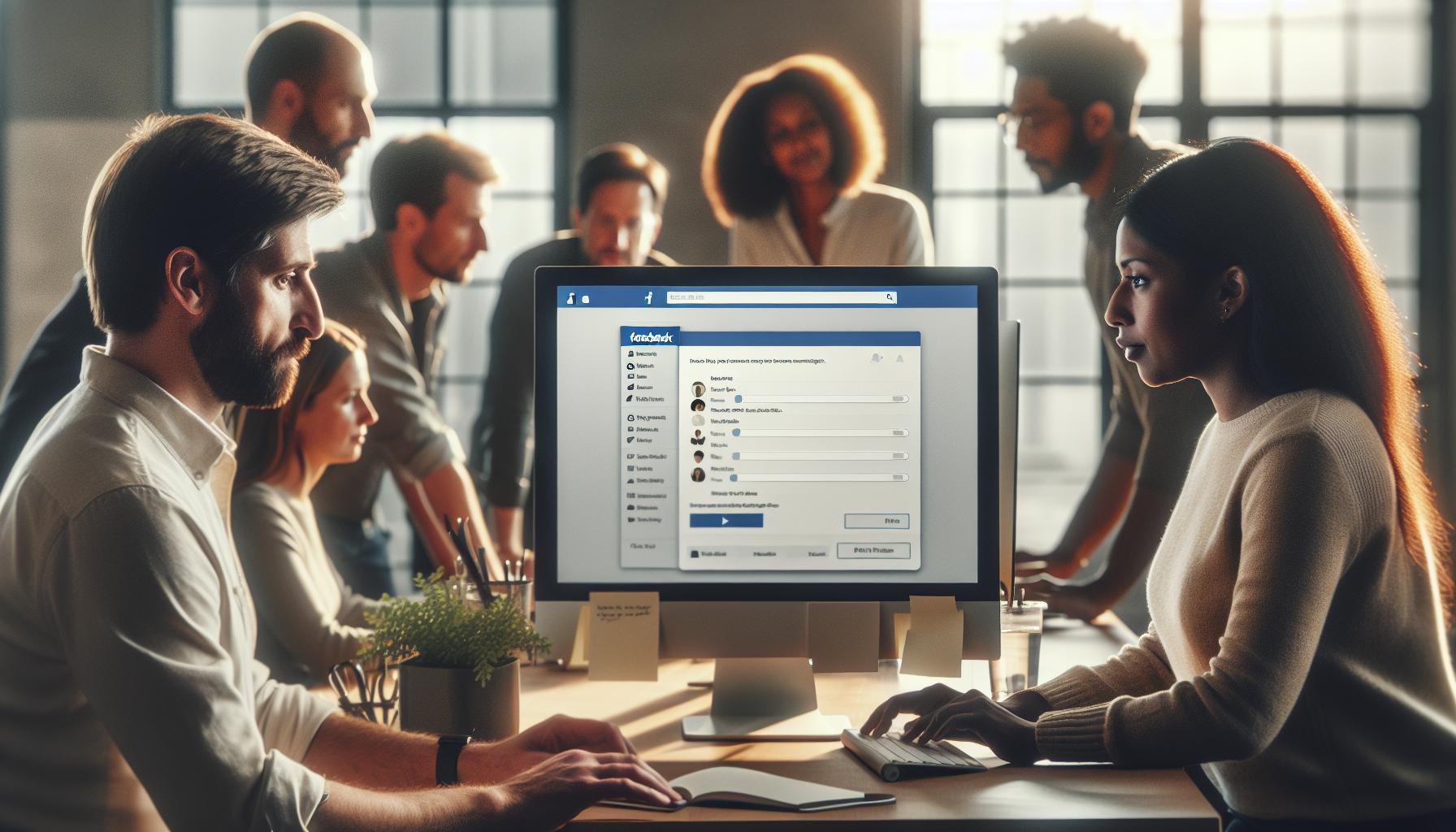
How to Access Your Facebook Account Settings
To effectively manage your Facebook account, knowing how to access your settings is essential. The account settings not only allow you to change important details like your email address but also enable you to enhance your privacy and security. This feature can seem daunting at first due to Facebook’s continually evolving interface, but fear not! With a few straightforward steps, you’ll be navigating these settings like a pro.
Begin by logging into your Facebook account using your preferred web browser. Once you are logged in, look for the small downward-facing arrow located in the upper right corner of the homepage. Clicking on this arrow will reveal a dropdown menu. From this menu, select Settings & Privacy. A sub-menu will appear, allowing you to click on Settings, which will direct you to the general account settings page. Here, you can find various sections including Account, Privacy, Security, and Notifications-each designed to help you customize your experience on Facebook.
The interface might differ slightly if you’re using the mobile app, but you will follow a similar process. Tap on the three horizontal lines (often referred to as the hamburger icon) located either at the bottom right or top right of your screen. Scroll down and select Settings & Privacy, then tap Settings. From there, you can explore the same options to manage everything from your email to security settings.
Each setting option comes with specific tabs and features that are intuitively named. For instance, if you want to change your email, you’ll want to click on General under the Settings section. You will see your current email address along with the option to edit it. By familiarizing yourself with these settings, you not only gain control over your account but also stay informed about the privacy settings that protect your information in today’s digital landscape. This empowers you to make adjustments whenever necessary, ensuring your account remains secure and tailored to your preferences.
Step-by-Step Guide to Change Your Email
Changing your email on Facebook is an important task that can enhance your account security and ensure you receive critical notifications. Whether you’re switching to a new email provider or just want to update an outdated address, the process is straightforward. Below is a step-by-step guide to help you successfully update your email.
Step-by-Step Process to Update Your Email
- Access Your Account Settings: Begin by logging into your Facebook account. Click the small downward-facing arrow in the top right corner to open the dropdown menu. Select Settings & Privacy, then tap on Settings.
- Navigate to Email Settings: In the Settings menu, locate the General tab. Here you will see your current email address listed along with an option to edit it.
- Change Your Email: Click the Edit button next to your email address. A new window will prompt you to enter your new email. Make sure to input it accurately to avoid any verification issues.
- Save Your Changes: After entering your new email address, click on Save Changes at the bottom of the window. Facebook may ask you to enter your password for security purposes. Enter your password and confirm to proceed.
- Verify Your New Email Address: Facebook will send a verification link to your new email. To complete the process, open your email inbox, find the message from Facebook, and click on the verification link. This step ensures that you have access to the new email and helps protect your account.
Troubleshooting Common Issues
If you encounter any issues during the email change process, the following tips might help:
- If you don’t receive the verification email: Check your spam or junk folder. Add Facebook to your email contacts to ensure future communications land in your primary inbox.
- If you can’t access your current email: Look for recovery options on the login page or try using your phone number if it’s linked to your account.
- If the new email is already in use: You may need to remove it from another account or choose a different email address.
By following these steps, you’ll be able to change your email address smoothly without unnecessary complications. Keeping your contact information updated not only ensures you’ll receive important updates but also plays a critical role in maintaining your account’s security. Embrace these simple steps, and you’ll navigate the often complex landscape of Facebook settings with newfound confidence.
Why You Might Need to Update Your Email
Keeping your email address current on Facebook is more than just a matter of convenience; it’s a crucial step in protecting your online identity. With the increasing number of phishing attempts and security breaches, ensuring that your account communication goes to a secure and frequently checked email address is imperative. You might be wondering why an email update is necessary, especially if your current address seems to be working just fine. However, there are several compelling reasons to consider.
First and foremost, if you change your primary email provider or switch to a more secure one, it’s vital to update your details on Facebook. This ensures that you won’t miss out on important notifications regarding your account security, such as alerts about suspicious login attempts or changes to your account settings. Furthermore, if your current email address is outdated-for instance, if it’s associated with a provider that you no longer use-it can lead to missed communication, which in turn can result in notifications going unchecked. Such lapses could leave your account more vulnerable, especially if you’re relying on that address for account recovery processes.
Another reason to update your email is to avoid confusion, particularly if you’ve registered multiple accounts on the platform or have an email that you frequently change. Managing multiple emails can be cumbersome, and having the correct one linked to your Facebook account can streamline your online interactions. It also simplifies the verification process when you need to reset your password or verify your identity due to unusual activity.
In addition to these practical reasons, considering your email’s privacy is also paramount. If you suspect that your current email has been compromised or is exposed to spam, it’s wise to promptly update it. Transitioning to a new email address can reinforce your account’s security and ensure that your interactions on the platform remain private and protected.
Taking the time to understand the importance of your email address and maintaining accuracy can significantly enhance your Facebook experience, ensuring that you’re not only connected with friends and family but also keeping your account secure. Remember, this small act of updating your email can have a big impact on your overall online safety and communication effectiveness.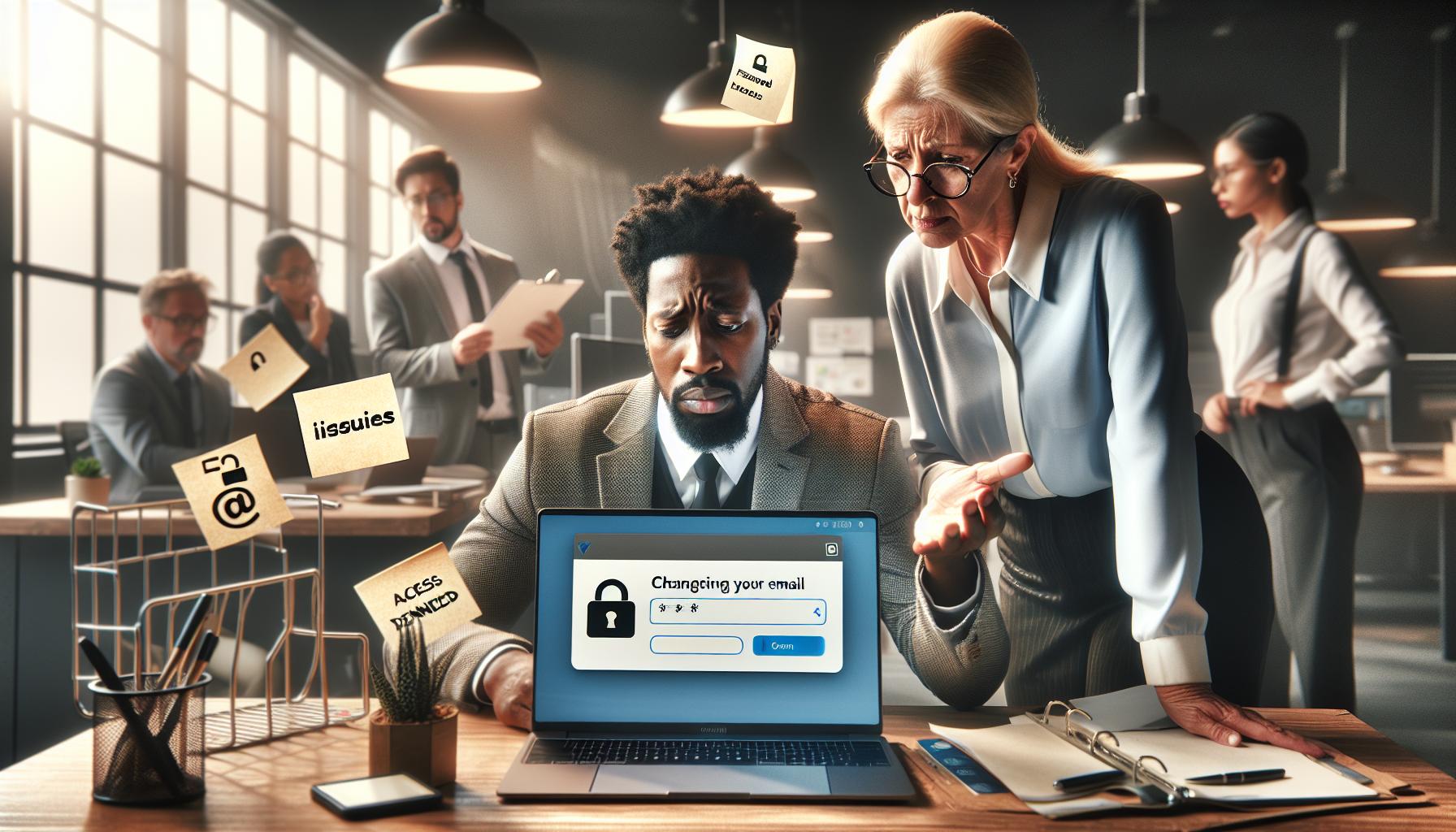
Common Issues When Changing Your Email
Changing your email on Facebook seems like a straightforward task, but it can come with its own set of challenges. Users often encounter various hiccups along the way, which can be frustrating, especially when trying to ensure their accounts are secure and communications are seamless. Understanding these common issues can empower you to tackle them effectively, ensuring your email update process goes smoothly.
One of the frequent problems users face is verification delays. After you attempt to change your email, Facebook typically sends a verification link to the new address. However, this email may take time to arrive, or it could end up in your spam folder. To avoid this, check your spam or junk mail folders regularly after making the change, and ensure that your email provider allows messages from Facebook. You may also want to whitelist Facebook in your email settings to ensure timely delivery.
Another issue involves forgotten passwords. If you’re in the process of changing your email and also need to reset your password, the lack of access to your previous email can complicate matters. Facebook uses your registered email for account recovery, so if you can’t access that, it’s advisable to use an alternative recovery method, such as answering security questions or using your mobile number if it’s linked to your account.
Additionally, users sometimes face confusion around multiple accounts. If you’ve accidentally created multiple accounts with different email addresses, it can be strenuous to jump from one to another. Ensure that you’re logged into the correct account before attempting to change your email. If you suspect you have multiple accounts, consider consolidating them to a single profile for easier management.
To alleviate the stress associated with these issues, keeping personal records of your email and recovery options can be beneficial. Always back up important emails regarding account changes, and take the time to update both Facebook and your other online services whenever you switch emails. Taking proactive steps to prepare for potential issues can turn a seemingly simple task into a confident and rewarding experience.
In summary, while changing your email on Facebook may come with challenges, awareness and preparation can help mitigate frustration. Always remember to stay patient and check all potential avenues if you encounter difficulties-your online security and connectivity are worth the effort.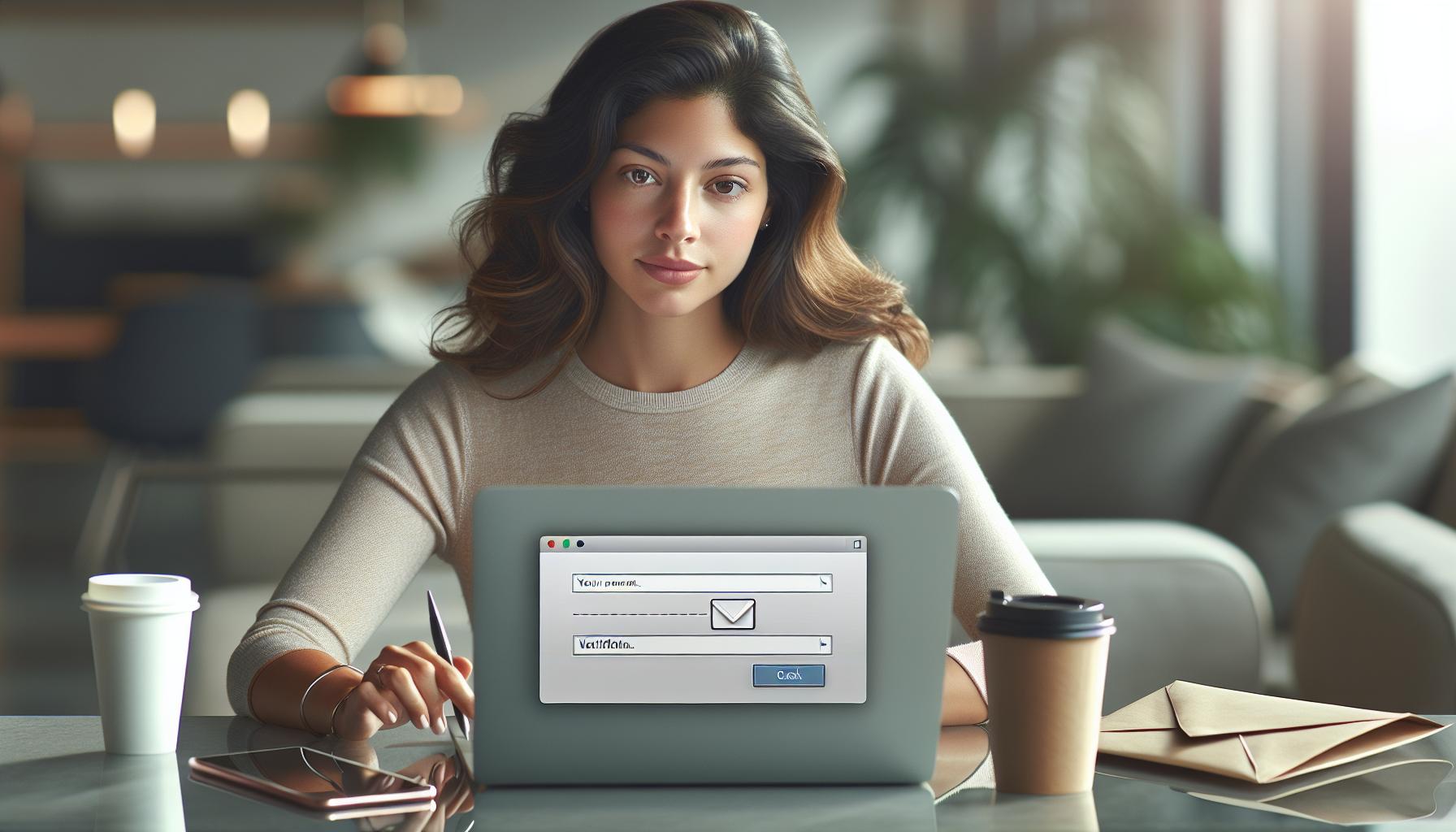
How to Verify Your New Email Address
When you change your email address on Facebook, verifying your new email is a crucial step to ensure that you remain connected and maintain access to your account. In a digital world where privacy and security are paramount, completing this verification process not only reinforces your ownership of the new address but also helps protect your account from unauthorized access. Here’s how to ensure that your new email is up and running, allowing you to stay engaged on the platform without a hitch.
To begin, once you have changed your email on Facebook, you should receive a verification email sent to your new address. If you don’t see it in your inbox shortly after making the change, first check your spam or junk folder. Email filters can sometimes misdirect messages, and it’s always worth a look. If the email has not arrived, here are the steps you can follow:
Steps to Verify Your New Email Address
- Locate the Verification Email: Search your email inbox for a message from Facebook titled something like “Confirm Your New Email Address.” It’s important to look carefully as the email might not appear at the top if there are other incoming messages.
- Open the Email: Click on the verification email to open it. Make sure to check for any security warnings or messages that alert you to potential phishing attempts. Always ensure that the sender’s email address is legitimate (i.e., something like
@facebook.com).
- Click on the Verification Link: Inside the email, you’ll find a link to confirm your new email address. Click on this link, and it will redirect you to Facebook. Upon clicking, you should see a notification that your email has been successfully verified.
- Check Your Account Settings: After verifying, it’s a good idea to double-check your Facebook account settings to ensure your new email is listed as your primary email. You can do this by navigating to Settings & Privacy > Settings > Contact.
If You Didn’t Receive the Email
If you still can’t find the verification email, you may need to resend it. Here’s how:
- Return to Facebook Settings: Go back to your Settings menu.
- Resend Verification: Look for an option that states “Resend verification email” or something similar in the Contact section near your new email address. Click it, and a new verification email should be sent your way.
If issues persist even after resending, consider checking your email provider’s settings to ensure messages from Facebook aren’t being blocked or filtered out.
Common Verification Issues
- Email Filters: Some email services have stringent filters. Adding
@facebook.comto your contacts can help ensure that future emails don’t get lost. - Old Email Accounts: If you’re transitioning from an old email, ensure that it no longer holds primary access to your Facebook account. Transitioning communication fully to your new email is essential for complete verification.
By following these steps and advice, you can swiftly navigate the verification process, solidifying your connection to your Facebook account. The satisfaction of knowing your email is verified brings peace of mind, enabling you to engage fully with your social network. Don’t hesitate to reach out to Facebook Support if you encounter insurmountable issues – they’re there to help ensure your online experience is smooth and secure.
Updating Your Facebook Email on Mobile Devices
Accessing and is a straightforward process that can significantly enhance your account’s security and connectivity. Whether you’re switching to a new email to stay organized or simply want to maintain your privacy, knowing how to do this on your smartphone or tablet ensures you’re always in control of your account.
To get started, whether you’re using the Facebook app for iOS or Android, ensuring you have the latest version installed can prevent any issues. Follow these easy steps to update your email address:
Steps to Change Your Email on Mobile Devices
- Open the Facebook app: Launch the app on your mobile device and log in to your account if you aren’t already.
- Access Settings: Tap on the three horizontal lines (menu icon) usually found in the bottom right corner for iOS or the top right for Android. Scroll down and select Settings & Privacy, then tap on Settings.
- Navigate to Contact Information: Under the Account Settings section, look for Personal Information or Contact Information where your current email addresses are listed.
- Add New Email: Tap on Add another email or mobile number, enter your new email address, and select Add Email to proceed.
- Verify Your New Email: A verification email will be sent to your new address. Make sure to check your inbox and verify it to complete the process.
Things to Keep in Mind
Updating your email on mobile devices comes with its own set of considerations. For maximum efficiency:
- Check for Notifications: Ensure that your device allows notifications from the Facebook app so you don’t miss the verification email.
- Use Mobile-Friendly Browsers: If you prefer the browser, opt for mobile-friendly browsers for better performance, especially when accessing settings.
- Email Service Options: Some email providers have specific settings, like spam filters. Be proactive in adding Facebook’s email domain to your contacts to avoid missing any important emails.
If you encounter any challenges during this process, Facebook’s help center offers a wealth of resources tailored to mobile users. The streamlined interface of mobile applications can sometimes hide features, so patience and exploration may yield the solutions you need. By keeping your email updated, you reinforce the security of your Facebook account and ensure that you always receive important notifications, enhancing your overall experience on the platform.
Tips for Keeping Your Facebook Account Secure
In today’s digitally-driven world, social media security has never been more crucial. With various threats to personal data and privacy online, protecting your Facebook account should be a priority. One of the foundational steps toward ensuring your account’s safety is managing your email address effectively. Here are essential tips to help you keep your Facebook account secure while navigating the platform.
Secure Your Email Account
Your email is often the gateway to your online life, including your Facebook account. Use a strong password that combines letters, numbers, and symbols, and consider enabling two-factor authentication (2FA) on your email provider. This adds an extra layer of protection, making it harder for unauthorized users to access your account.
Review Your Account Settings Regularly
Regularly revisiting your Facebook account settings can help you stay informed about your privacy options. Go to Settings & Privacy > Settings, and review features such as Privacy Shortcuts and Security and Login. Adjust who can see your posts, send friend requests, and look you up based on your email address and phone number. This fine-tuning significantly limits who can connect with you.
Monitor Login Activity
Being aware of your account’s login activity can help you spot any suspicious behavior early. Navigate to Settings > Security and Login. Here, you will find a section that shows where you are logged in. If you spot any devices or locations that you don’t recognize, take immediate action by logging out of those sessions and changing your password.
Beware of Phishing Attempts
Phishing scams are prevalent on social media. Be cautious of unsolicited messages or emails pretending to be from Facebook. Always verify the source of messages, especially if they request sensitive information or direct you to a website. Remember, Facebook will never ask for your password via email or text message. When in doubt, it’s always safer to go directly to the Facebook website through your browser rather than clicking on links in emails.
Utilize Trusted Contacts
Facebook offers a feature that allows you to set up trusted contacts. In the event you become locked out of your account, you can rely on these trusted friends to help you regain access. To set this up, go to Settings > Security and Login > Edit next to the Trusted Contacts section. Choose friends you can depend on and follow the prompts to complete the setup.
By incorporating these practices into your Facebook usage, you can enhance your account’s security and enjoy the platform’s features with greater peace of mind. It’s all about being proactive, staying informed, and understanding that your digital safety starts with your email choices.
Troubleshooting Email Update Problems
Changing your email on Facebook should ideally be a straightforward process, but sometimes users encounter unexpected issues that can lead to frustration. From not receiving the confirmation email to error messages when trying to save changes, these problems can hinder your ability to maintain an up-to-date email address on your account. Here’s how to troubleshoot common email update problems and ensure your Facebook experience remains smooth and secure.
Confirm Your Current Email
Before making any changes, double-check that you’re using the correct email address currently registered with your account. Go to Settings & Privacy > Settings > Contact and take note of the email linked to your profile. If you can access this email, look for an email from Facebook to verify your new address, as this could provide clues on what might be going wrong.
Check Your Spam Folder
If you’re not receiving the verification email, don’t forget to check your spam or junk folder. Sometimes, automated emails can be misclassified by your email provider. If you do find it there, mark it as “not spam” to ensure future communications go directly to your inbox. If you’re still unable to find the email, try sending the verification email again by going back to the email settings on Facebook and selecting the option to resend.
Ensure Your Email is Valid
Make sure that the new email address you are trying to add is a valid format and not already in use on a different Facebook account. Facebook requires that emails are unique for each account. If you attempt to use an address associated with another account, you’ll encounter a warning message. Consider using a different address or temporarily removing the old one to see if that resolves the issue.
Address Browser Issues
Sometimes, browser problems can interfere with saving changes. Clear your browser’s cache and cookies to eliminate any interference from outdated data. Additionally, try using a different browser or device to see if the issue persists. This can often resolve unexplained errors and allow you to complete the update process.
Consider Security Measures
Facebook is designed to protect your account from unauthorized changes. If you face repeated issues, it may be a result of added security measures on your account. Ensure that you have access to any two-factor authentication (2FA) methods you’ve set up. If you’ve recently changed your password, make sure to use the new one when accessing settings.
Seek Support if Necessary
If all else fails and you’re still unable to update your email address, don’t hesitate to reach out to Facebook’s Help Center. They have comprehensive resources, including troubleshooting guides tailored for various issues. You can also report a problem directly through the app or website, providing them with details of your issue, which can expedite the resolution process.
Navigating email updates on Facebook is essential for maintaining account security and ensuring you can recover your account if needed. By following these troubleshooting steps, you can address any barriers to changing your email address and keep your Facebook account secure and up-to-date. Stay proactive and vigilant as you manage your online presence.
How to Manage Multiple Emails on Facebook
Managing multiple email addresses on Facebook can seem daunting at first, but it can significantly enhance your account’s organization and security. By linking more than one email, you can ensure that you receive important notifications, recover your account more easily, and maintain distinct communication for both personal and professional interactions. Here’s how to effectively manage multiple emails on your Facebook account.
Adding Additional Emails
To add an extra email address to your Facebook account, follow these simple steps:
- Navigate to the Settings & Privacy section of your Facebook account by clicking the downward-facing arrow in the top right corner.
- Select Settings and then click on the Contact option in the left column.
- In the Contact section, you can see your primary email address. Click on Add another email or Add another phone number.
- Enter your new email address and select Add. Facebook will then ask you to verify this new email by sending a confirmation link.
This feature is helpful for separating your work and personal communications while ensuring you receive notifications across both domains.
Setting a Primary Email
Once you’ve added multiple emails, you can designate one as your primary email, which will be used for all significant communications from Facebook. To set your primary email:
- Under the Settings > Contact tab, locate your list of email addresses.
- Identify the email you want to set as primary and click on Edit beside it.
- Select the option that says Make this your primary email.
Your primary email will receive all account-related notifications, making it crucial to select one that you check regularly.
Managing Notifications
Each email linked to your Facebook account can receive different types of notifications, depending on your preferences. You may want to adjust your notification settings to streamline which emails get bombarded with updates. Here’s how:
- Go to Settings & Privacy > Settings.
- Click on Notifications in the left sidebar.
- You’ll find options to customize how you receive notifications-by email, messenger, or via the Facebook app itself. You can turn off notifications for email addresses you don’t check as often.
Managing notifications helps minimize clutter in your inbox while still keeping you informed on essential updates.
Ensuring Security and Privacy
Having multiple email addresses linked to your Facebook account not only helps in managing communications but also improves account security. If you suspect any unauthorized access, you can change your primary email to another address immediately. It’s vital to ensure:
- All email addresses linked to your account are secure and not shared with anyone.
- Two-factor authentication (2FA) is enabled for an added layer of security.
- Your email settings are regularly reviewed to avoid outdated or unused addresses that could become security risks.
By proactively managing your email addresses associated with Facebook, you can enhance both your user experience and the safety of your online presence. This way, you’re not only keeping up with your social interactions but also safeguarding your personal information across digital platforms.
What to Do If You Can’t Access Your Email
Sometimes, accessing your email can become a hurdle when trying to update your Facebook account settings. A forgotten password, an expired email service, or even suspicion of hacking can leave you locked out of crucial functions, including changing your email address on Facebook. Fortunately, there are several steps you can take to regain access and ensure your account remains secure.
Recovering Your Email Account
The first step is to attempt to recover your email account. Most email providers offer recovery options, such as answering security questions, receiving a verification code via SMS, or using a backup email. Here’s a general guideline to regain access:
- Visit your email provider’s website and navigate to the login page.
- Click on “Forgot Password?” or similar prompts.
- Follow the on-screen instructions to verify your identity and set a new password.
Once you regain access to your email, you can follow the steps to update your email on Facebook securely. If your email account remains inaccessible, you must consider alternative solutions to protect your Facebook account.
Using Facebook’s Help Center
If you are unable to recover your email account, visit the Facebook Help Center. Here, you can find specific guidance on what to do if you’re experiencing trouble accessing your account. Facebook provides options to verify your identity, such as:
- Submitting identification documents through their secure channels.
- Accessing trusted contacts who can help you regain account access.
- Following specific instructions tailored to your problem.
Utilizing these resources may take some time, but they offer a path to recover your account, ensuring that you don’t lose your online presence.
Updating Your Email from a Trusted Device
If you’ve managed to access your Facebook account from a trusted device, it may be possible to change your email without needing your old email. Here’s how:
- Log into your Facebook account and go to Settings & Privacy.
- Select Settings and navigate to the Contact section.
- Click on Add another email and follow the prompts to enter a new email address.
- Once you receive a verification email at the new address, confirm it to complete the process.
This method allows you to continue using Facebook while you figure out the solutions for your original email issue.
Considerations for Security
Maintaining security while dealing with email access problems is crucial. Ensure that any new email you choose has strong password protection and two-factor authentication enabled. This added layer safeguards your Facebook account from unauthorized access while you troubleshoot email issues. Keeping your Facebook account secure is essential, especially if you have many contacts or rely on it for business communications.
Stay patient during this process, as troubleshooting can sometimes be frustrating. By utilizing the right recovery methods and resources, you can successfully access your account and change your email address, keeping your Facebook experience seamless and secure.
Understanding Facebook Email Notifications
Facebook’s communication system hinges heavily on email notifications, serving as a vital bridge between the platform and its users. These notifications can inform you about activity on your account, such as friend requests, messages, comments, and more. Understanding how these notifications work not only helps you manage your account more efficiently but also enhances your overall experience on Facebook.
One of the primary reasons to keep your email updated is to ensure you receive important notifications in real time. For instance, if someone sends you a message or tags you in a post, Facebook will usually notify you via the email linked to your account. If your email is outdated or inaccessible, you risk missing out on critical updates or communications. To check or manage your notification settings, you can:
- Log into your Facebook account and go to Settings & Privacy.
- Select Settings and then click on Notifications.
- Here, you will find various notification options that you can customize according to your preferences, including how and when you receive email alerts.
It’s important to be cautious about email notifications, especially in a landscape where phishing attacks are prevalent. Always verify that notifications you receive are genuinely from Facebook. Emails that prompt you to click on suspicious links or provide personal information should be treated with skepticism. You can protect your account by checking the sender’s email address and ensuring it matches Facebook’s official domains.
Lastly, being aware of Facebook’s notification preferences allows you to tailor your user experience. Opting to receive fewer notifications can reduce inbox clutter, making it easier to focus on what matters most to you, whether connecting with friends or managing a business page. Remember, taking control of your email notifications not only enhances your interaction with the platform but also mitigates security risks, ensuring your account remains a safe and welcoming space.
The Importance of Email Privacy on Facebook
Maintaining the privacy of your email address is crucial when navigating Facebook, as it serves as your gateway to notifications, account recovery, and communication with friends and family. Your email not only connects you to your online social network but also can be a target for malicious intent, such as phishing scams and unwanted solicitations. Being proactive about who has access to your email can significantly reduce the risk of unauthorized access to your account and personal information.
One of the first steps in safeguarding your email privacy is to ensure that your email address isn’t displayed publicly on your profile. By default, Facebook allows you to control the visibility of your email address. To adjust these settings, follow these simple steps:
- Log into your Facebook account.
- Go to Settings & Privacy and select Settings.
- Click on Privacy in the left-hand menu.
- Locate the section labeled Your Activity and look for Who can see your email address?
- Choose your preferred audience (Friends, Only Me, etc.) from the dropdown menu.
Be mindful of the types of emails you receive from Facebook. Cybercriminals often craft fake emails that look legitimate, aiming to extract your account information. Always check the sender’s email address; it should end with “@facebook.com.” If the email prompts you to click on a link or provide personal information, approach it with caution. Instead of clicking on links within emails, navigate directly to Facebook by typing the web address into your browser. This helps ensure that you’re using the genuine site.
Moreover, consider enabling two-factor authentication (2FA) for an added layer of security. This means that even if someone were to acquire your password, they would need access to a second form of verification-often sent to your email or mobile device-before they could log in. To set this up, go to your account settings, select Security and Login, and follow the prompts to enable 2FA.
Email privacy is not just an option; it’s a necessity. By staying informed and proactive about your email settings and security measures, you can ensure that your Facebook experience remains safe and enjoyable, allowing you to focus on connecting with your friends rather than worrying about the safety of your information.
Faq
Q: How can I check if my Facebook email change was successful?
A: To verify if your Facebook email change was successful, log into your account and go to your Settings. Check under “Contact” to ensure your new email is listed as your primary email. You’ll also receive a confirmation email at your new address. For more details, refer to the section on verifying your new email address.
Q: What should I do if I don’t receive the confirmation email from Facebook?
A: If you don’t receive the confirmation email from Facebook, first check your spam folder. If it’s not there, ensure your email is correctly entered in the settings. You might also consider resending the confirmation. For further troubleshooting steps, see our common issues section.
Q: Can I revert back to my old email on Facebook after changing it?
A: Yes, you can revert to your old email on Facebook at any time. Simply follow the same steps to update your email in the settings and enter your previous email address. For a detailed guide, check the step-by-step section of our article.
Q: Is it possible to use multiple emails for my Facebook account?
A: Yes, you can add multiple emails to your Facebook account, allowing you to receive notifications and updates at more than one email address. Manage these emails in your account settings under the “Contact” section. For tips on this, refer to how to manage multiple emails on Facebook.
Q: What happens to my Facebook account if I lose access to my email?
A: If you lose access to your email, it may complicate your ability to recover your Facebook account if you forget your password. It’s crucial to add a secondary email or phone number for recovery purposes. More information is available in the “What to Do If You Can’t Access Your Email” section.
Q: How often can I change my email address on Facebook?
A: You can change your Facebook email address frequently, but there may be temporary restrictions if you make multiple changes in quick succession. It’s advisable to wait a few days before making further changes. For more insight, refer to the common issues section of the article.
Q: Why is it important to keep my Facebook email updated?
A: Keeping your Facebook email updated is essential for account security and recovery options. It ensures you receive important notifications and can quickly recover your account in case of a security breach. Learn more in our section on the importance of email privacy on Facebook.
Q: What if I can’t find the option to change my email on Facebook?
A: If you’re unable to locate the option to change your email, ensure you’re using the latest version of the Facebook app or website. Check the Help Center for troubleshooting tips. Refer to the “How to Access Your Facebook Account Settings” section for guidance.
Feel free to explore other sections in our article to enhance your knowledge on managing your Facebook account effectively!
Future Outlook
Congratulations on successfully changing your email for Facebook! This important update not only enhances your account security but also ensures you stay connected with friends and updates. If you still have questions or need additional assistance, don’t hesitate to explore our detailed guides on Managing Facebook Privacy Settings and Optimizing Your Facebook Business Page.
Now is the perfect time to take control of your online experience – log in and verify your new email to ensure everything is seamless! Stay aware of any future changes by subscribing to our newsletter for exclusive tips and insights. We value your privacy and are here to support you in navigating Facebook’s many features confidently.
If you found this guide helpful, please share it with friends or leave a comment below to let us know your thoughts! Your engagement helps us provide even more valuable resources tailored to your needs. Keep exploring our site for more practical solutions and updates to make your Facebook experience even better!


