

Did you know that nearly 2.89 billion people use Facebook, making it a prime target for hackers? With that staggering number, protecting your personal information has never been more critical. If you’re worried about the security of your Facebook account on your iPhone, changing your password is a crucial step to safeguard your data. Whether you’ve recently had a security scare or simply wish to enhance your digital privacy, knowing how to change your password is key. In this article, we’ll guide you through the straightforward process of updating your Facebook password on your iPhone, ensuring your account remains secure from unauthorized access. Keep reading to learn not just how to change your password, but also tips on creating a strong one that protects your online presence effectively!
How to Access Facebook Settings on iPhone
To manage your Facebook settings effectively, especially when looking to change your password, it’s essential to know how to access your settings on the iPhone app. With an intuitive interface, Facebook makes it relatively straightforward to navigate through its features, yet first-time users often feel overwhelmed. Once you familiarize yourself with the layout, you’ll be able to safeguard your account with ease.
Start by opening the Facebook app on your iPhone. If you’re not logged in, enter your credentials to access your account. Once you’re logged in, focus on the bottom right corner of your screen, where you’ll see the three horizontal lines, commonly referred to as the “hamburger menu.” Tap on this icon to reveal a list of options. From here, scroll down until you find the “Settings & Privacy” option. Tap on it, and then select “Settings” for direct access to various account settings.
Exploring the Settings Menu
Inside the Settings menu, you’ll find several sections dedicated to different aspects of your account. Here are some key categories to pay attention to:
- Account Settings: This section includes options for changing your password, managing your login information, and setting up two-factor authentication.
- Privacy Settings: Here you can control who sees your posts, manage your friends list, and review other important privacy features.
- Security Settings: This area is crucial for enhancing account protection, where you can check for active logins, set up alerts for unrecognized logins, and adjust who can contact you.
When you’re looking to change your password specifically, navigate to the “Security and Login” section. Here, you’ll see options related to your password and can follow the prompts to set a new password securely. Remember, staying informed about the evolving features within Facebook can empower you to maintain a robust online presence and secure your account effectively.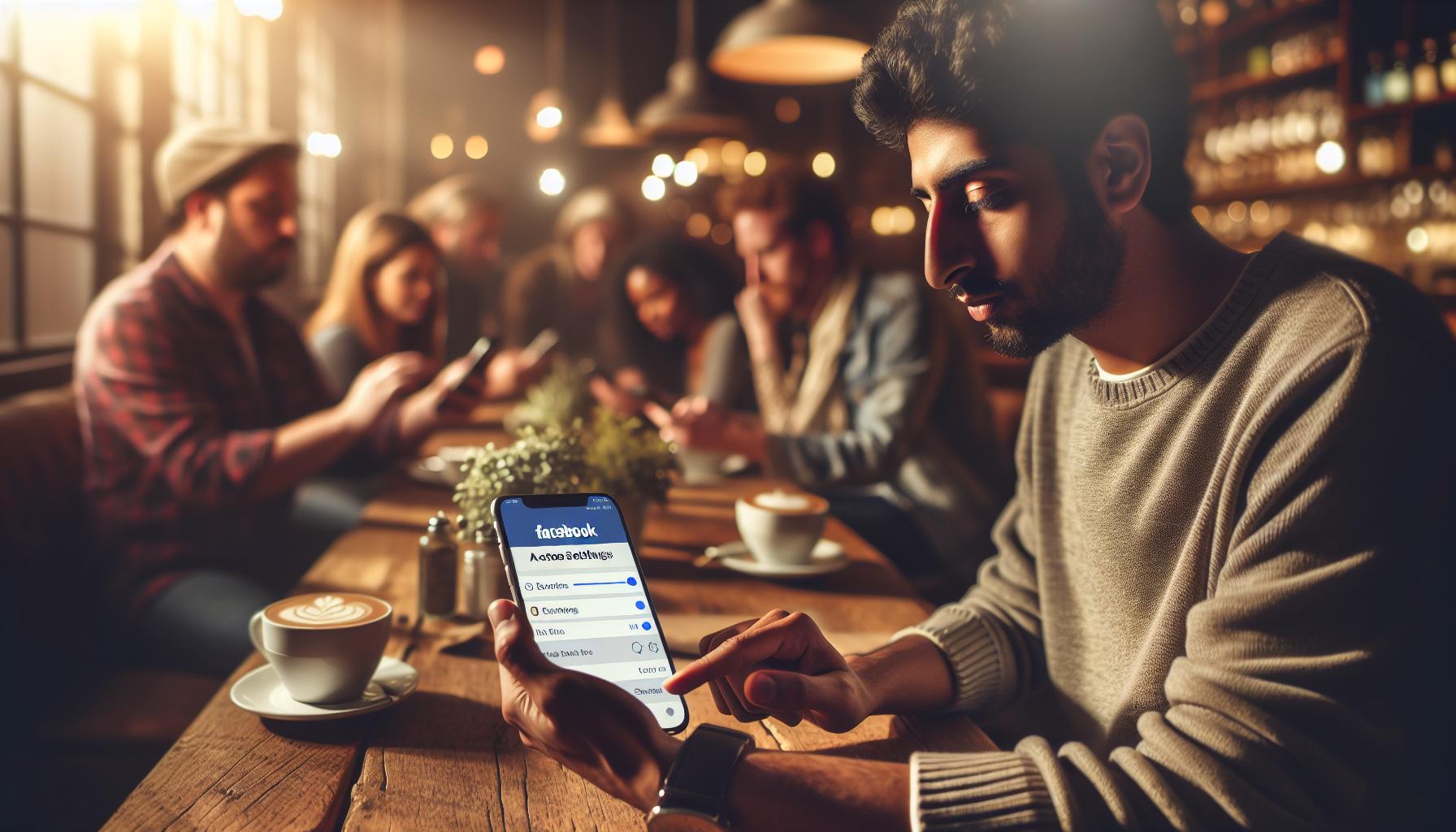
Step-by-Step Guide to Change Your Facebook Password
Changing your Facebook password is an essential practice to ensure the security of your account, especially in today’s digital age where cyber threats are prevalent. Many users might find navigating the Facebook interface a tad confusing, but with a simple, step-by-step approach, you can quickly update your password and enhance your account security. Here’s how you can do it effortlessly from your iPhone.
Begin by launching the Facebook app on your iPhone. After logging in, direct your attention to the bottom right corner where you’ll see the three horizontal lines, known as the “hamburger menu.” Tap on it to unveil a range of options. Scroll down to the “Settings & Privacy” option and tap to expand the menu, then select “Settings.” This will take you to a comprehensive settings menu where you can manage various aspects of your account.
Locating the Password Change Option
In the Settings menu, look for the “Security and Login” section. It’s here that you can implement changes to your account’s password. Upon entering this section, you’ll see the option labeled “Change Password.” Tap on it to bring up the password change screen.
You’ll need to enter your current password, followed by your new password. When choosing a new password, prioritize strength by including a mix of upper and lower case letters, numbers, and symbols, consisting of at least 8 characters. This strategy is critical for keeping your account safe from unauthorized access. After confirming your new password, tap “Save Changes” to finalize the update.
Ensuring a Smooth Transition
Once you’ve successfully changed your password, it’s wise to review your login settings. You might want to consider logging out of devices that you no longer use or that may be at risk. To do this, return to the “Security and Login” section and scroll to “Where You’re Logged In.” Here, you can view all devices currently signed into your account. If you notice any suspicious devices, simply tap on them and select “Log Out.”
Changing your password doesn’t just protect your account; it’s a proactive step towards safeguarding your personal information. By following these straightforward steps, you’ll be able to navigate Facebook’s settings confidently and maintain a secure online presence. Remember, setting a strong password and revisiting it periodically can significantly bolster your account’s security.
Importance of a Strong Password for Security
A robust password serves as the first line of defense against unauthorized access to your Facebook account. In an era where data breaches and hacking attempts are alarmingly common, the strength of your password can significantly influence your online security. Weak passwords, often made up of easily guessable words or patterns, leave your account vulnerable to theft, which can have severe repercussions in both your personal and professional life. A strong password is not merely a formality; it’s an essential protection for your privacy and sensitive information.
To enhance your security, consider adopting the following principles when creating your password:
- Length Matters: Aim for at least 12 characters. Longer passwords are exponentially harder to crack.
- Complexity is Key: Use a mix of upper and lower case letters, numbers, and special characters. For instance, instead of “Password123”, opt for “P@55w0rd!2023”.
- Avoid Common Choices: Stay away from easily obtainable information such as birthdays, names, or common phrases.
- Unique for Each Account: Don’t reuse passwords across different sites. If one account is compromised, others can be too.
H3>Real-World Examples of Password Breaches
Cybercriminals often utilize information from previous breaches to crack accounts. For example, in the 2019 breach of a popular website, over 100 million passwords were stolen, many of which were weak. In this case, countless users found their Facebook accounts compromised simply because they reused a password that was exposed in the breach.
On the other hand, adhering to strong password practices can provide you with peace of mind. If you use a unique, complex password for your Facebook account, even if a hacker can access another site where you’ve used a different password, your Facebook data remains protected. This highlights how each user’s choices directly impact their security.
Overall, investing a little time in crafting a strong password can save you from significant distress and loss. By proactively updating your password and choosing a strong one, you can navigate Facebook more confidently. Remember, it’s not just about maintaining your social media presence; it’s about safeguarding the personal information that comes with it.
Troubleshooting Common Password Change Issues
Changing your Facebook password on an iPhone is a straightforward process, but it’s not uncommon for users to encounter hurdles along the way. If you find yourself struggling, rest assured that many others have faced similar challenges-and there are solutions to each. Here are some common issues you might run into while attempting to change your Facebook password, along with practical solutions to help you navigate them confidently.
One of the frequent problems users face is being unable to remember their current password. Facebook requires you to input the existing password before you can create a new one. If you’re stuck in this predicament, use the “Forgot Password?” link on the login page. This option will guide you through a series of prompts to verify your identity, allowing you to reset your password securely via your email or phone number linked to your account.
Account Locked or Suspended
Sometimes, after multiple unsuccessful login attempts when changing your password, Facebook may temporarily lock your account for security purposes. If this happens, don’t panic. Simply follow Facebook’s on-screen instructions to recover your account. This may involve answering security questions or verifying a code sent to your registered email or phone number.
Error Messages During Password Change
If you encounter error messages during the password change process, ensure that your new password meets Facebook’s security requirements. This includes having a mix of uppercase and lowercase letters, numbers, and special characters. If the message persists, consider refreshing the app or logging out and back in. Sometimes, technical glitches can be resolved simply by restarting the application.
Two-Factor Authentication Issues
If you have Two-Factor Authentication (2FA) enabled, you may encounter additional prompts when changing your password. In some cases, users may not receive the verification code via SMS or email. If this happens, ensure your network connection is stable and that your contact information is up to date in your account settings. You can also check your spam folder for missing emails. If you’re still not receiving codes, consider temporarily disabling 2FA while you resolve the password change issue.
By preparing yourself for these potential challenges, you can change your Facebook password with greater ease and assurance. Remember, your account security is paramount, and troubleshooting these common issues will empower you to maintain a safer online presence. Should any complications arise, reach out to Facebook’s Help Center for further assistance-it’s there to support you in safeguarding your account.
Additional Security Features for Your Facebook Account
Ensuring the security of your Facebook account involves more than just changing your password; it includes utilizing various security features provided by Facebook to protect your personal information. Facebook offers several tools designed to enhance your account’s security, enabling you to take control of your privacy and safeguard against unauthorized access. Familiarizing yourself with these features can help you maintain a secure online presence.
Login Alerts
One of the first features to consider is Login Alerts, which notify you whenever someone logs into your account from an unrecognized device or browser. To enable this feature, follow these steps:
- Open the Facebook app on your iPhone and navigate to Settings & Privacy.
- Tap on Settings.
- Scroll down to Security and Login.
- Find Get Alerts About Unauthorized Logins and toggle it on.
By receiving alerts directly to your mobile device or email, you’ll be immediately informed of any suspicious activities on your account, allowing you to take prompt action.
Recognizing Unrecognized Devices
Facebook allows you to review the devices that have accessed your account recently. To check this:
- From the Security and Login section in the settings, scroll to Where You’re Logged In.
- Here, you can see a list of devices currently signed into your account.
If you spot any unknown devices or sessions, you can log out from them immediately to secure your account.
Password Manager Integration
Consider utilizing a password manager to help manage your Facebook credentials securely. A password manager can generate and store strong passwords, helping you avoid password fatigue from trying to remember complex combinations. Many password managers also offer features like auto-fill, making it easier to log in without compromising security.
Reviewing Privacy Settings
An often-overlooked aspect of account security is your privacy settings. Regularly reviewing who can see your posts, friend list, and personal information is crucial. To access your privacy settings:
- Go to Settings & Privacy and tap Settings.
- Select Privacy to adjust who can view your content and profile information.
Tailoring these settings to your comfort level can significantly reduce the risks of unwanted attention or data breaches.
Utilizing these additional security features arms you with the tools needed to protect your Facebook account proactively. By engaging with these settings, you’ll enhance not only your account security but also your overall confidence while using the platform. As you navigate through your Facebook experience, always remember that proactive engagement with these features is key to maintaining your personal safety online.
How to Enable Two-Factor Authentication on Facebook
Enabling two-factor authentication (2FA) on your Facebook account is a crucial step toward enhancing your security, especially in an age where online threats are becoming increasingly sophisticated. With 2FA, even if someone obtains your password, they won’t be able to access your account without a second form of verification. This additional layer of security uses your mobile device to ensure that you’re the only one who can log in, making it significantly harder for unauthorized users to gain access to your personal information.
The process of setting up two-factor authentication on Facebook can seem daunting at first, but it’s a straightforward procedure that only takes a few minutes. To get started, open the Facebook app on your iPhone, then follow these steps:
Step-by-Step Setup for Two-Factor Authentication
- Navigate to Settings & Privacy from the menu.
- Tap on Settings.
- Scroll down and select Security and Login.
- Locate the option labeled Two-Factor Authentication and tap on it.
- You will be prompted to choose your preferred method of authentication. You can opt for an authentication app or receive codes via SMS. Select the option that suits you best, then tap on Continue.
- If you choose the SMS option, you’ll enter your phone number to receive verification codes. If you opt for an authentication app, follow the instructions to sync it with your Facebook account.
- Follow the prompts to complete the setup, which may include entering a code sent to your phone or generated by the app.
- Once enabled, you’ll be asked to enter a code whenever you log in from a new device or after clearing your app’s data.
Why This Matters
Implementing two-factor authentication means you’re taking serious measures to protect your identity and personal data on Facebook. Hackers are always looking for weak points to exploit, and passwords alone are no longer sufficient. By using 2FA, you are effectively adding a second layer of defense that significantly diminishes the likelihood of unauthorized access. Not only does this enhance your account’s security, but it also fosters peace of mind knowing that you’re taking proactive steps to safeguard your information.
Additional Considerations
It’s important to remember that while two-factor authentication greatly improves your security, it is not entirely foolproof. Always remain vigilant against phishing attempts, which can trick you into giving away your authentication codes. If you ever receive a suspicious message or call asking for your verification code, remain cautious and do not provide it. Keeping your recovery information updated and familiarizing yourself with Facebook’s security features can further strengthen your defenses.
By following these practical steps, you empower yourself to navigate Facebook with confidence, knowing that your personal information is secure from potential threats. Engaging with these security features reflects a proactive approach to online safety, ensuring you enjoy your Facebook experience without unnecessary vulnerabilities.
When to Update Your Password: Best Practices
Maintaining the security of your Facebook account hinges on one crucial element: your password. The guidance on when and how to update your password can save you from potential breaches. It’s recommended to change your password regularly, but there are specific scenarios where updating it becomes even more critical.
Regularly changing your password every few months is a good practice. This not only mitigates the risk of unauthorized access but also ensures that if your password has been compromised without your knowledge, you can regain control before any damage is done. Consider setting a reminder on your phone’s calendar or a note in your diary to prompt you in this regard.
In addition to a routine update, be vigilant and proactive if you observe any of the following situations:
- When you suspect a breach: If you notice any unusual activity on your account, such as messages you didn’t send or posts you didn’t make, it’s time to change your password immediately.
- After sharing your password: If you have ever shared your password with anyone or used an unsecured device to log in to Facebook, it’s a smart move to reset your password to ensure your account remains secure.
- Following a data breach: Keep an eye on news regarding data breaches. If Facebook or any app linked to your account is compromised, change your password as soon as you hear of it.
- After logging in from a public or shared device: Public Wi-Fi or shared computers can be insecure. If you’ve accessed your account from such a place, consider changing your password based on the risk involved.
- Adhering to industry advice: Cybersecurity experts frequently advise changing your password if it has been the same for several years, regardless of whether there’s a specific incident prompting it.
It’s worth noting that complexity is key in creating a secure password. When you do decide to change your password, opt for a combination of letters (both upper and lower case), numbers, and symbols. Aim for a length of at least 12 characters to minimize the chance of it being guessed.
Incorporating these best practices not only reinforces your account’s security but also instills a sense of confidence when navigating Facebook. Building a habit of regular password updates empowers you to stay ahead of threats while enjoying the platform’s multitude of features with peace of mind.
What to Do If You Forget Your Facebook Password
Forgetting your Facebook password can feel frustrating, especially if you rely on the platform for staying connected with friends or managing your professional presence. Fortunately, Facebook provides a straightforward process to regain access to your account, ensuring you can continue using its features without undue stress.
When you find yourself locked out, the first step is to go to the Facebook login page and click on the Forgotten password? link located beneath the password entry field. This will take you to a new page where you can enter your email address or phone number associated with your account. Once you’ve done that, Facebook will guide you through a verification process.
Steps to Recover Your Facebook Password
- Enter your Details: Input your email address or phone number and click “Search.” This will help Facebook locate your account.
- Select a Recovery Option: You’ll be presented with options for receiving a verification code, typically via email or SMS. Choose the one that best suits your needs and click “Continue.”
- Check Your Messages: Look out for a message from Facebook containing the verification code. Make sure to check your spam folder if it doesn’t appear in your inbox promptly.
- Enter the Code: Input the code you received and click “Continue.” If the code is valid, Facebook will allow you to create a new password.
- Create a New Password: Ensure your new password is strong and unique, ideally combining upper and lower-case letters, numbers, and special characters.
After successfully resetting your password, take a moment to review your security settings to enhance your account’s protection. Enable two-factor authentication to add an extra layer of security, ensuring that even if someone grabs your new password, they won’t have easy access to your account without a secondary verification method.
Tips to Prevent Future Password Issues
It’s insightful to adopt a proactive approach once you regain access. Here’s how to minimize the chances of forgetting your password again:
- Use a Password Manager: These tools can securely store and generate strong passwords, reducing the burden of remembering them.
- Write It Down: If you prefer the old-fashioned method, jotting down your password in a secure location can help.
- Regularly Update Passwords: As discussed earlier, making it a habit to change your password periodically keeps your account secure.
With these steps and tips in mind, navigating the intricacies of Facebook becomes significantly smoother, allowing you to focus on what truly matters: connecting with others and engaging with the platform’s array of features.
How to Recognize Phishing Scams on Facebook
With the rise of social media, phishing scams have become a prevalent threat, especially on platforms like Facebook where users share a wealth of personal information. Recognizing these scams is crucial for maintaining the security of your account, particularly after you’ve taken the steps to change your password on your iPhone. Understanding the red flags can empower you to navigate the platform with confidence and protect your online identity.
Phishing scams often impersonate trustworthy sources to trick users into divulging sensitive information such as passwords, credit card numbers, or personal details. These scams can take various forms, including deceptive emails, fake webpages, or even fraudulent messages sent through Facebook Messenger. Here are some key indicators to watch out for:
- Unusual URLs: Always check the website address before entering your credentials. Phishing sites often use misspelled variations of legitimate URLs or completely different domains. For example, a site may try to mimic Facebook’s login page but may have a URL like “facebok.com” instead of “facebook.com.”
- Urgent Language: Be wary of any message that creates a sense of urgency, urging you to act quickly or else face negative consequences, such as account suspension or loss of access. Scammers often instill fear to prompt hasty actions.
- Suspicious Attachments or Links: If you receive a message with a link asking you to click for a reward, urgent updates, or to confirm your identity, think twice. Hover over the link (without clicking) to see the actual URL-it may not lead to the expected destination.
- Unrecognized Senders: If you receive messages from unfamiliar accounts asking for personal information or claiming to be someone you know, verify their identity through a different method before responding.
Educating yourself about these tactics is the first step in safeguarding your account. If you suspect that you’ve fallen victim to a phishing attempt, take immediate action by changing your password again, enabling two-factor authentication, and reporting the suspicious message or account to Facebook.
Lastly, maintaining an up-to-date awareness of how phishing scams evolve will bolster your defenses. Always keep an eye out for Facebook’s official resources on security tips, as they frequently update users on the latest threats. By staying informed and vigilant, you can navigate Facebook securely and enjoy your interactions without the cloud of phishing scams hanging overhead.
Securing Your Facebook Account: Privacy Settings Overview
Navigating Facebook’s privacy settings can feel overwhelming, but taking the time to customize these controls is vital for protecting your personal information. A well-structured privacy approach can prevent unwanted eyes from viewing your content and safeguard you from potential threats, especially after you’ve enhanced your account security with a strong password and two-factor authentication. You hold the power to control who sees your posts, how others can reach you, and what data is shared.
Start by reviewing your privacy settings directly from your profile. To access these settings on your iPhone, open the Facebook app and tap on the three horizontal lines located in the bottom right corner. Scroll down and select “Settings & Privacy,” then tap on “Settings.” Under the “Privacy” section, you will find options like “Who can see your future posts?” that allow you to customize visibility on a granular level. Consider switching this to “Friends” or “Only me” for heightened security, especially for sensitive content.
Adjusting Your Profile’s Visibility
You can also manage who can see your profile information. Under the “Profile and Tagging” section within your settings, you can control who can post on your timeline, who can tag you in posts, and who can see posts you’re tagged in. For many users, selecting “Friends” for these options strikes a balance between sharing memories and maintaining your privacy.
Additionally, you should review the “Public Posts” option. If set to “Public,” anyone can view your posts, even if they’re not your friends. Restrict this to “Friends” or “Friends of Friends” to ensure that your posts aren’t accessible to individuals outside your immediate network. This approach is particularly important when engaging with public pages or groups, where it’s easy to accidentally share more than intended.
Using Activity Log for Enhanced Oversight
To maintain an ongoing check on your interactions, utilize the “Activity Log.” This tool allows you to see what you’ve shared, what others have tagged you in, and any comments or likes you’ve given. Review this log regularly to remove content or adjust settings if you notice anything that doesn’t align with your privacy strategy. In addition, consider limiting who can send you friend requests or message you through the “Who can send you friend requests?” and “Who can look you up using the email address or phone number you provided?” settings.
Remember, ensuring your privacy on Facebook is not a one-time task; regularly revisiting these settings helps keep your account secure and aligned with your comfort level. By actively managing your privacy settings, you can enjoy Facebook’s features more fully and interact with friends and family without the worry of exposing your personal information to prying eyes. Empower yourself with knowledge and confidence as you navigate Facebook’s evolving landscape, making it a space that works for you.
Additional Tips for Protecting Your Facebook Profile
Protecting your Facebook profile is essential in a digital landscape where privacy concerns abound. By actively managing your profile settings and being aware of the features Facebook offers, you can enhance your security and maintain control over your personal information. Here are some practical tips to help you strengthen your profile protection.
One effective strategy is to regularly review your friend list. Only accept friend requests from people you know and trust, and periodically conduct a friend audit to remove connections that no longer feel relevant or secure. Additionally, consider adjusting your friend settings by using the “Friends Lists” feature. This allows you to share content selectively-enabling you to communicate more privately with certain groups while keeping your broader audience in mind.
Using Facebook’s audience selector for individual posts also adds an extra layer of security. Before hitting “Post,” take a moment to choose who can see that specific update from the dropdown menu. Opt for options like “Friends,” “Friends except…” or “Only me” when sharing sensitive content. Moreover, if you’re sharing photos or videos, think about tagging settings carefully. Tags can expose you to a wider audience, so consider turning off tagging reviews to keep control over what appears on your profile.
Another essential action is to activate your login alerts and app settings. Under “Settings & Privacy,” navigate to “Security and Login,” where you can enable notifications for unrecognized logins, ensuring you’re informed if someone attempts to access your account without permission. Regularly audit the apps connected to your Facebook account as they can also pose security risks. Remove any applications you no longer use or trust, and double-check their permissions before granting access to your Facebook data.
Lastly, educating yourself about recent scams or phishing attempts is vital. Being able to identify suspicious messages or requests will further safeguard your account. Trust your instincts-if something feels off about a message requesting personal information, it’s better to err on the side of caution and report it to Facebook.
By implementing these strategies and staying vigilant about your profile’s security, you can protect your personal information and enjoy a more secure experience on Facebook. Your online safety is in your hands; take proactive steps to ensure it remains that way.
Q&A
Q: How do I reset my Facebook password using my email on iPhone?
A: To reset your Facebook password using your email on iPhone, open the Facebook app and tap on “Forgot Password?” on the login screen. Enter your email address, then check your inbox for a password reset link and follow the provided instructions. For more details, refer to the “What to Do If You Forget Your Facebook Password” section in our article.
Q: What should I do if I can’t change my Facebook password on iPhone?
A: If you’re unable to change your Facebook password on your iPhone, try clearing the app cache or reinstalling the app. Ensure your iPhone is updated to the latest iOS version. You can find more troubleshooting tips in our “Troubleshooting Common Password Change Issues” section.
Q: Why is it important to change my Facebook password regularly?
A: Regularly changing your Facebook password enhances security by reducing the risk of unauthorized access. It’s recommended to update your password at least every three to six months. To learn more about security best practices, check our “When to Update Your Password: Best Practices” section.
Q: How can I check if my Facebook account has been compromised?
A: To check if your Facebook account has been compromised, review your login history under Settings > Security and Login. Also, enable alerts for unrecognized logins and consider changing your password. For further security tips, see our “How to Recognize Phishing Scams on Facebook” section.
Q: Can I use my phone number to change my Facebook password on iPhone?
A: Yes, you can use your phone number to change your Facebook password. On the login screen, tap “Forgot Password?” and select your phone number as the recovery option. Follow the text message instructions to reset your password. This method is covered in our main article.
Q: How do I enable biometric login for Facebook on my iPhone?
A: To enable biometric login for Facebook on your iPhone, go to the app’s Settings, find “Security and Login,” then turn on “Face ID” or “Touch ID” for easier access. This feature enhances your account security. For more on additional security measures, check our “Additional Security Features for Your Facebook Account” section.
Q: What are the signs of Facebook account hacking?
A: Signs of a hacked Facebook account include unfamiliar posts on your timeline, messages sent without your knowledge, or difficulty accessing your account. If you notice these signs, change your password immediately and review your security settings. Our article covers how to secure your account comprehensively.
Q: When is the best time to change my Facebook password?
A: The best time to change your Facebook password is after a significant security alert, like a data breach, or if you’ve shared your login with someone. Regular updates every few months are also advisable for ongoing protection. See our article’s “When to Update Your Password: Best Practices” for more guidance.
In Conclusion
Congratulations on taking the important step to secure your Facebook account by changing your password on your iPhone! By following the guidelines we’ve shared, you’re not just protecting your personal information but also enhancing your overall online safety. If you have any lingering questions or need assistance with privacy settings, be sure to check out our detailed guides on Enhancing Your Privacy on Facebook and Understanding Facebook’s Security Features.
Now, don’t just stop here. Take action today – make sure to explore our Facebook Help Center for troubleshooting tips and best practices. If you found this guide helpful, consider subscribing to our newsletter for more expert insights and updates on navigating Facebook’s various features with confidence.
Comment below if you have any questions, or share your own tips and experiences with changing passwords on social media. Your engagement helps our community grow, and we’d love to hear from you! Keep your account safe and stay informed. Remember, a secure Facebook experience is just a few clicks away!


